Help
How to run a tailgate and keep the record. Written for foremen and the crew.
Pictures are the FASTSIGNS sample company. The gold bar says the data is sample data, not a live safety file. The heat and smoke pictures use a sample reading (88°F now, forecast high 96°F, PM2.5 AQI 180) so both buttons show. Your screen uses the live forecast. The banner says SAMPLE READING when that sample forecast is on.
Numbers on a picture match the numbered steps under it.
Quick start
The short path for a foreman who needs to hold today's tailgate.
This is the one-page path. The rest of the manual walks the same screens more slowly.
- Sign in. On a practice company the gold bar says the records are sample data.
- Look at the counts on Home. Overdue means the crew missed the 10-working-day clock. Due soon means two working days or fewer are left.
- Read the heat and smoke banner for the job. If it shows Start heat meeting or Start smoke meeting, use that button. A competent person on the job still decides.
- Say the talk, write the hazards, and write any fix under Corrective actions.
- Start kiosk on a shared tablet, or let people scan the QR with their own phones.
- When everyone who is there has signed, check I am done collecting signatures and press Close sign-in.
- An owner, admin, or that crew's foreman can export the inspection packet when someone asks for the file.
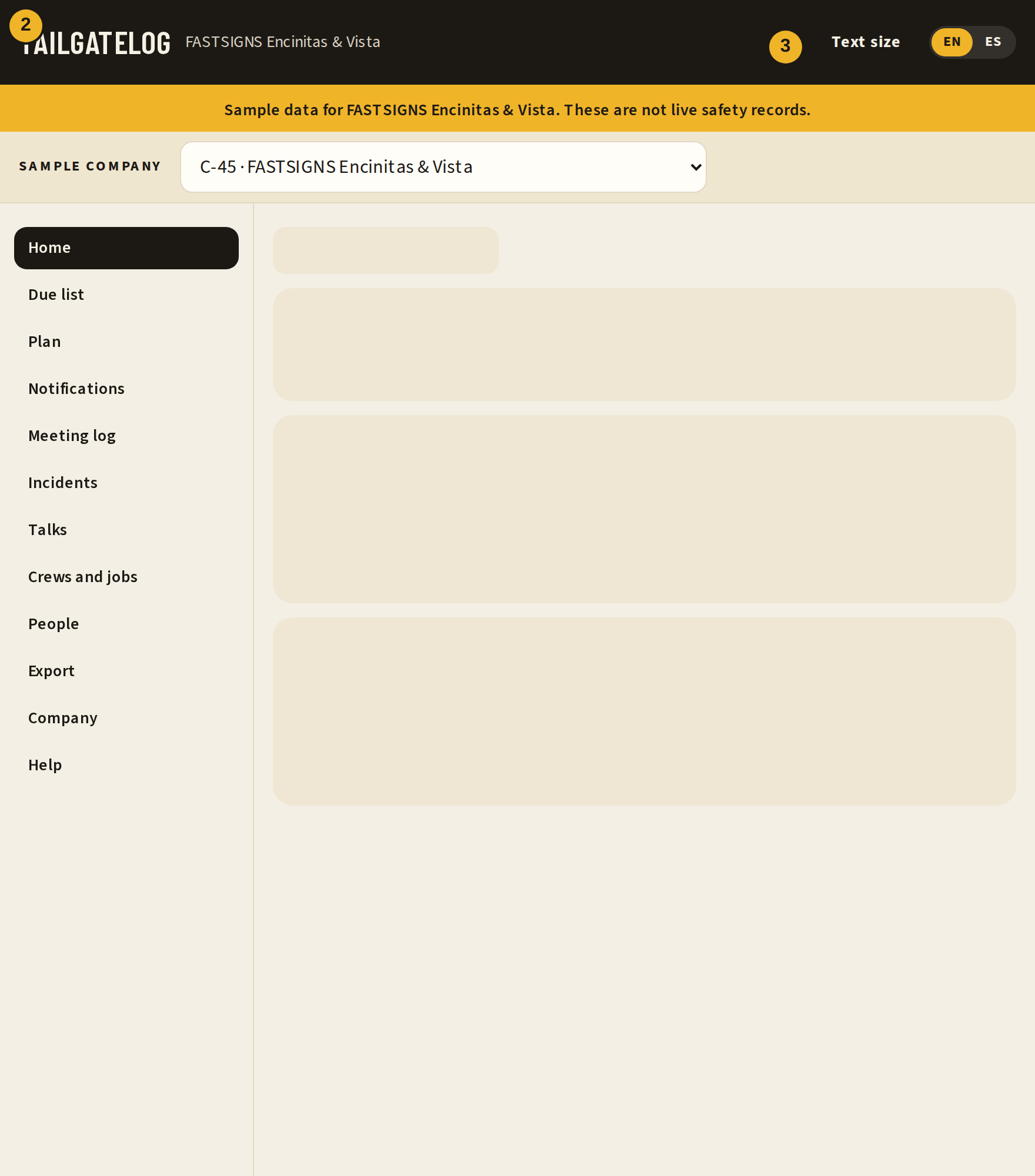
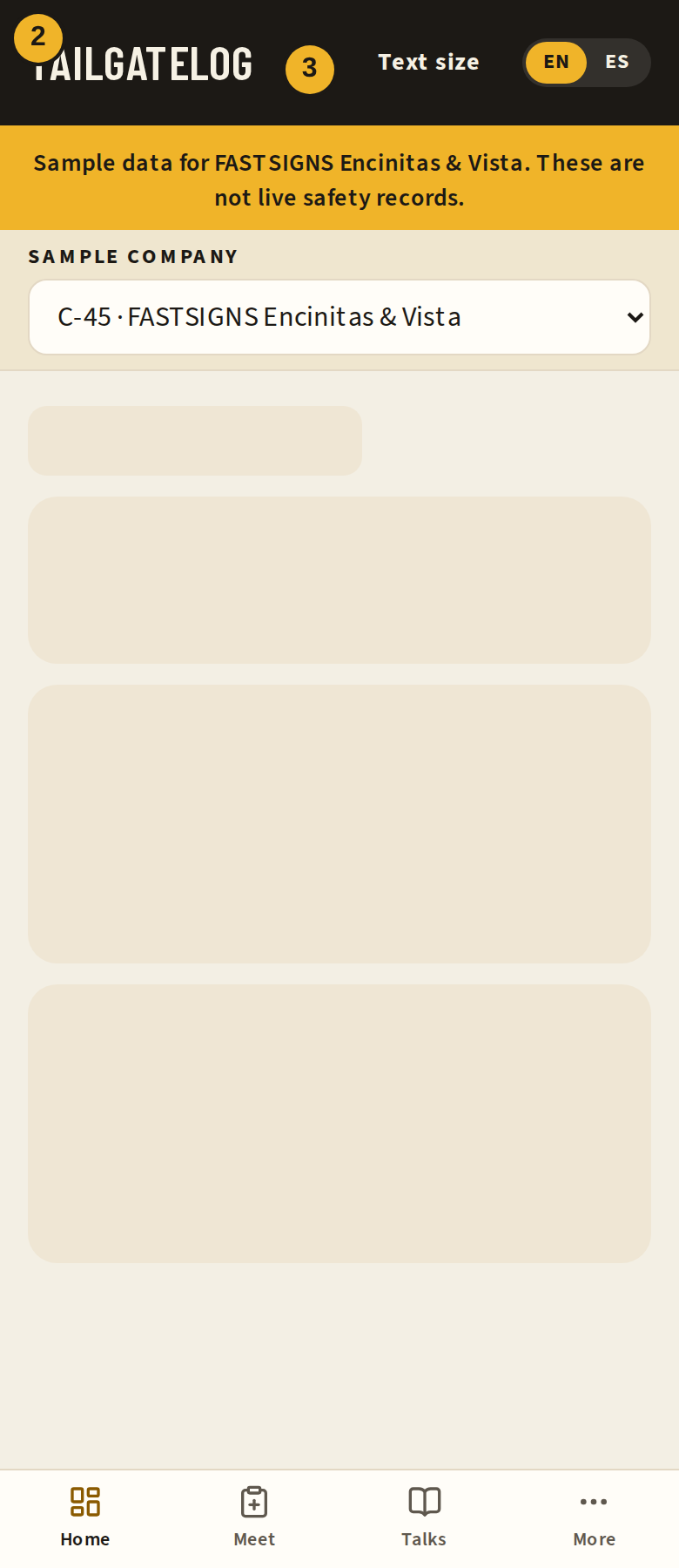
- Overdue, due soon, and on track. These count crews, not people.
- Hold tailgate starts a meeting when you already know the topic.
- Help opens this manual. The same link is in the side list and on More.
Sign in
How to open TailgateLog on a phone or a computer.
Open the site and sign in with the email and password your owner gave you. After that, the app opens on Home.
The EN / ES control in the black bar changes the whole app. It is on the sign-in screen, before you enter, and on Help. It does not change a meeting that was already given in the other language.
Text size in that same bar sets the letter size, high contrast, the sunlight theme, and bigger buttons for gloves. The choice stays on this phone and on your profile.
Practice companies are listed on the sign-in screen. They are marked SAMPLE inside the app. The password for those accounts is printed in that sample section. Do not use a practice company for a real job.
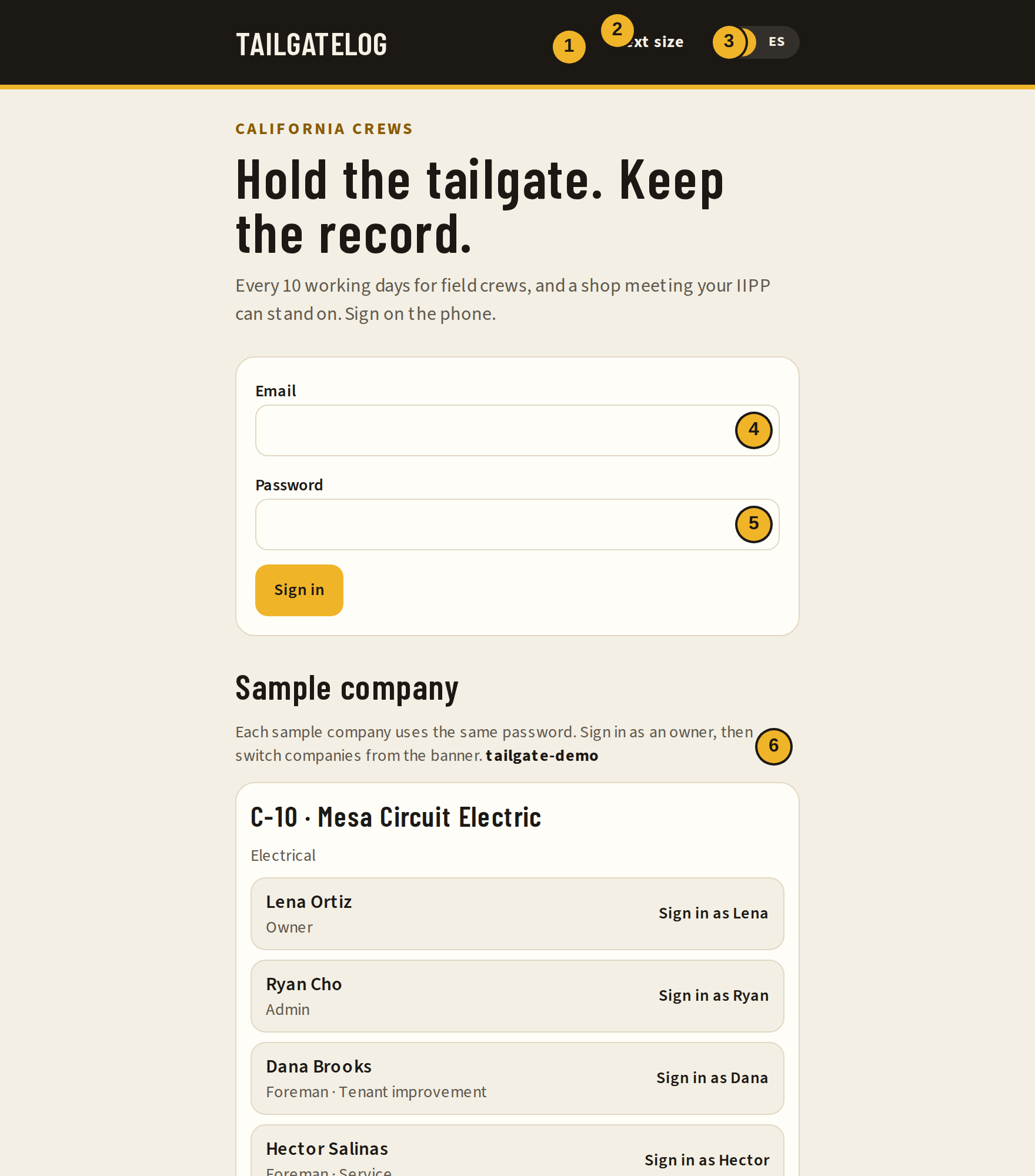
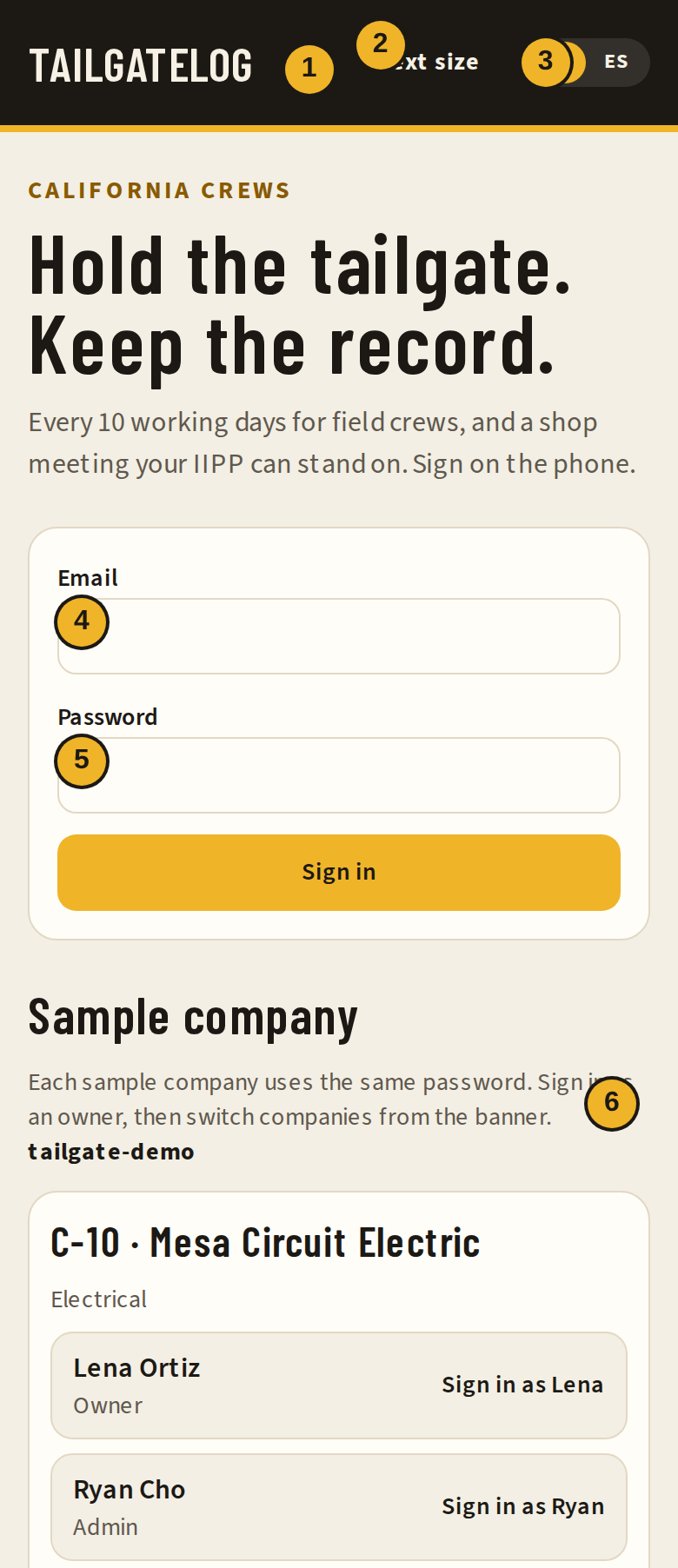
- Help is available before you sign in.
- Text size opens letter size, contrast, sunlight, and gloves.
- EN / ES changes the language of the screens.
- Email.
- Password. What you type here is hidden.
- Practice companies. The gold bar inside the app says the same thing: this is sample data, not a live safety file.
If the password is wrong, ask an owner or admin to set a new one on People. TailgateLog does not email a reset link.
Letter size, contrast, and voice
Larger type, sunlight, gloves, dictation, and reading a talk out loud.
Text size is in the black bar on every screen, including sign-in, the crew sign-in page, a report with no account, and a live meeting. It is saved on this phone and on your profile.
Three sizes: Standard, Large, and Larger. Large and Larger also make tap targets at least 48 pixels. Gloves makes those targets 56 pixels. High contrast is black on white. Sunlight is a pale yellow page for reading outdoors. If the phone asks for more contrast, the standard theme follows that. If the phone asks for less motion, animations stay still.
Dictate sits on meeting notes, what happened, the immediate action, comments, and talk search. Tap it, speak, then edit the words before you save. A red dot means it is listening. Stop ends the recording. If the browser has no speech button, the line tells you to use the microphone on the keyboard. Allow the microphone if the phone asks. The audio is not sent to TailgateLog. The browser or the phone's speech service may process it.
Read aloud on a talk, on the new-meeting form under the language, and on an open meeting plays the talking points in English or Spanish. Pause and the speed buttons are next to it. Present shows one point in large type. Use Next, Back, or a swipe.
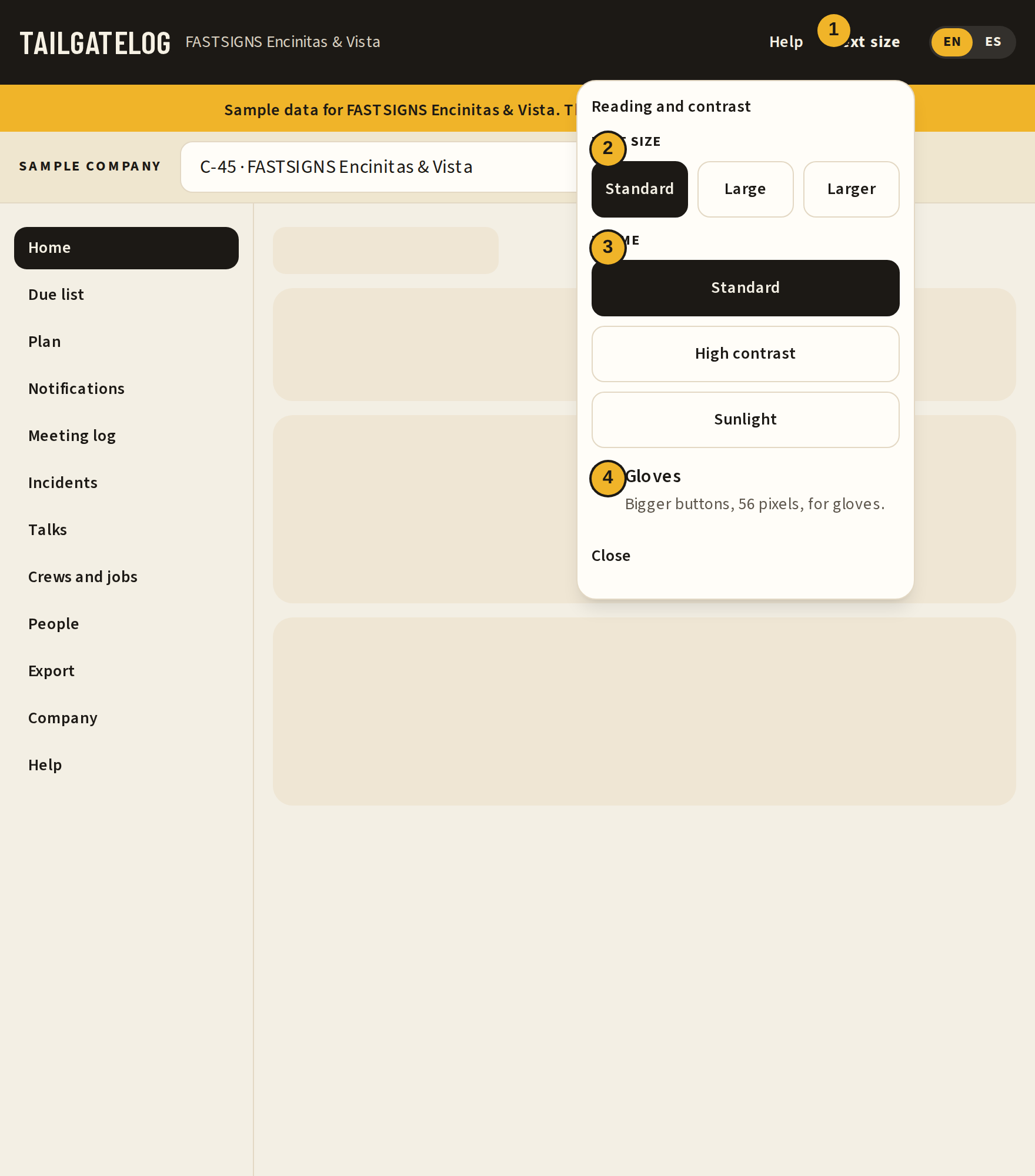
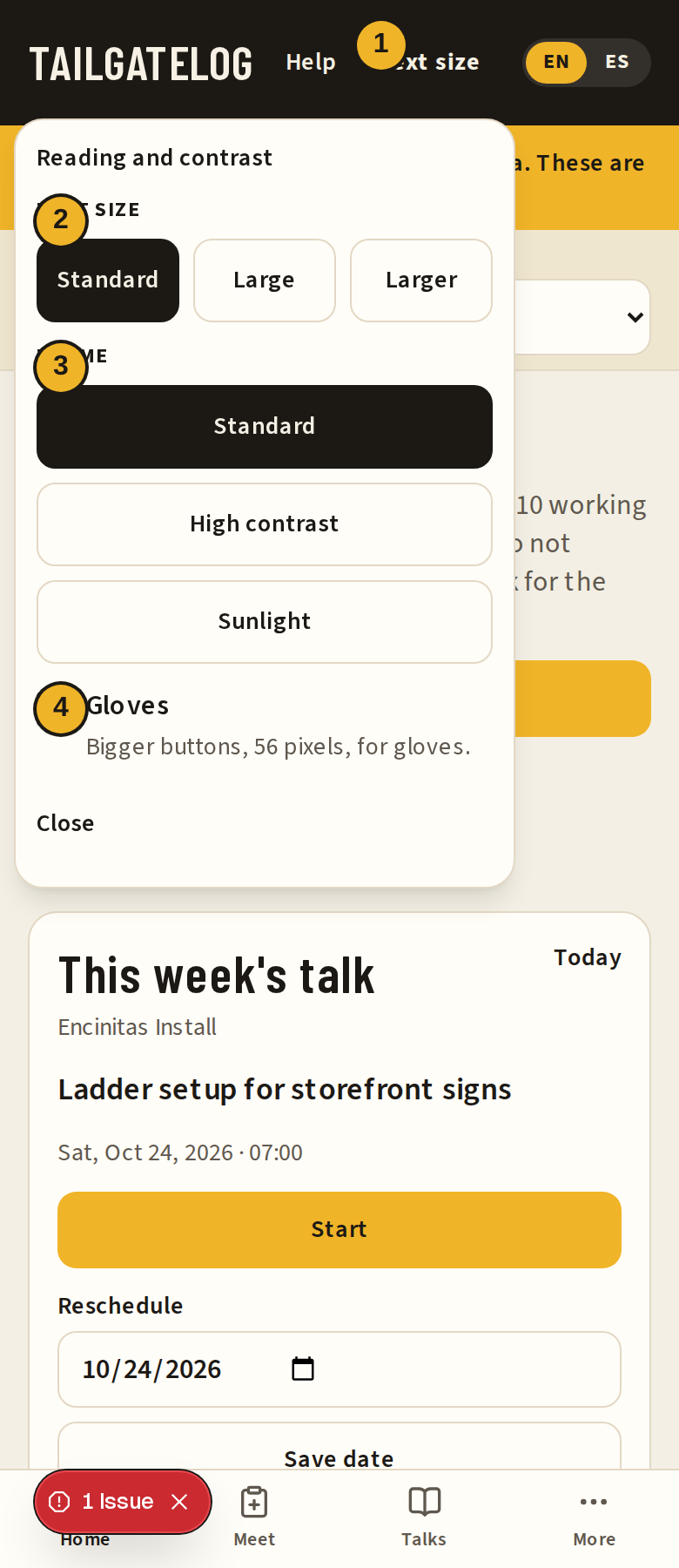
- Text size in the black bar.
- Standard, Large, or Larger.
- Standard, high contrast, or sunlight.
- Gloves.
Put it on the phone
Add TailgateLog to the home screen so it opens like an app.
You can use the site in the browser. Adding it to the home screen keeps the icon one tap away. The pictures in this manual are the app itself. The phone's own Share sheet is part of iOS or Android, so it is not shown here.
iPhone
Open TailgateLog in Safari. Tap Share, then Add to Home Screen, then Add. Use Safari for this. A page opened inside another app's browser often hides that command.
Android
Open TailgateLog in Chrome. Tap the menu (the three dots), then Add to Home screen or Install app. Confirm the name and tap Add.
The More screen says the same thing in one line. Open Help from More if you are already signed in and the black bar is hard to reach.
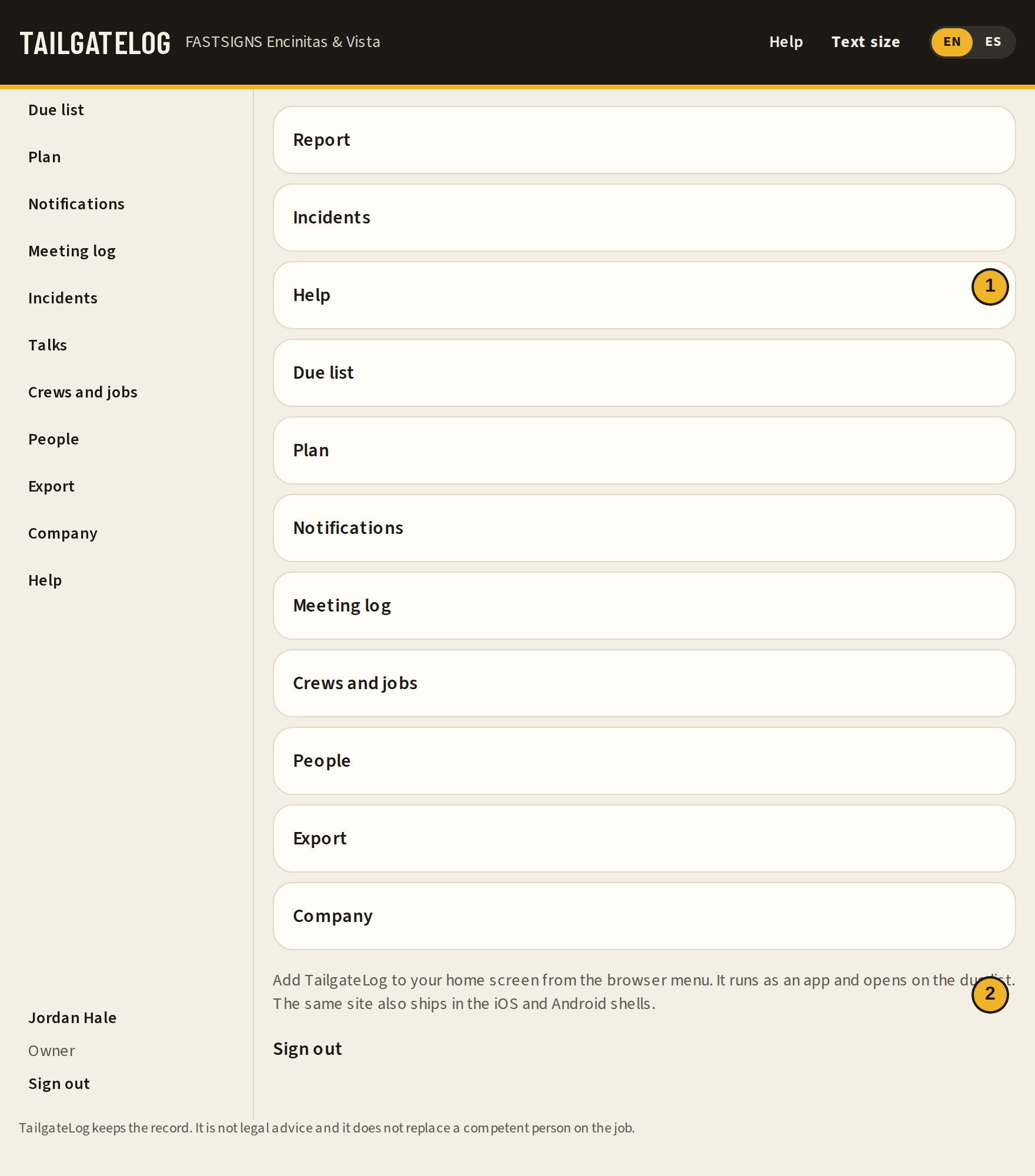
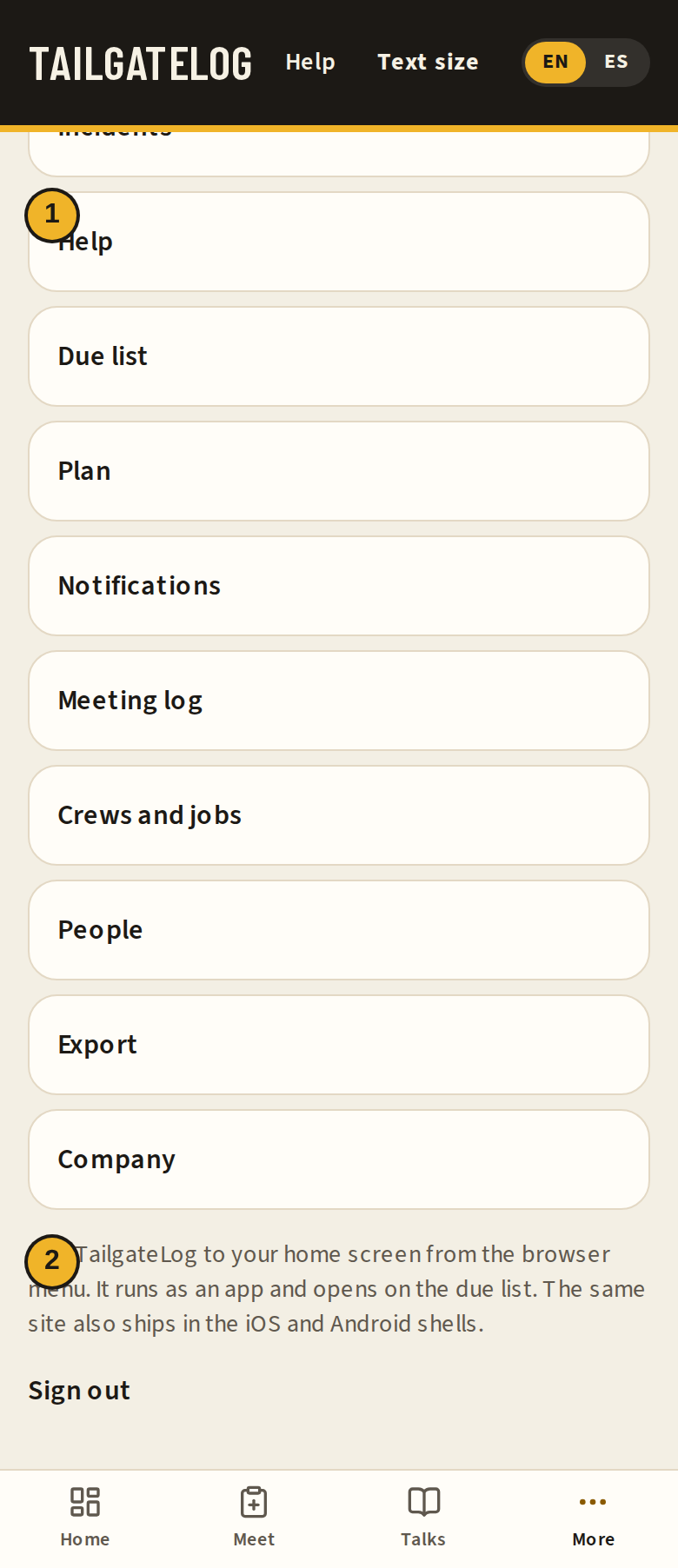
- Help is the first row on More.
- The note about adding TailgateLog to the home screen.
Who can do what
Owner, admin, foreman, and worker.
Your role is on the People list and next to your name in the side list.
- Owner and Admin see every crew. They edit the company record, add people, send reminders, export any crew, and plan talks for every crew. They see every incident and can assign corrective action.
- Foreman holds meetings for their own crew, plans that crew's talks, and can export that crew. They see and manage that crew's incident reports, including an anonymous near miss. They do not manage the whole company.
- Worker reads the log, signs their own name, and can file an incident for their crew. A worker sees only the reports they filed under their name. A worker does not start a meeting and does not change an incident's status.
A person can be on one crew. Owners are often on no crew, which is why they still see every crew.
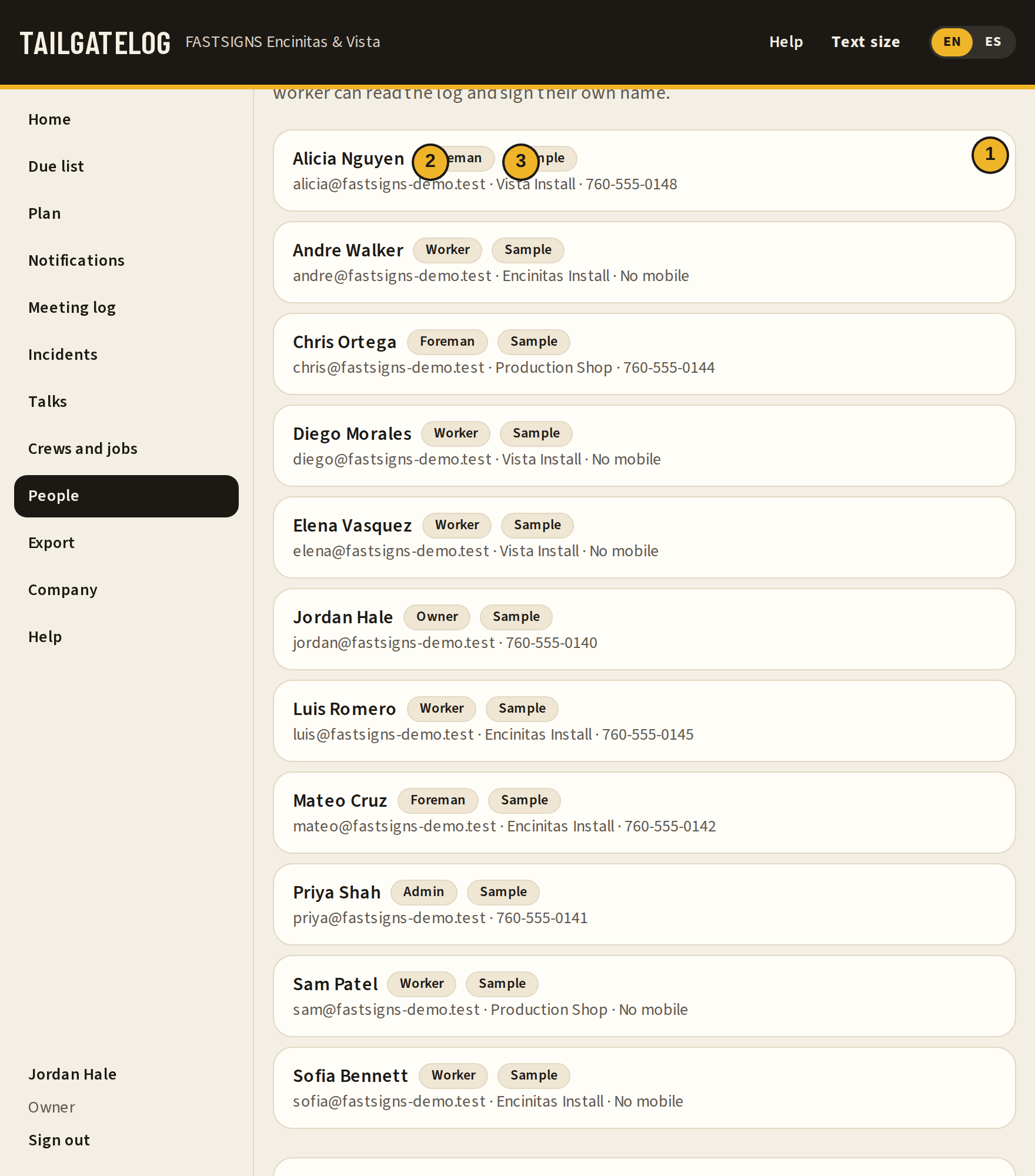
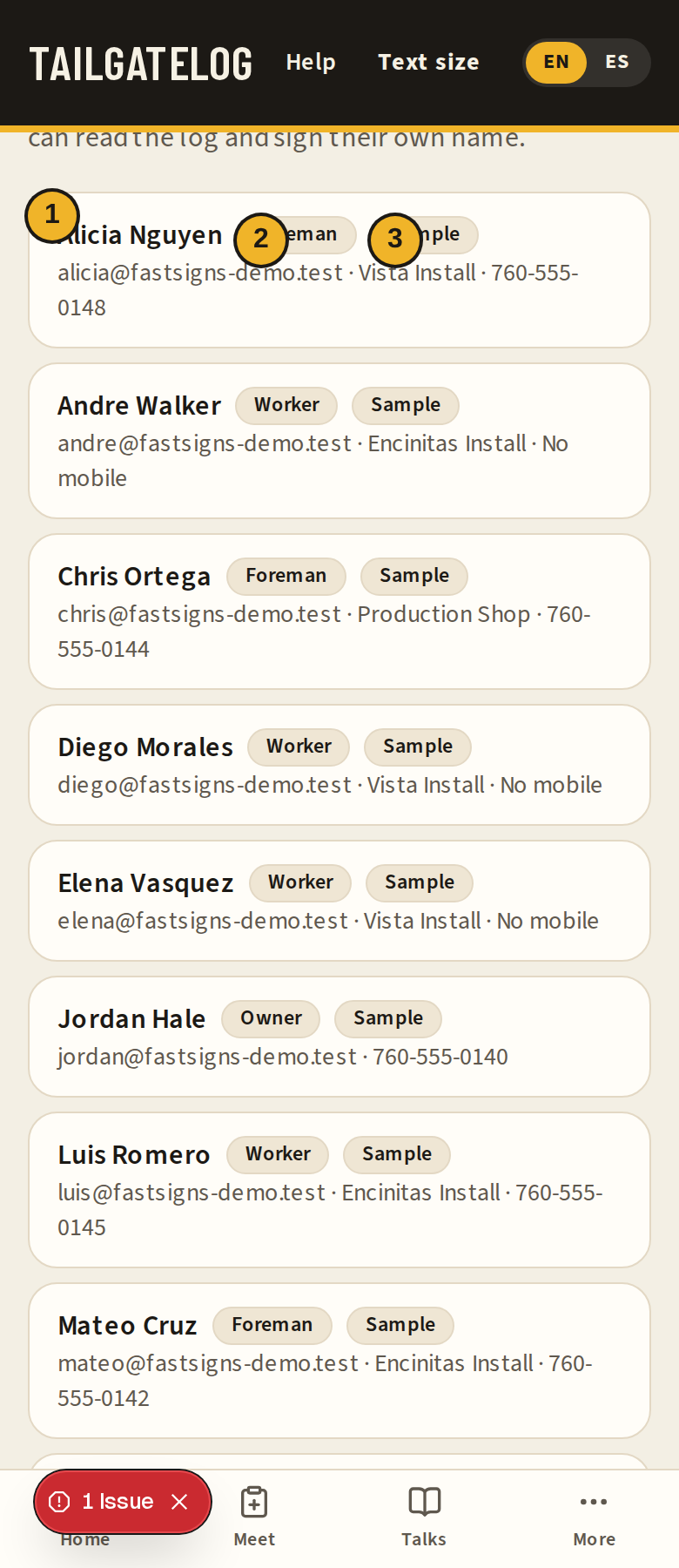
- The person.
- The role: Owner, Admin, Foreman, or Worker.
- The Sample badge means this person belongs to a practice company.
Leave the password box at the bottom empty unless you are adding someone. The manual pictures do not fill it in.
Pick a talk
Trade filter, search, and Spanish talks.
The talk library is shared safety talks plus this company's own talks. Shared talks are read-only. An owner can copy one into the company and then edit the copy.
If your trade is listed, pick it. If it is not, leave All trades and use Search. Search looks through the English and Spanish words, so ladder and escalera can both find a talk.
Open a talk to read the points before you use it. Read aloud plays the points in the language of the talk. Present shows one point at a time in large type, with Next and Back. You can also swipe. Use this talk starts a meeting with that topic filled in.
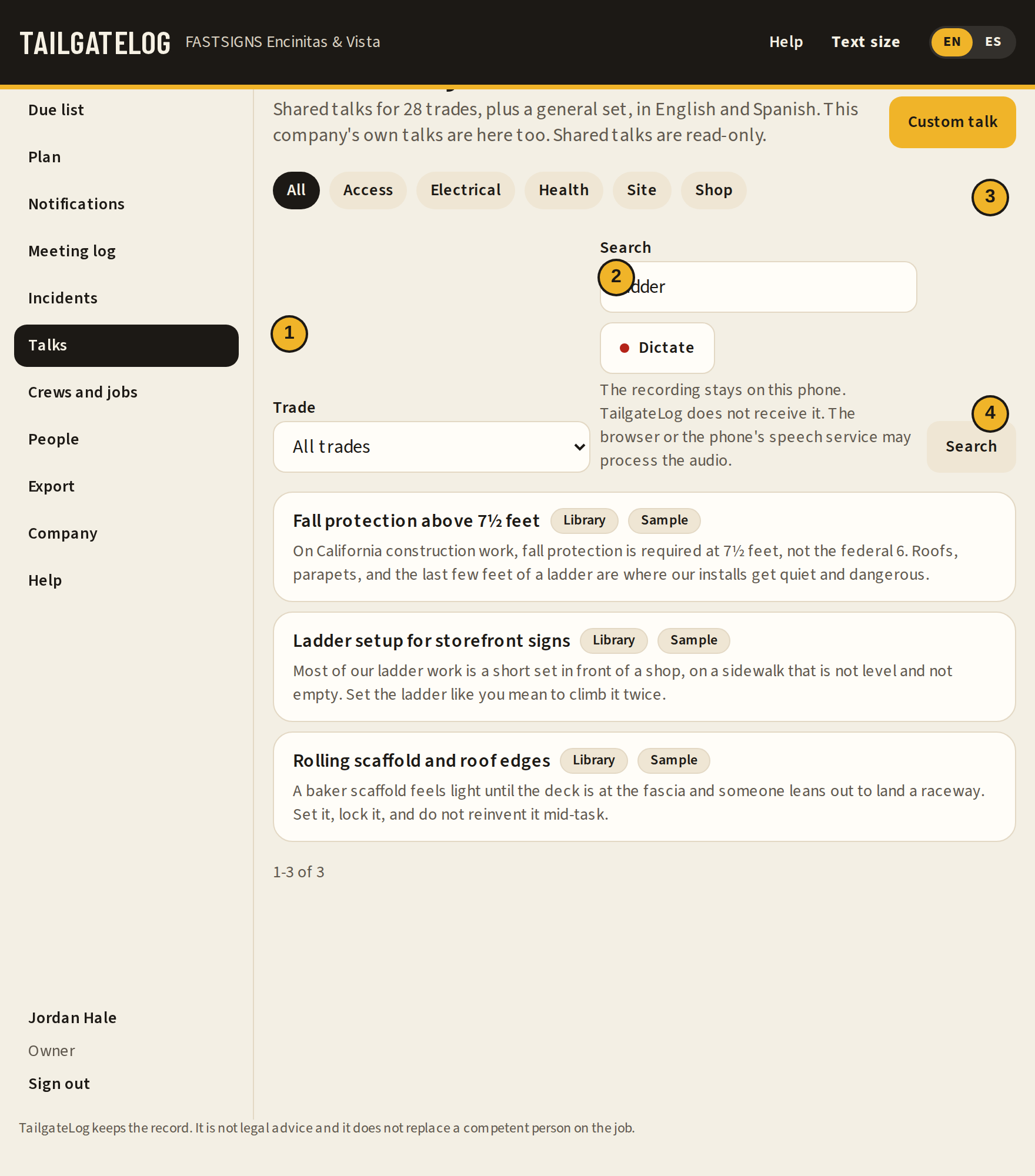
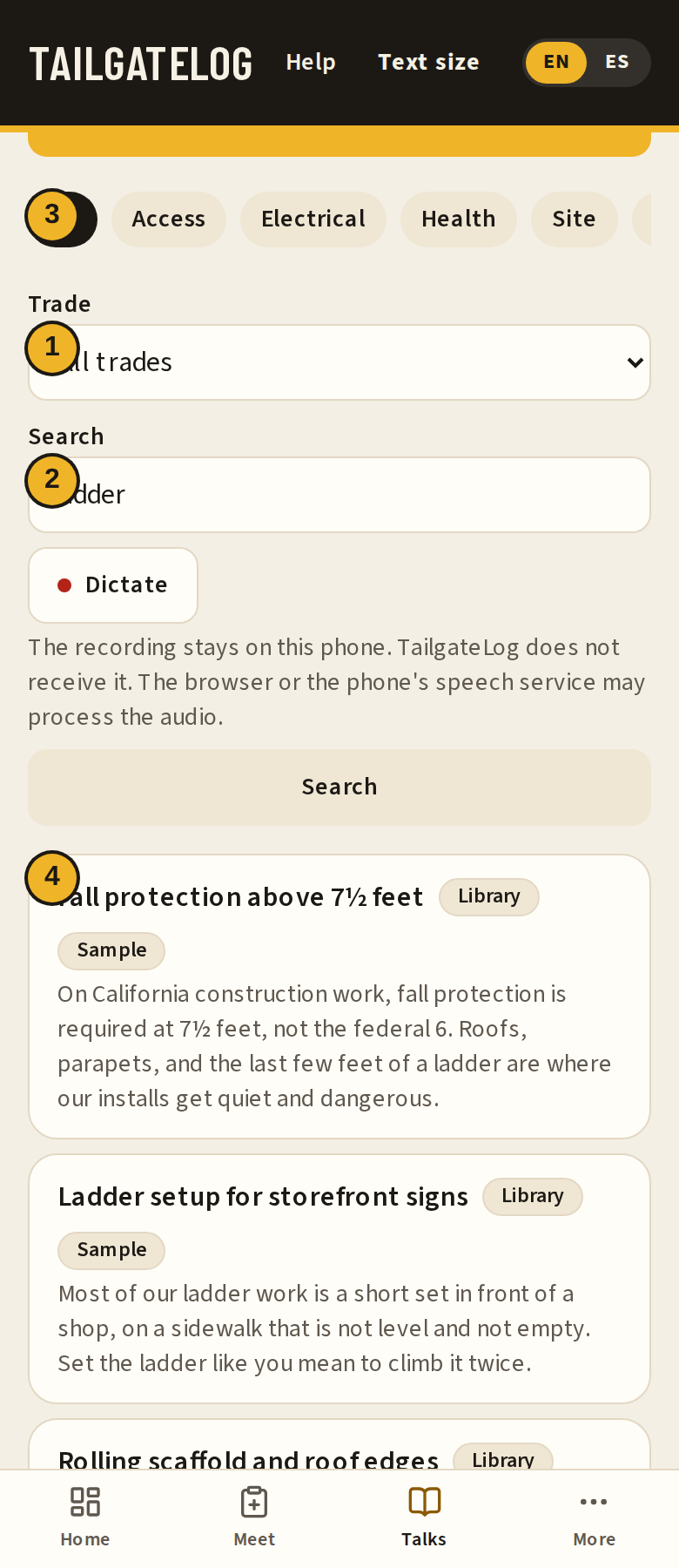
- Trade. Pick yours when it is in the list. Otherwise leave All trades.
- Search. One or two words is enough.
- Categories across the top, such as falls or electrical.
- A talk. Tap it to read the points.
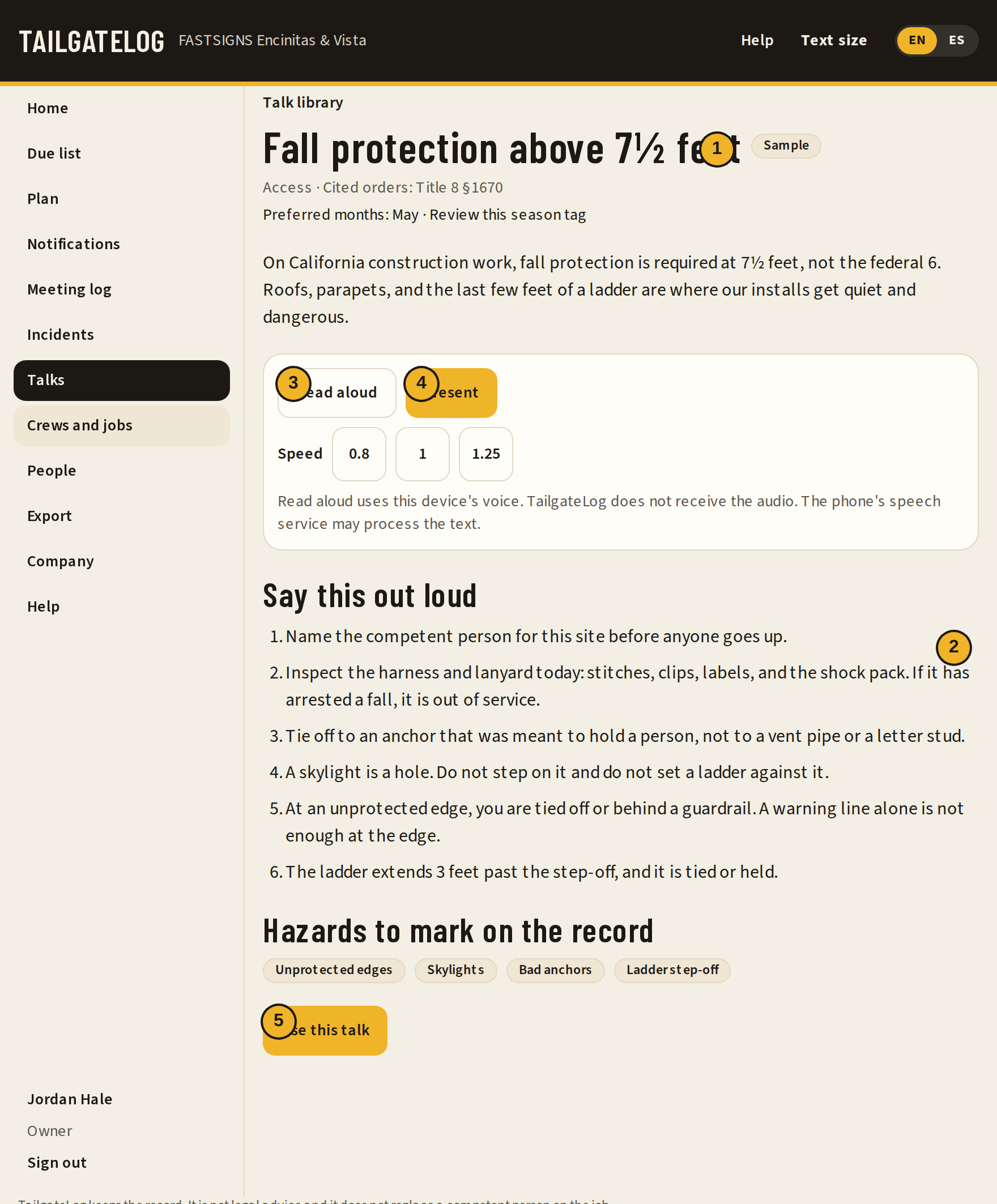
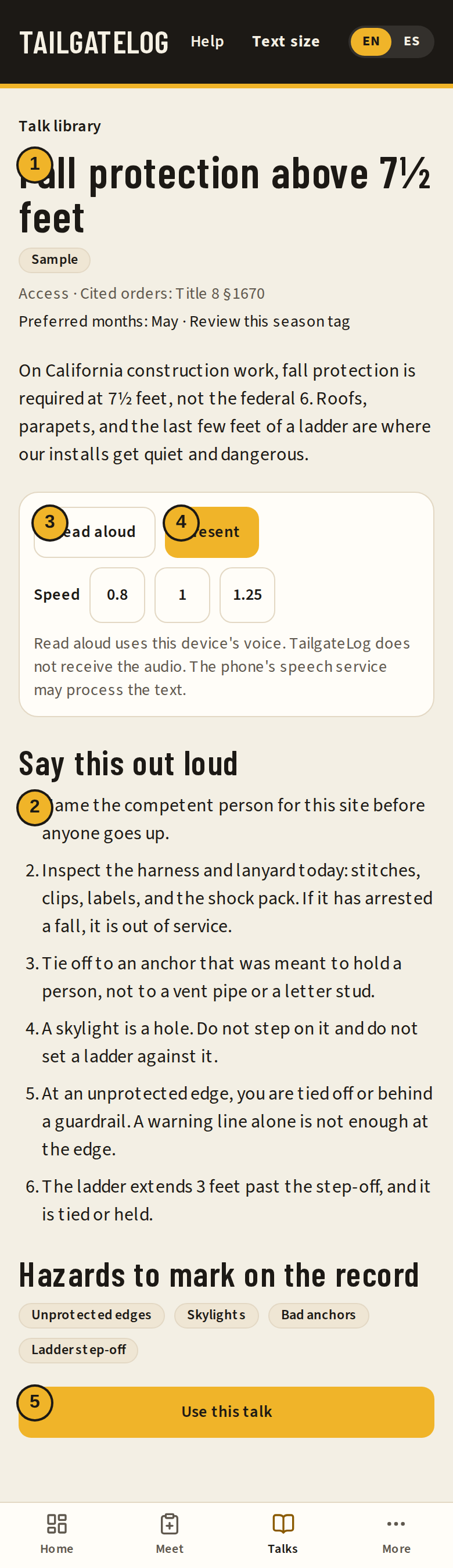
- The title of the talk.
- The points to say out loud.
- Read aloud.
- Present.
- Use this talk opens a new tailgate with this topic.
Hold the tailgate
Date, crew, job, talk, and the saved record.
Hold tailgate on Home, or New tailgate on the meeting log, opens a blank meeting. Pick the crew and the job first. The heat and smoke banner for that job loads under the job. That banner is covered in Heat and smoke.
Say the talk in the language the crew is using that morning. The language on the form is the language of this meeting. It can differ from the EN / ES control in the black bar. Under that language, Read aloud plays the talking points and Present shows one point at a time in large type. Next, Back, and a swipe move between points.
Write what you actually said and what was different on this site. Hazards can be added one at a time. Save when the record is true. You can still collect signatures after you save, while sign-in stays open.
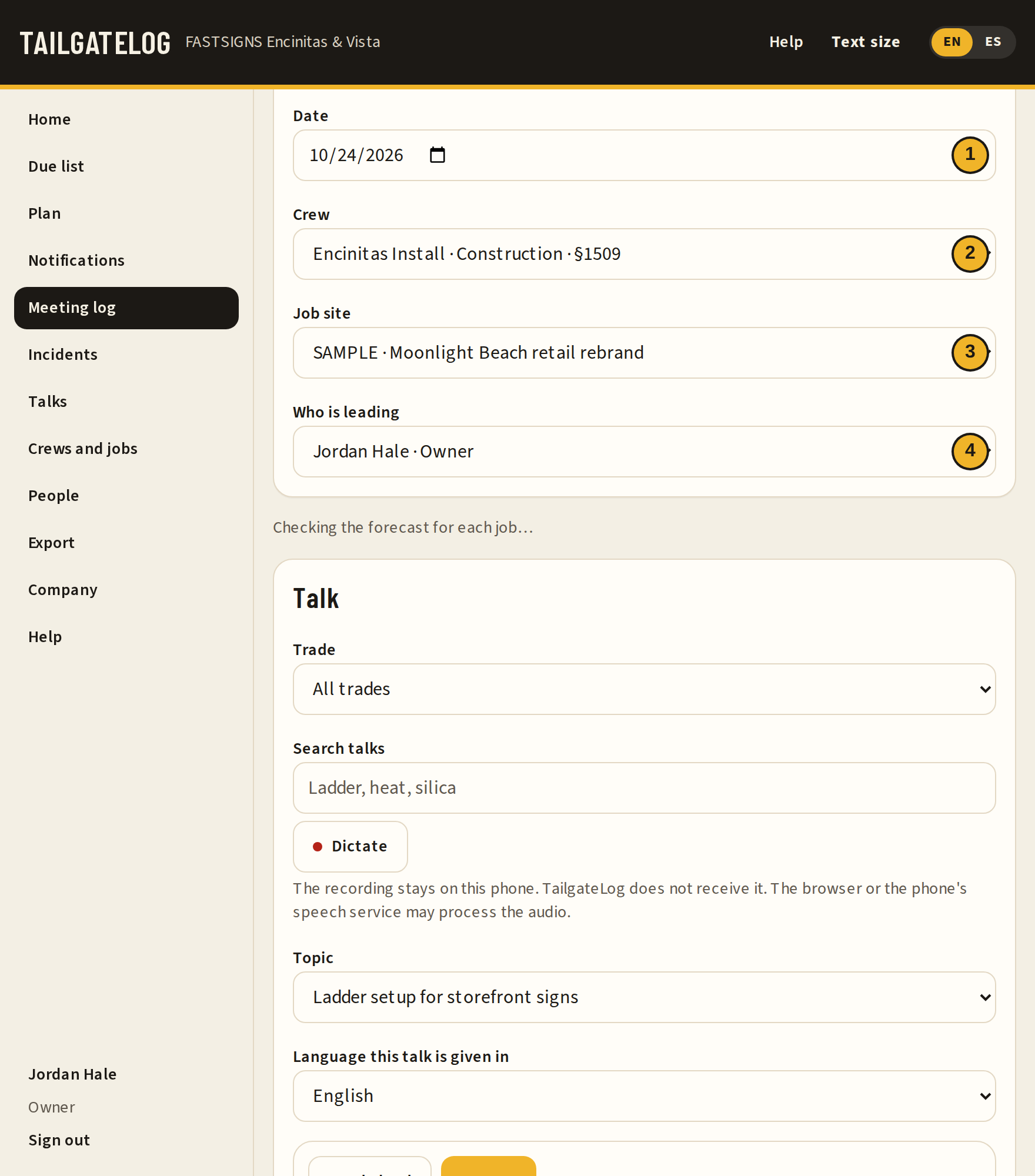
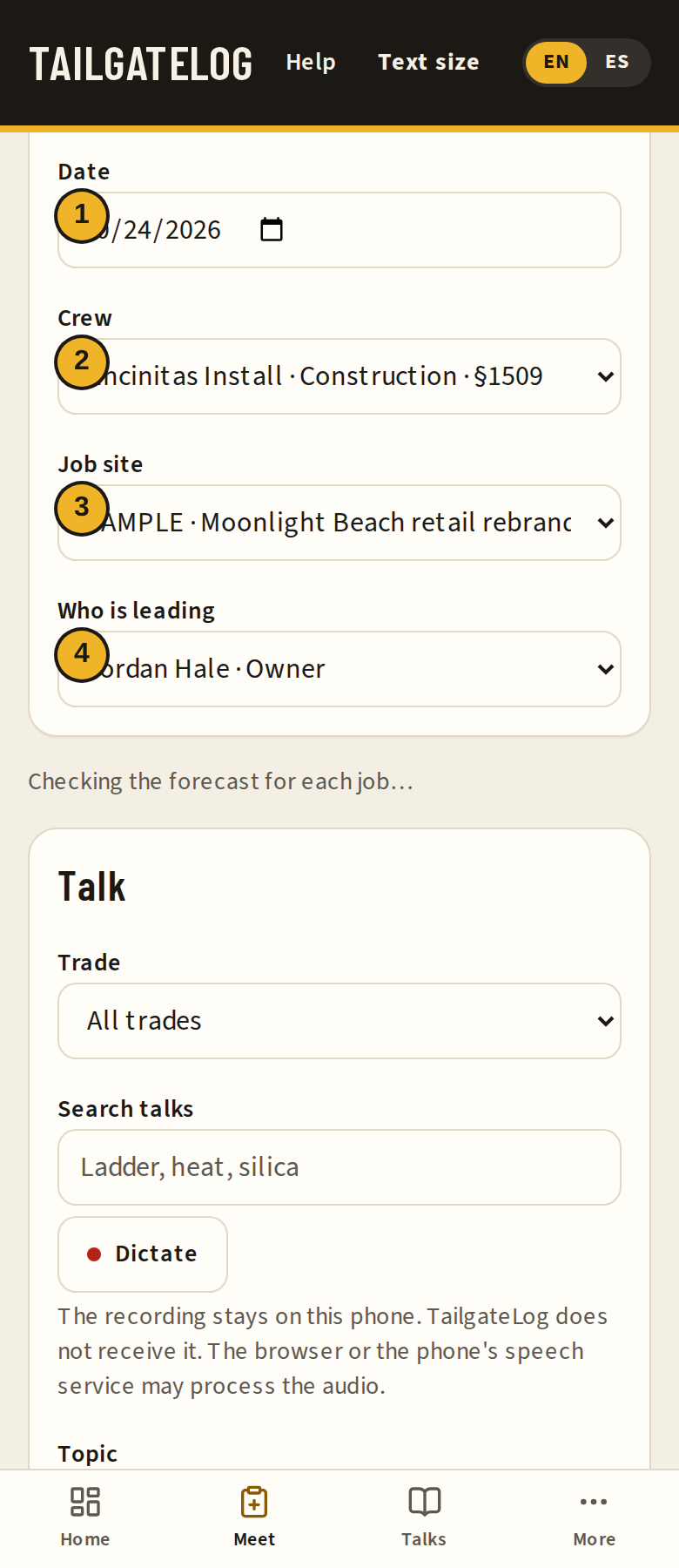
- Date. It cannot be in the future.
- Crew.
- Job site. Pick the job so the weather banner can load. Other site is for a place that is not in the list.
- Who is leading.
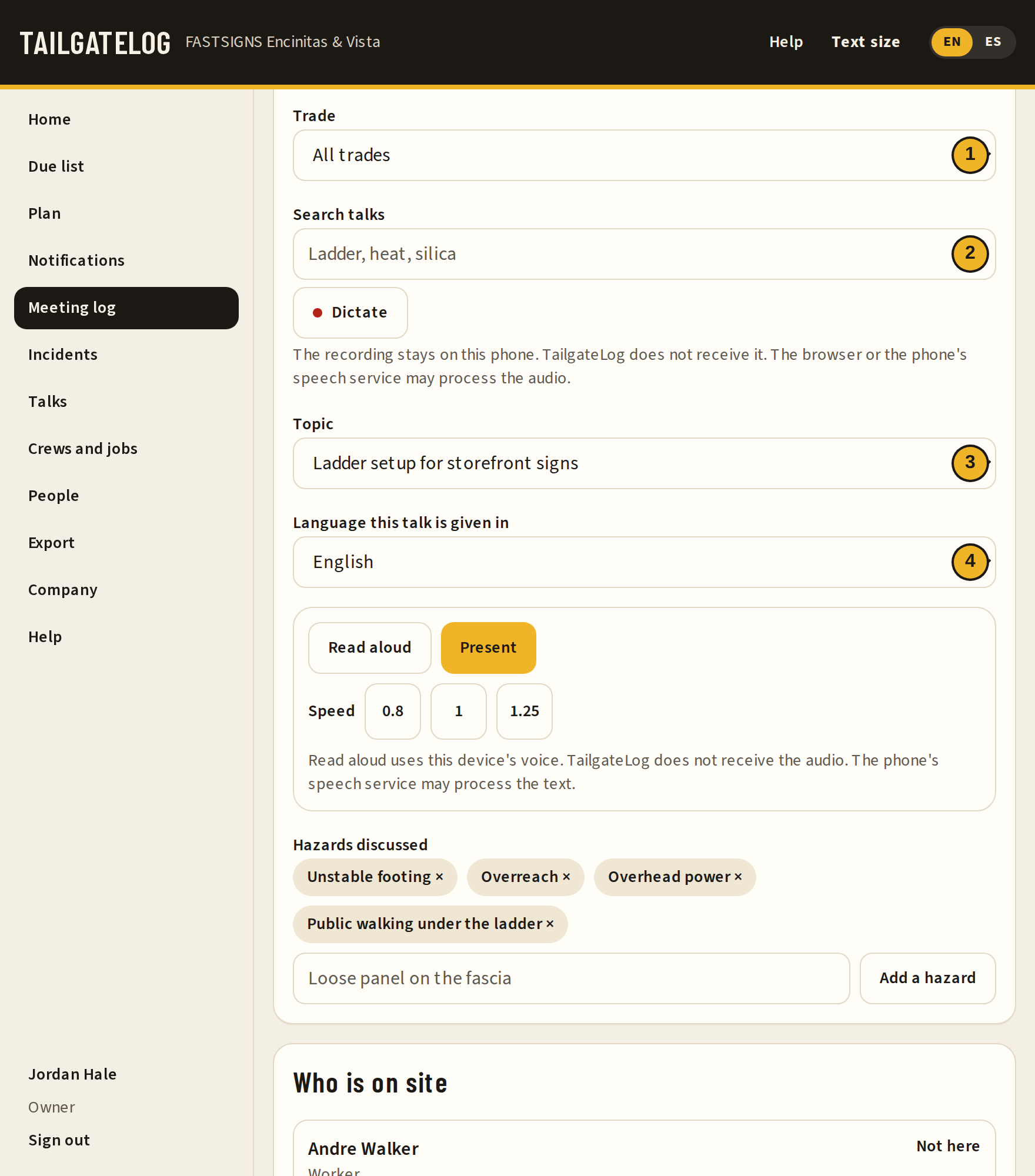
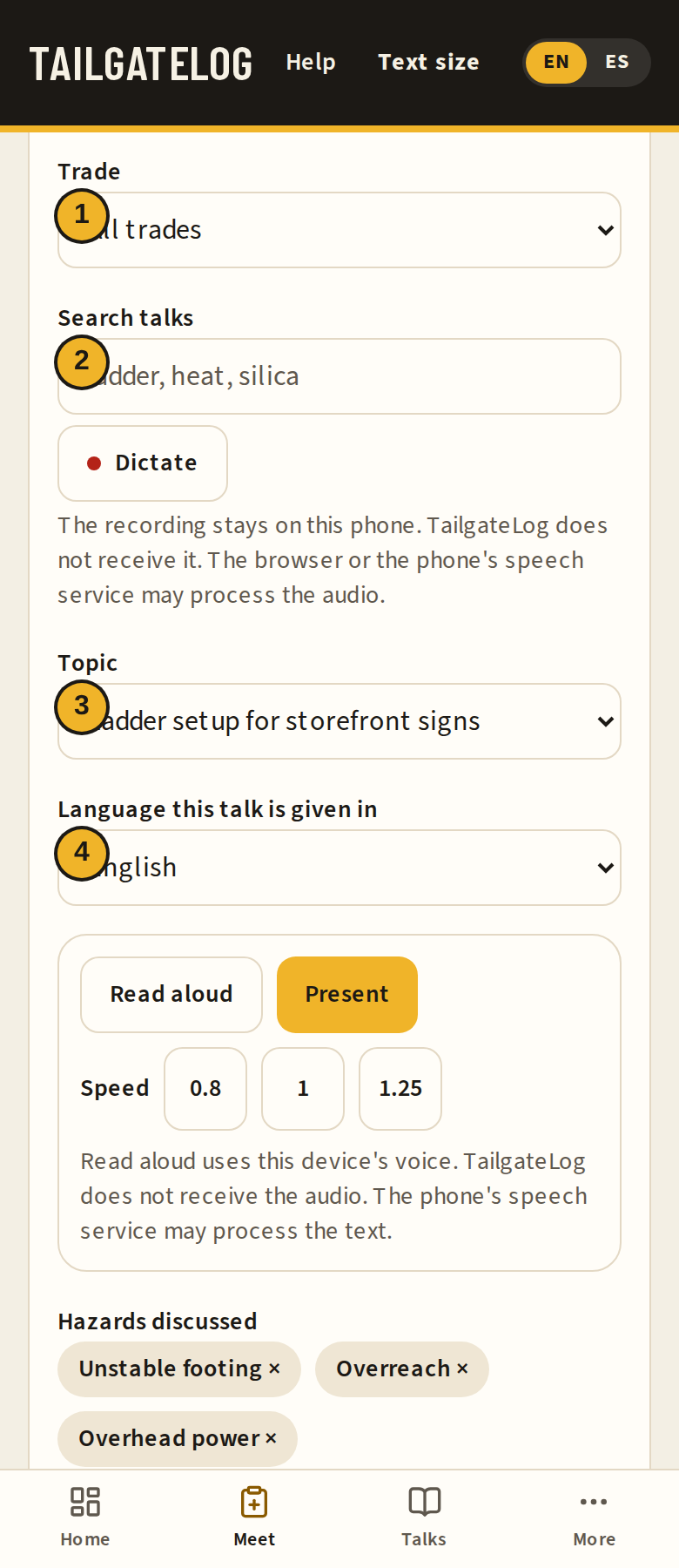
- Trade, if it is listed.
- Search talks.
- Topic. Custom topic is there when the library does not have the one you need.
- Language this talk is given in.
The notes and the fix are lower on the same form. See Corrective actions for that picture.
- A saved meeting. The line under the title is the date, the crew, and the job.
- New tailgate.
Open a meeting to see the record. An open meeting still accepts signatures. The weather block is the reading that was stored when the meeting was saved. It does not change later in the day.
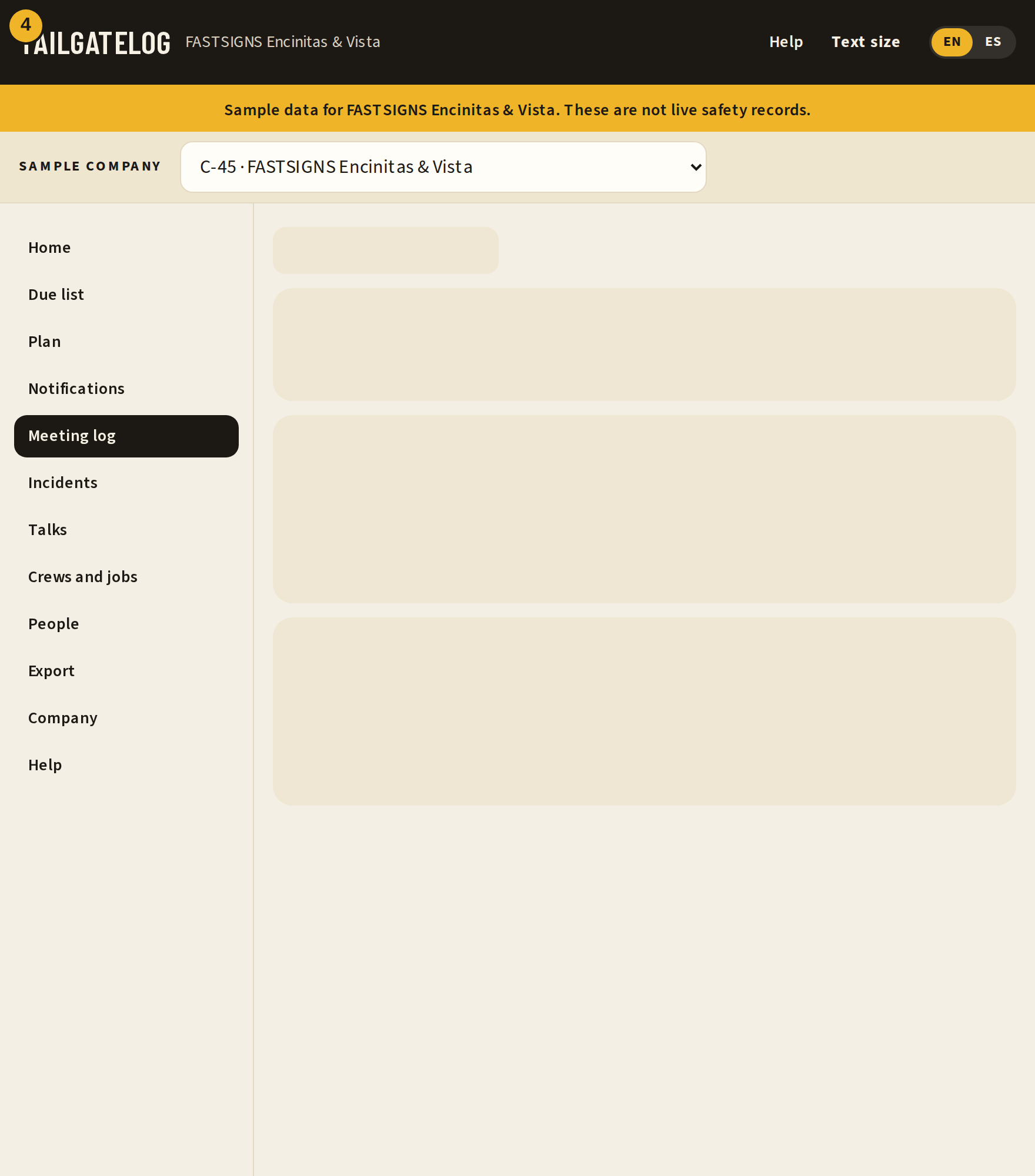
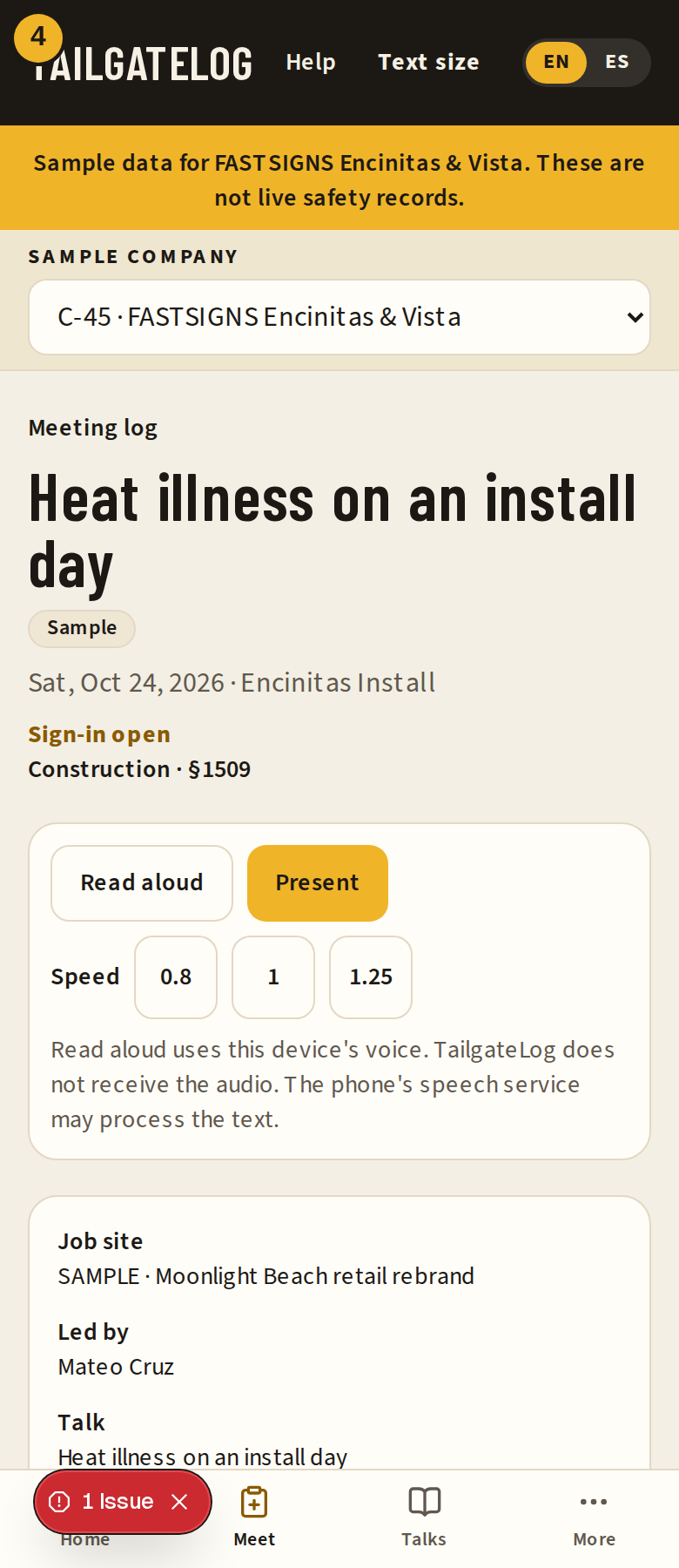
- Sign-in is still open. People can sign at the tablet or with the QR.
- Corrective actions. This is the fix you wrote.
- Weather on this record. Temperature, forecast high, heat index, PM2.5 AQI, and the steps that went with that reading. The same block is copied into the inspection PDF and the CSV.
- Linked incident. It is there when this meeting was opened from a report. Open it to go back to that report.
Sign on site
Kiosk, QR, and a signature saved with no signal.
Save the meeting first. On the record, the kiosk and the QR stay available until you close sign-in.
The kiosk is for one shared tablet. Hand it to each person. They pick their name, draw a signature, and the screen clears for the next person. Someone who is not on the crew list can type a name.
The QR is for personal phones. Each person scans, picks their name, and signs. That link opens only this meeting. It does not open the rest of the log.
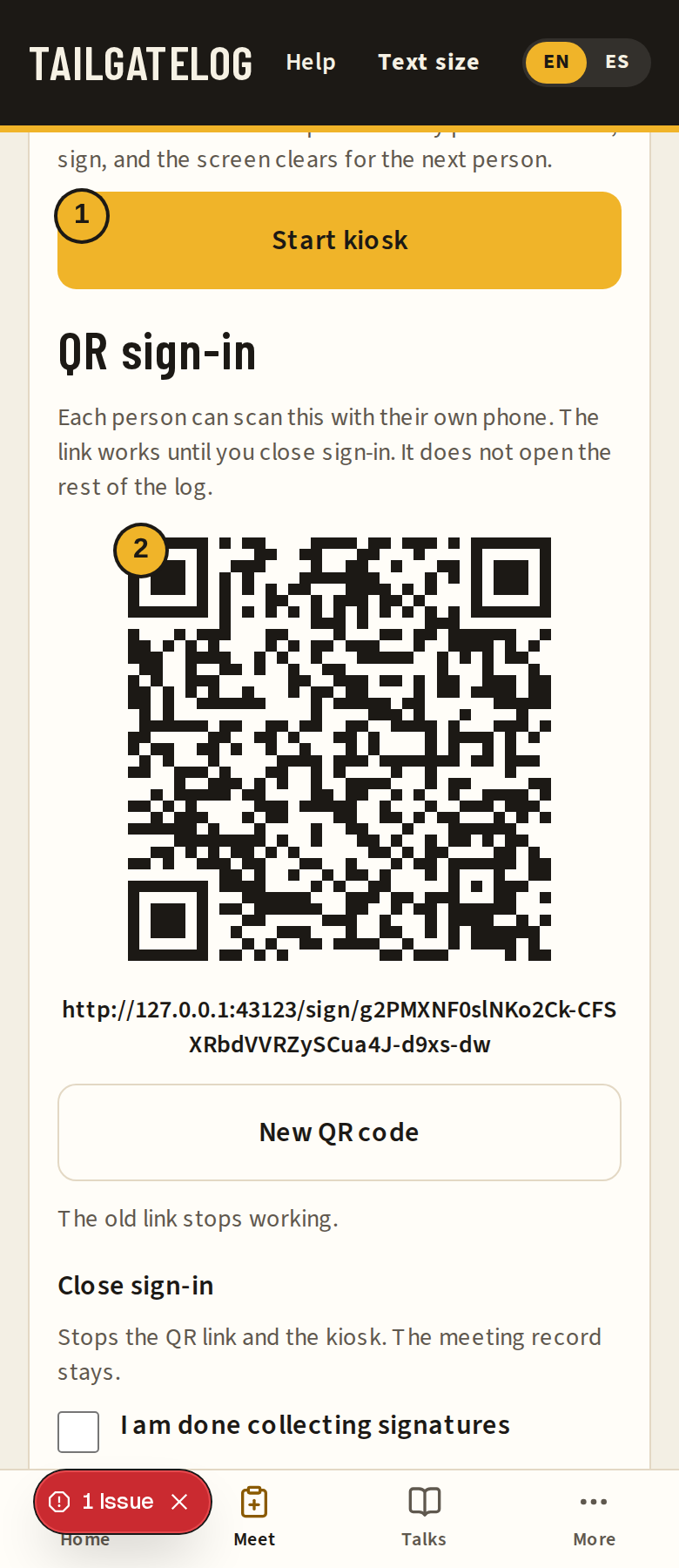
- Start kiosk.
- The QR code. The link under it is the same address the camera opens.
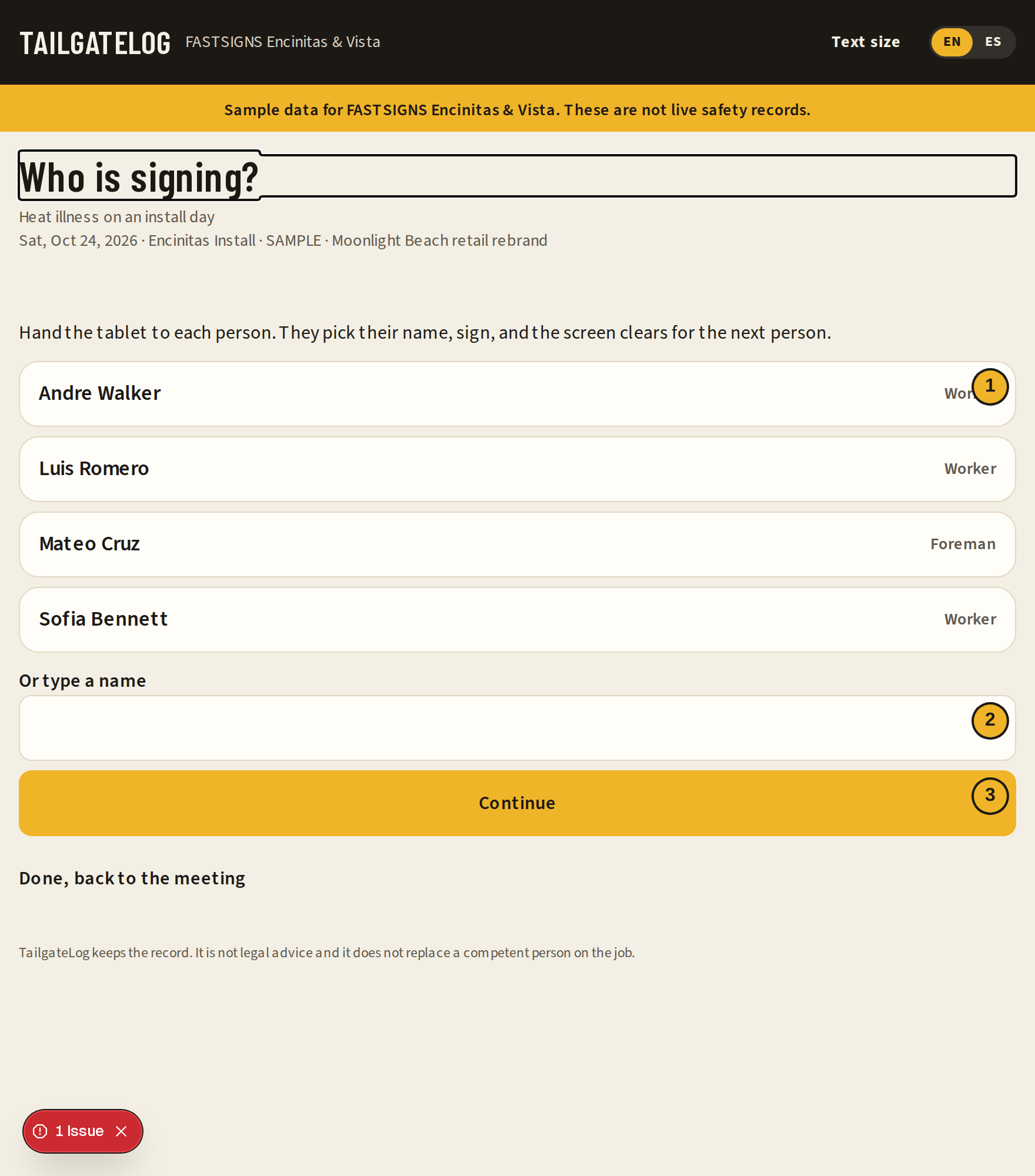
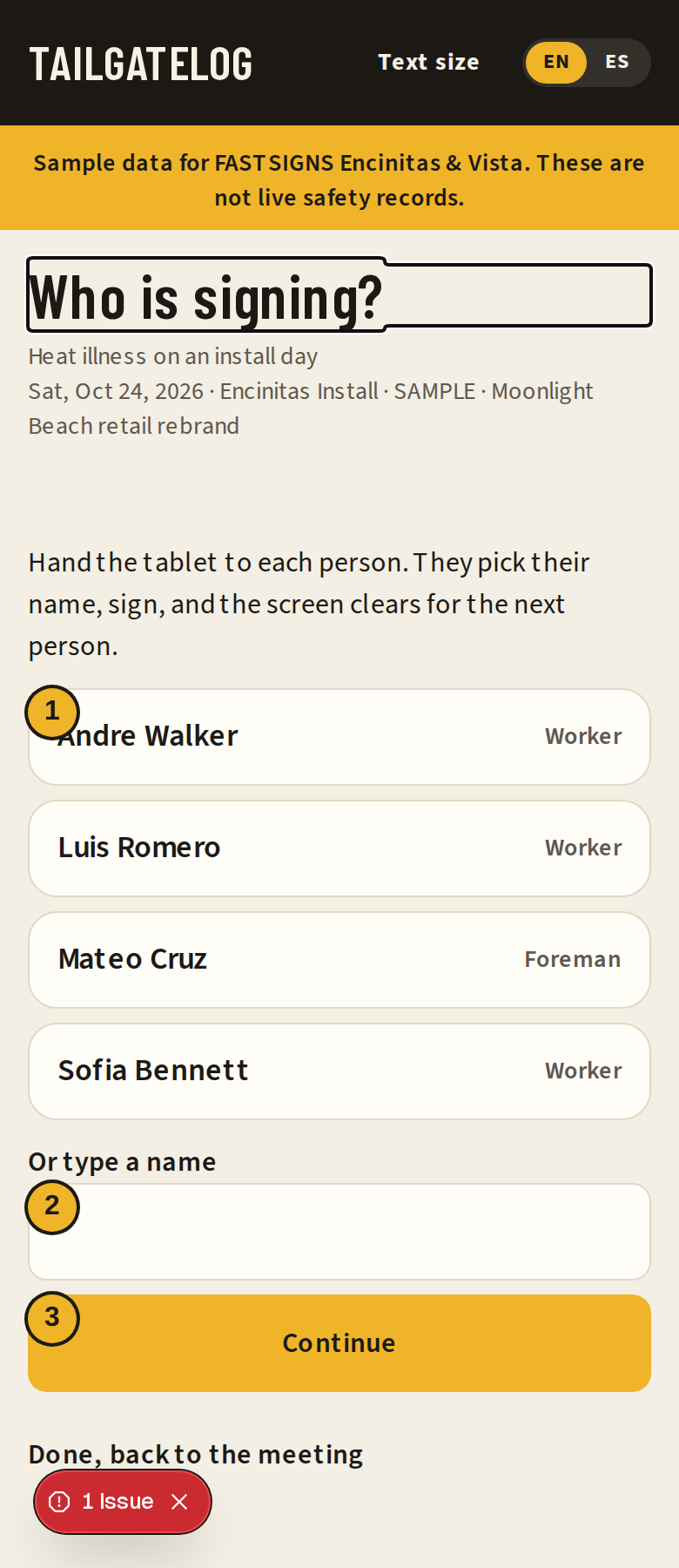
- A name on the crew. Tap your own.
- Or type a name when the person is not on the list.
- Continue after a typed name.
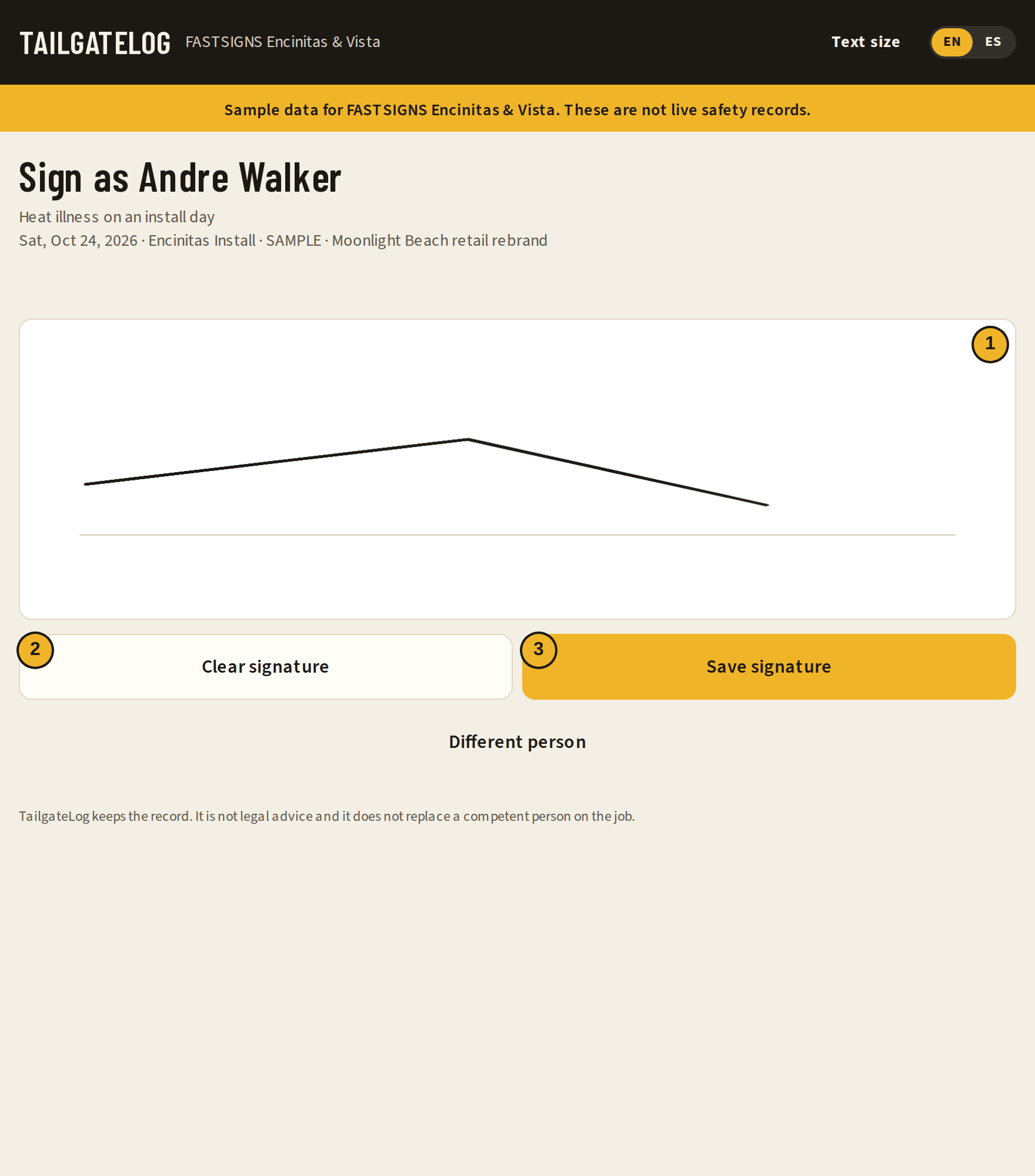
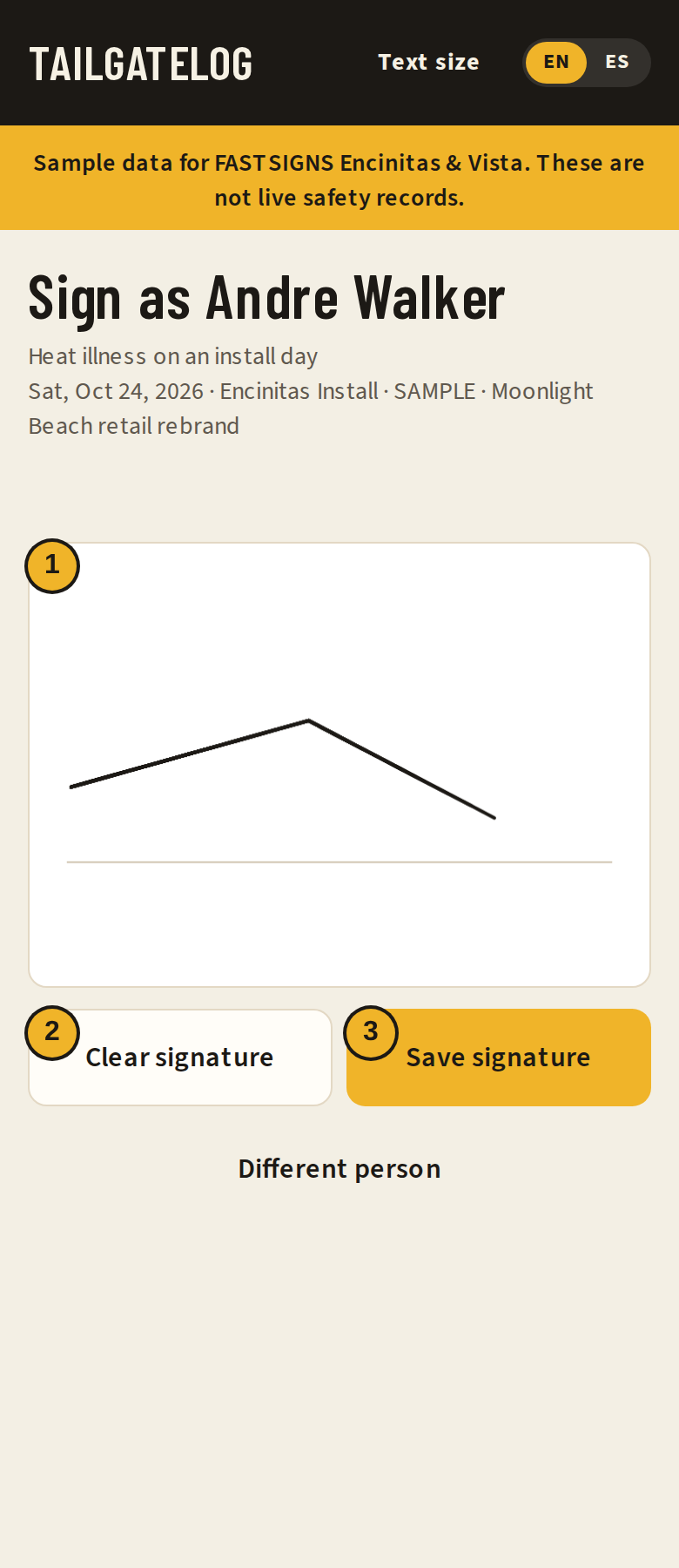
- Draw in the box with a finger.
- Clear signature starts the box over.
- Save signature.
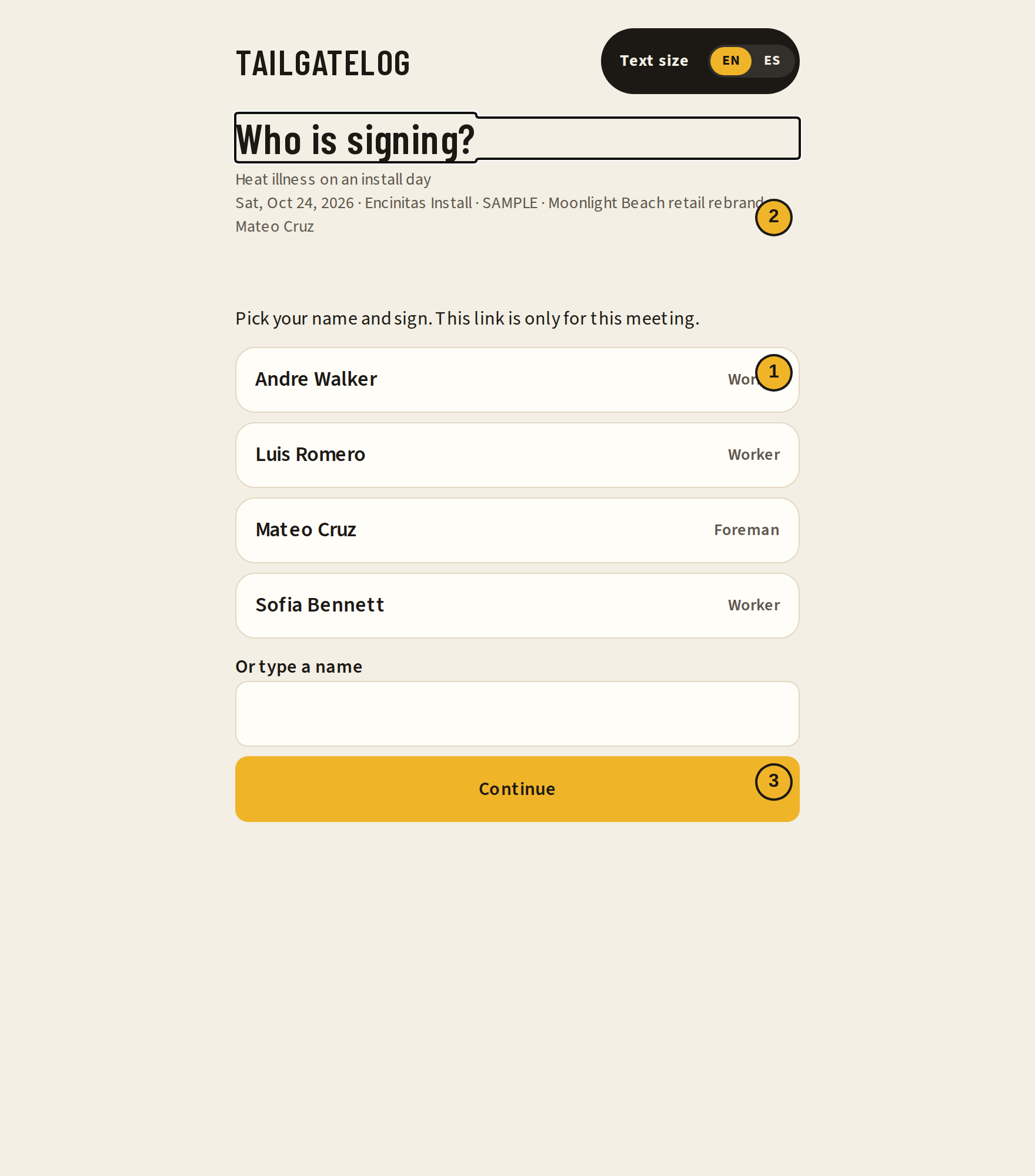
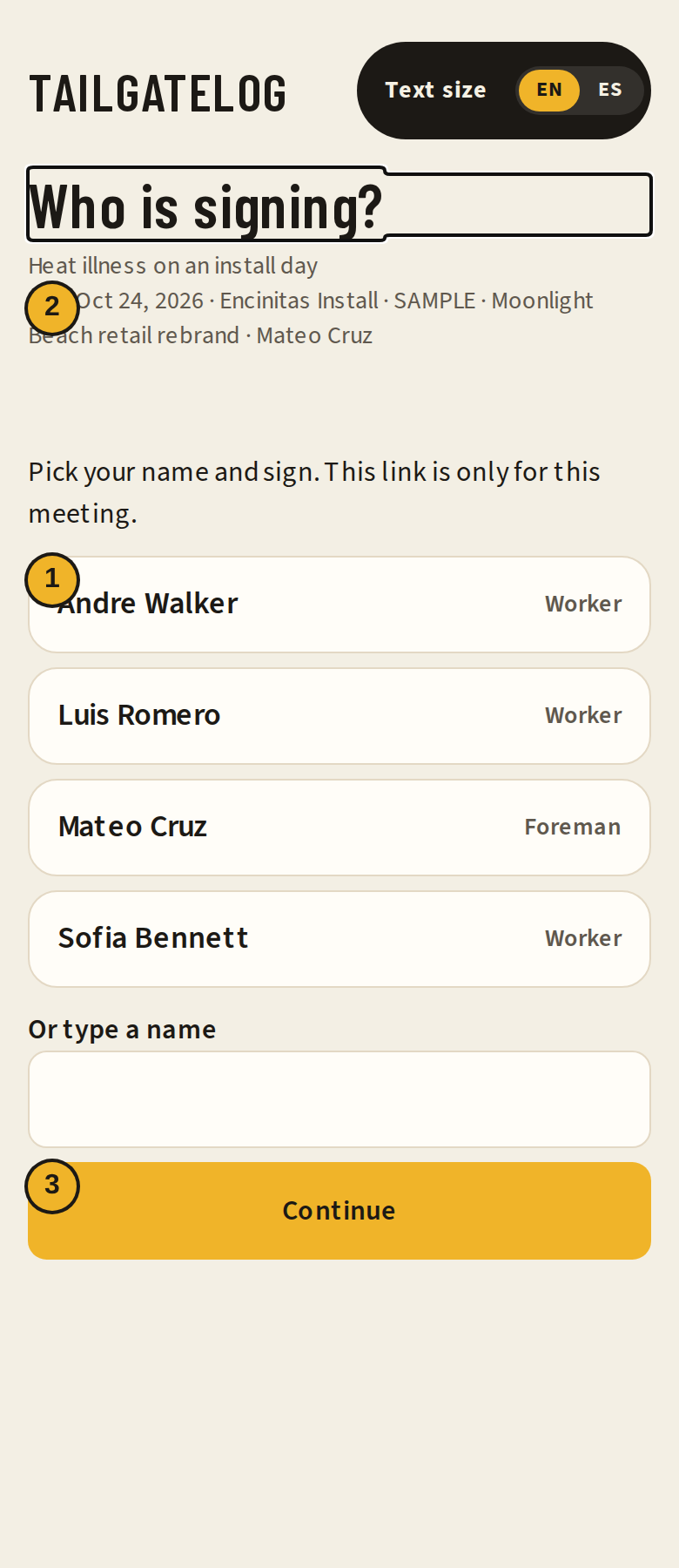
- A name.
- The meeting line. On a practice job it includes SAMPLE.
- Continue for a typed name.
If the phone or tablet has no signal, the signature stays on that device. The screen says it will sync. When the signal comes back, TailgateLog uploads it once. It is not added a second time.
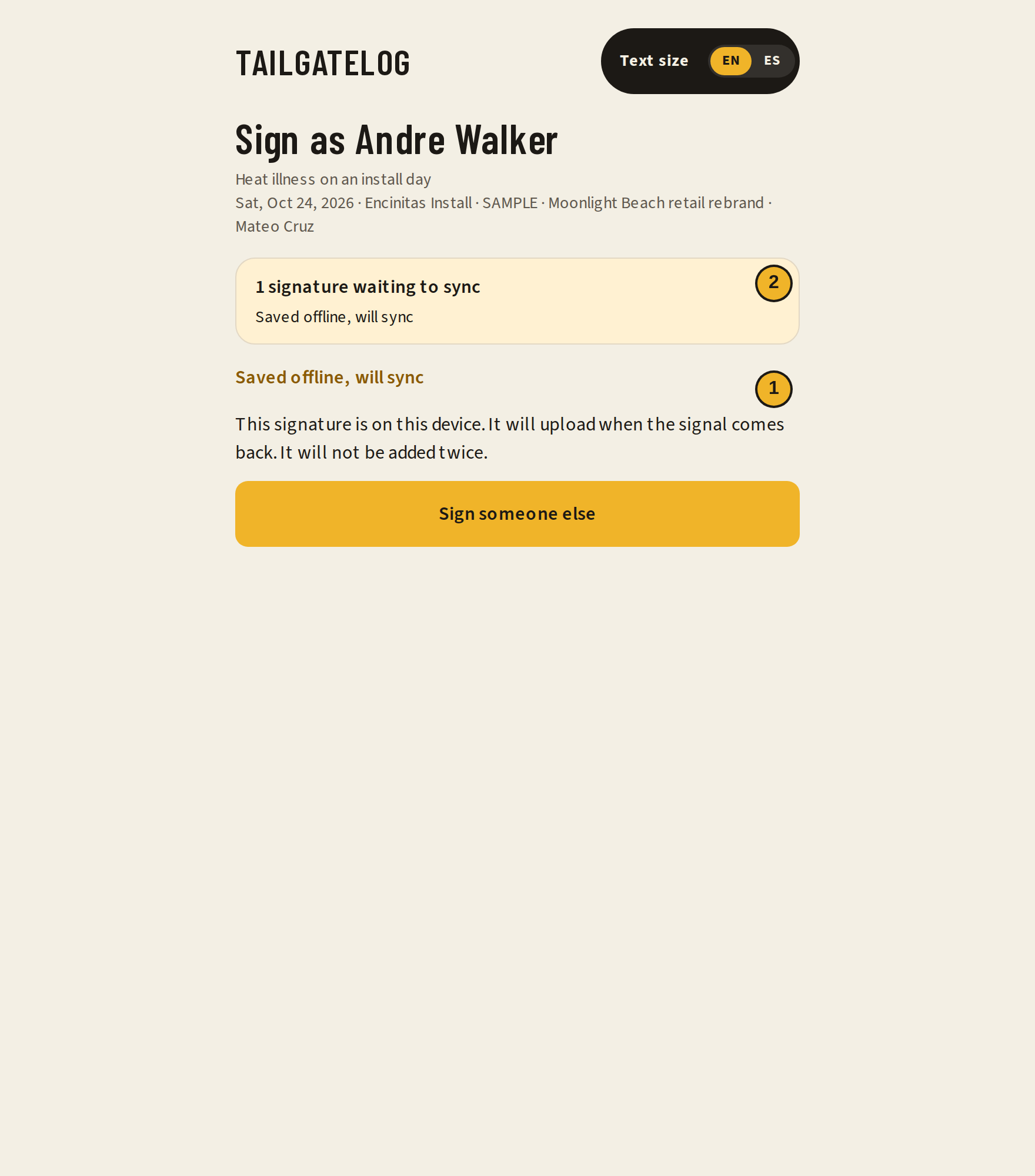
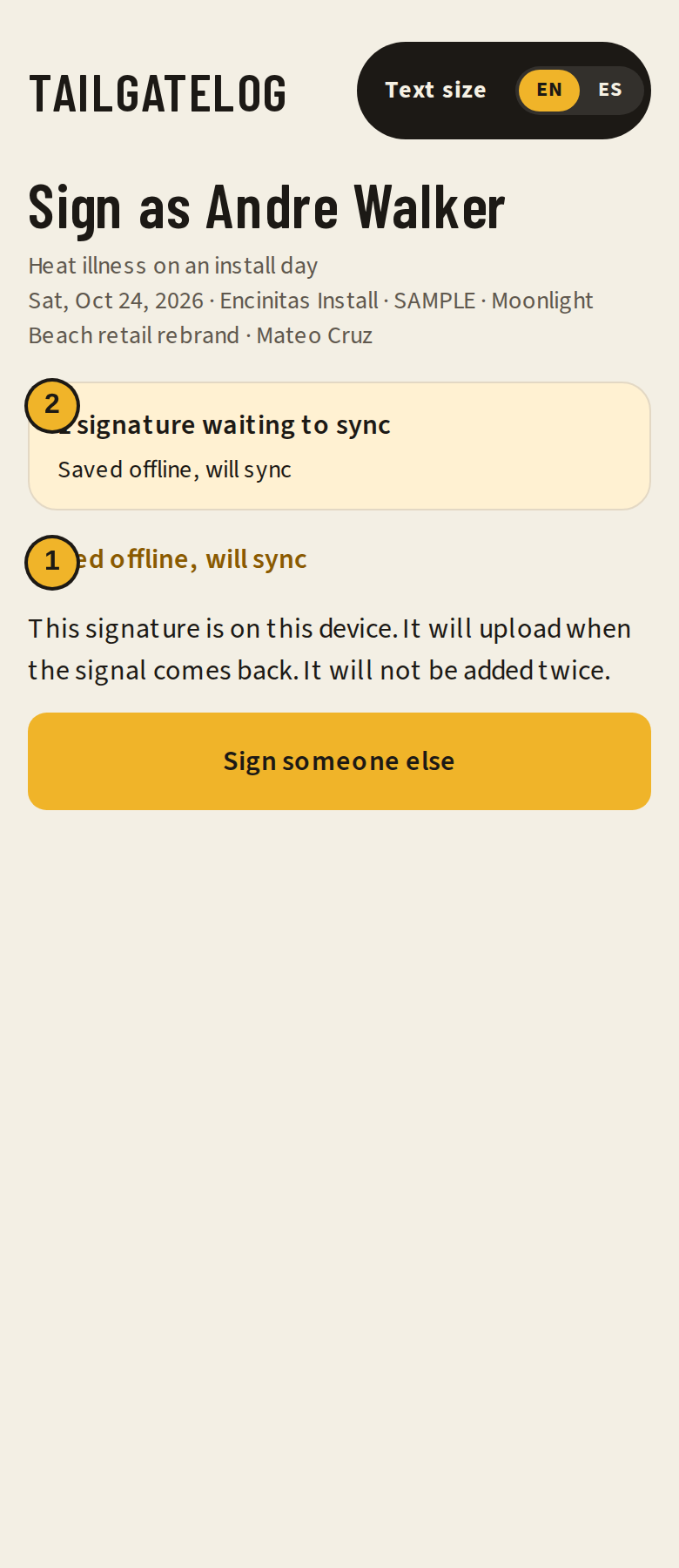
- The line that says the signature was saved offline.
- The note that it is waiting to sync.
Close sign-in
Stop the kiosk and the QR when the crew is done.
Closing sign-in stops the QR link and the kiosk. The meeting record stays. People who already signed stay signed. You cannot collect more names on that meeting after it is closed.
Do this at the end of the tailgate, not at the start. If a person is still walking up, leave it open.
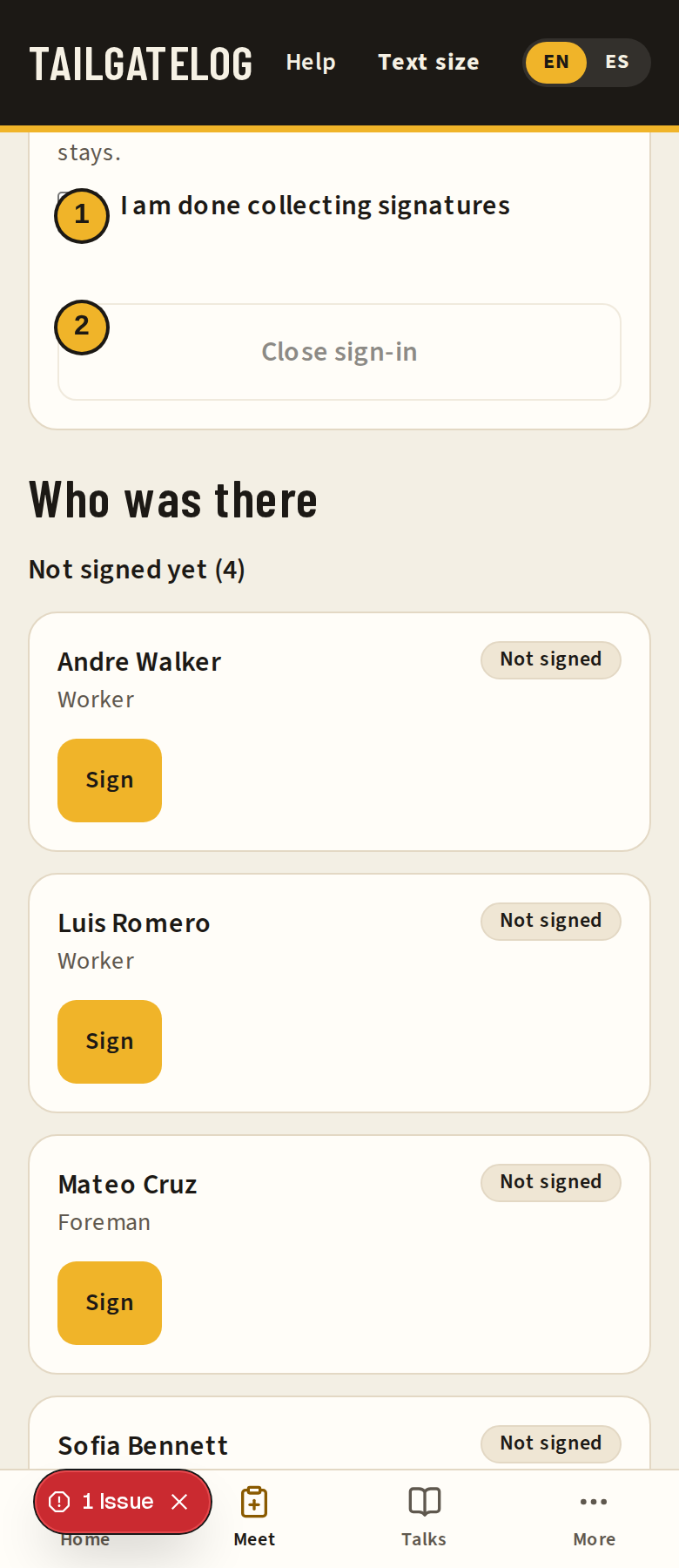
- I am done collecting signatures. The button stays off until this is checked.
- Close sign-in.
Shop and field
The 10-working-day clock for a construction crew and for the shop.
A construction crew is on the Title 8 §1509 clock: a tailgate at least every 10 working days. Shop and office staff meet under §3203, the injury and illness prevention program. In TailgateLog both use the same 10-working-day clock so the shop record does not go quiet.
Working days skip weekends and US federal holidays, on the observed day. The Friday after Thanksgiving still counts unless the crew was actually off.
Due soon means two working days or fewer are left, including the due date. The day after the due date is overdue, even on a weekend.
The crew card shows which rule that crew is on, and the jobs tied to it. Field jobs need a ZIP or coordinates so heat and smoke can be checked. The shop job can have them too.
Due list and reminders
Who is due, the reminder button, and notification settings.
Home shows three counts. The due list is the same crews, one card each, with the last meeting and the next due date. A suggested topic is a hint. You can start a different talk.
Send due reminders on Home writes the notices for this company. In-app notices are always written. An in-app notice follows the language you are using now, including one that was stored earlier. Email, text, and web push go out only when that provider is set up on the server and the plan includes those reminders, and each due event is sent once. Quiet hours use Pacific time. They hold email, text, and push. The in-app list is still there when you open the app.
A text of STOP to the company number turns SMS off. START turns it back on. The same switch is on Notifications.
- The crew card, with the rule and the last meeting.
- The status: overdue, due soon, or on track.
- Start meeting.
- Send due reminders.
- A reminder already written. SAMPLE on that card means it is practice data.
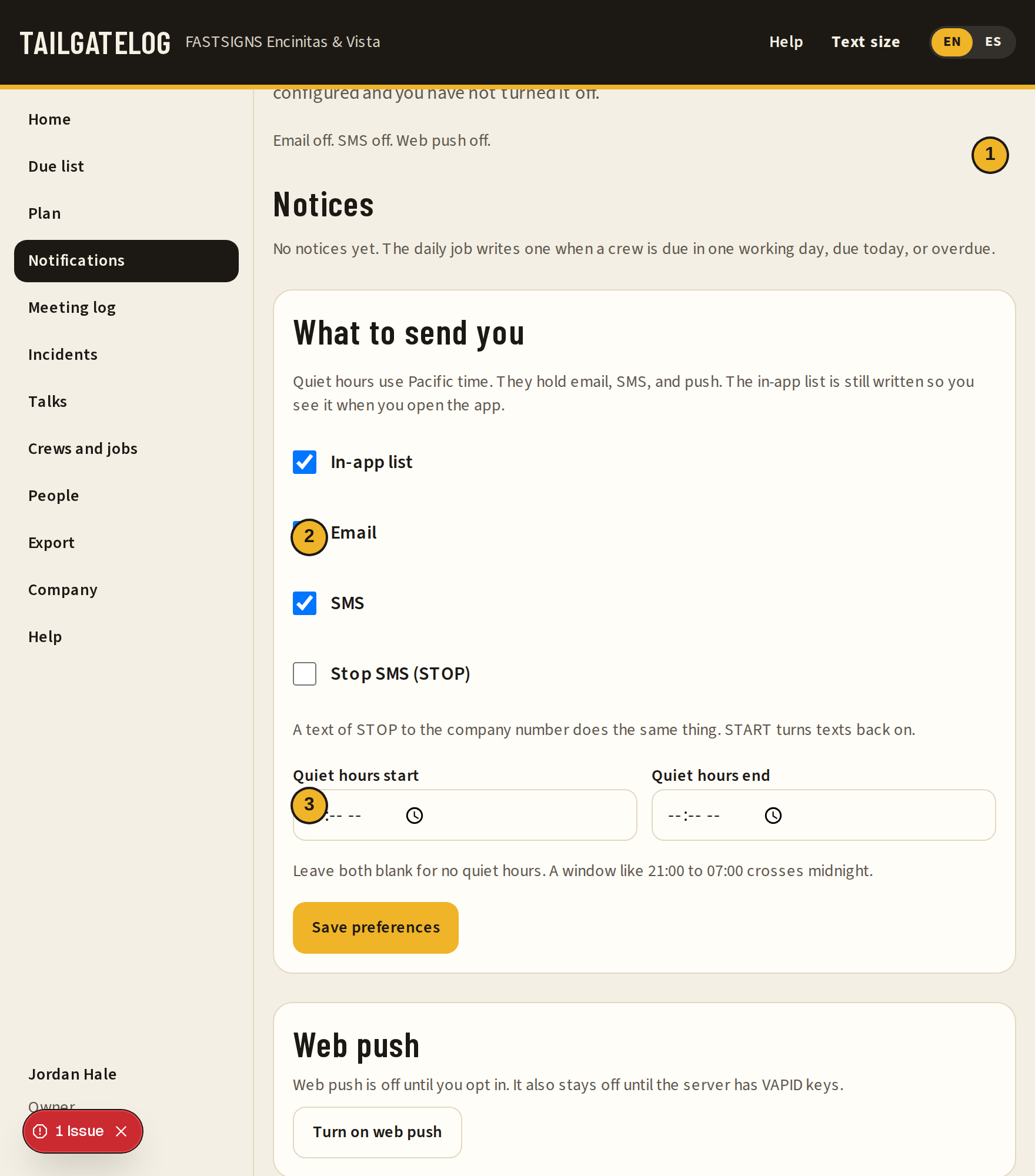
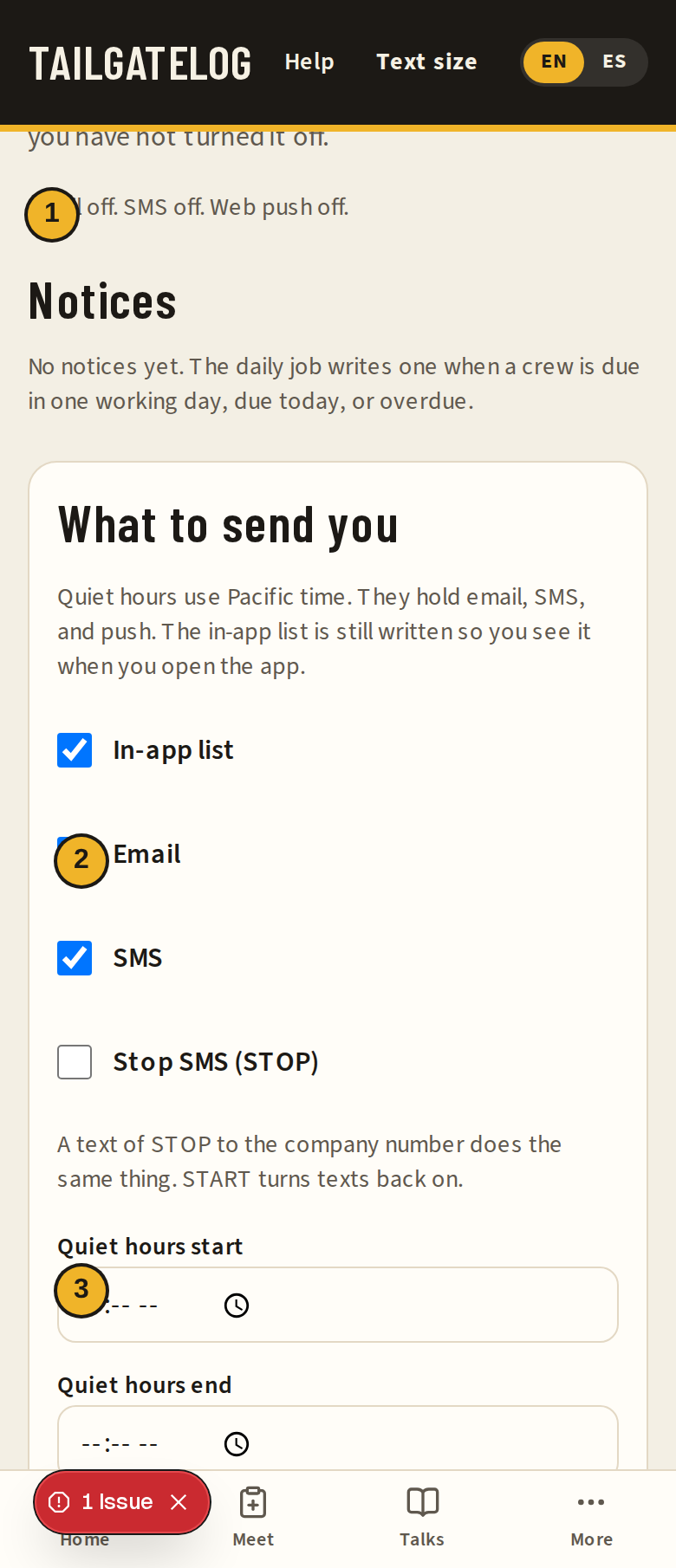
- Which providers are on. Email, SMS, and web push stay off until they are configured.
- The email checkbox. In-app stays on even if you clear this.
- Quiet hours start. Leave both quiet fields blank for no quiet hours.
Talk plan
A 12-week calendar of talks by crew, season, and trade.
Plan is in the side list and under More. Pick the crew, the trade, and the job site. Set the weekday and the time. Autofill next 12 weeks suggests one talk each week. On a Free plan the planning edits stay off and the page links to Plan and billing. A talk that is already scheduled can still be started. Signing in is not limited.
The list rotates hazard categories. It prefers talks that fit the month, the trade, an open incident tag, and a heat or smoke alert on that job. A talk the crew already had is left out for the number of weeks in Do not repeat a talk for this many weeks. By month is the same list, grouped by month.
Accept puts the talk on the calendar as a scheduled meeting, with the date and the leader. It shows on the meeting log and in Download calendar. The calendar file includes the Pacific time zone so a strict calendar can open it. It is not overdue until that date has passed. Swap picks another talk. It will not pick a talk already in this crew's plan, or one the crew already covered, inside the number of weeks you set, while another talk is available. Earlier and Later trade places with the neighbor. Skip drops that week.
Home shows This week's talk for a scheduled talk this week, including one that is already late. Start opens the meeting. Reschedule changes the date. The 10-working-day clock still uses meetings that were actually held.
A line that says Review the season tag is a low-confidence match. Heat talks are preferred May through October, including a trench talk that is really about the heat. Wildfire smoke talks are preferred August through November. Rain and trench talks are preferred November through March. A dry electrical talk, such as lockout, stays available all year. A wet-weather or GFCI talk can prefer November through March, and that tag stays low confidence. Vehicle and traffic talks have the same weak winter preference. Fall protection is preferred in May for the stand-down. The exact week was not verified, so the preference is the whole month. An open incident can still pull a talk outside those months. The line under the title says why. These months are planning hints. Shade above 80°F, high-heat procedures at 95°F, and voluntary N95s at PM2.5 AQI 151 through 500 are unchanged. A competent person decides.
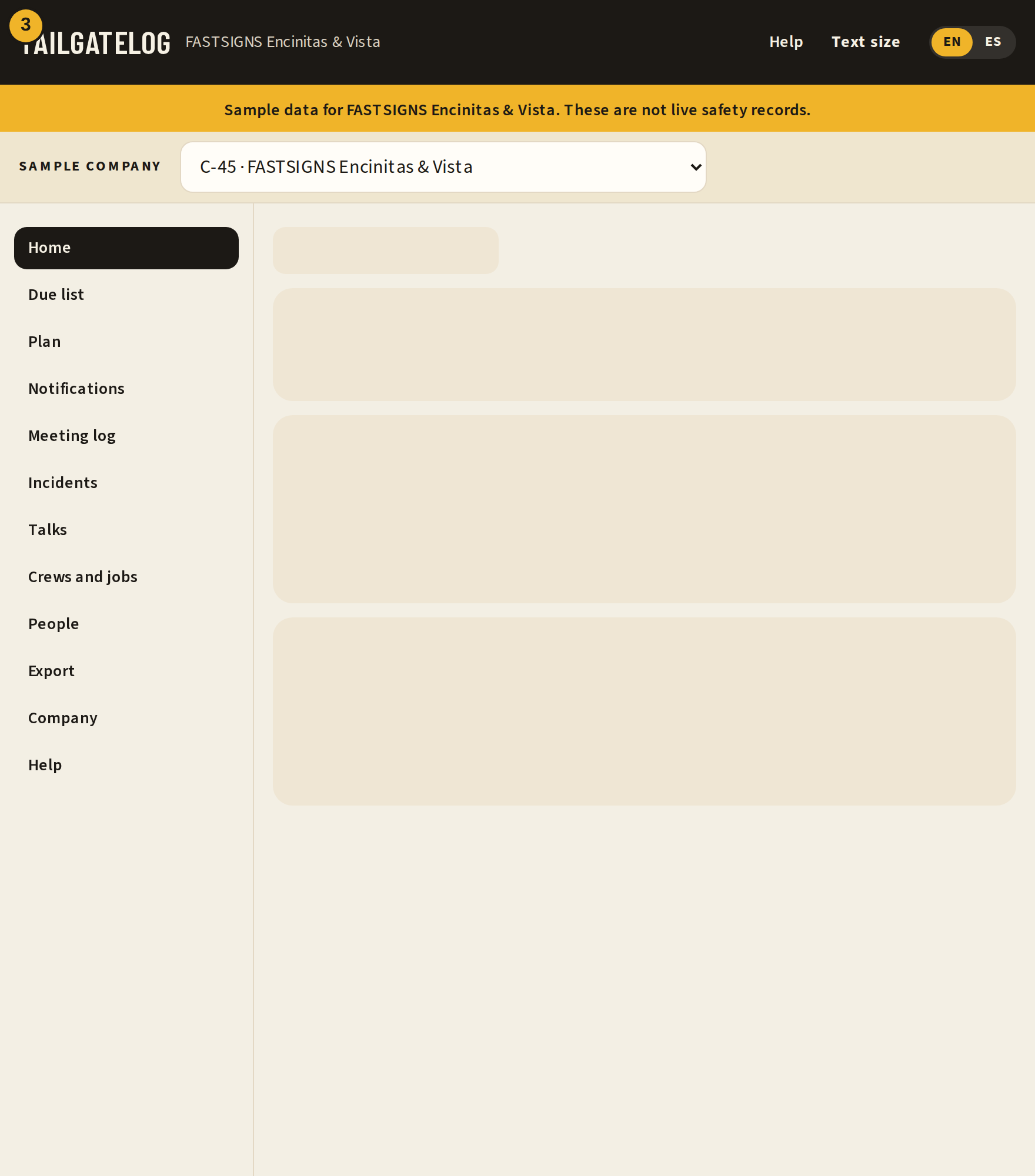
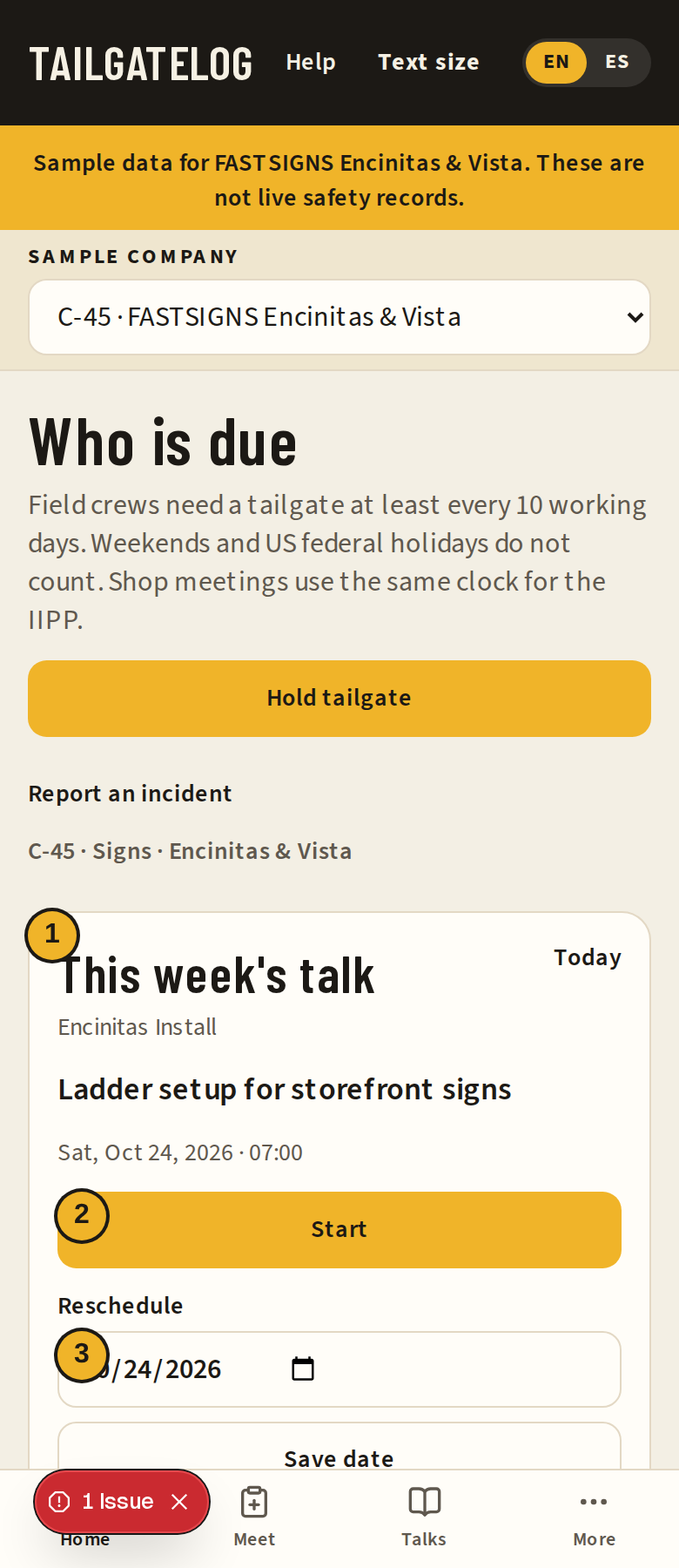
- This week's talk, with the crew and the date.
- Start.
- Reschedule.
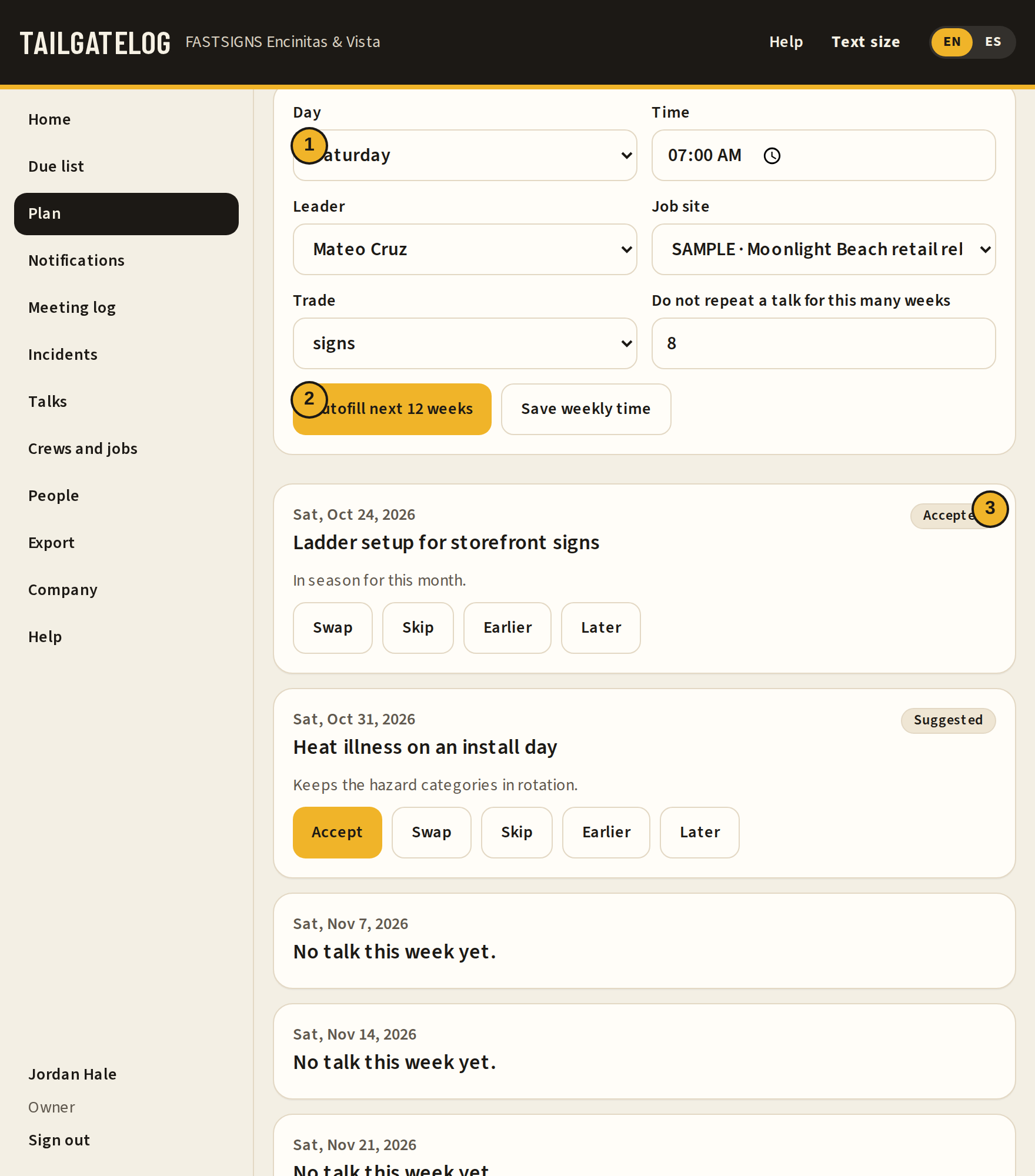
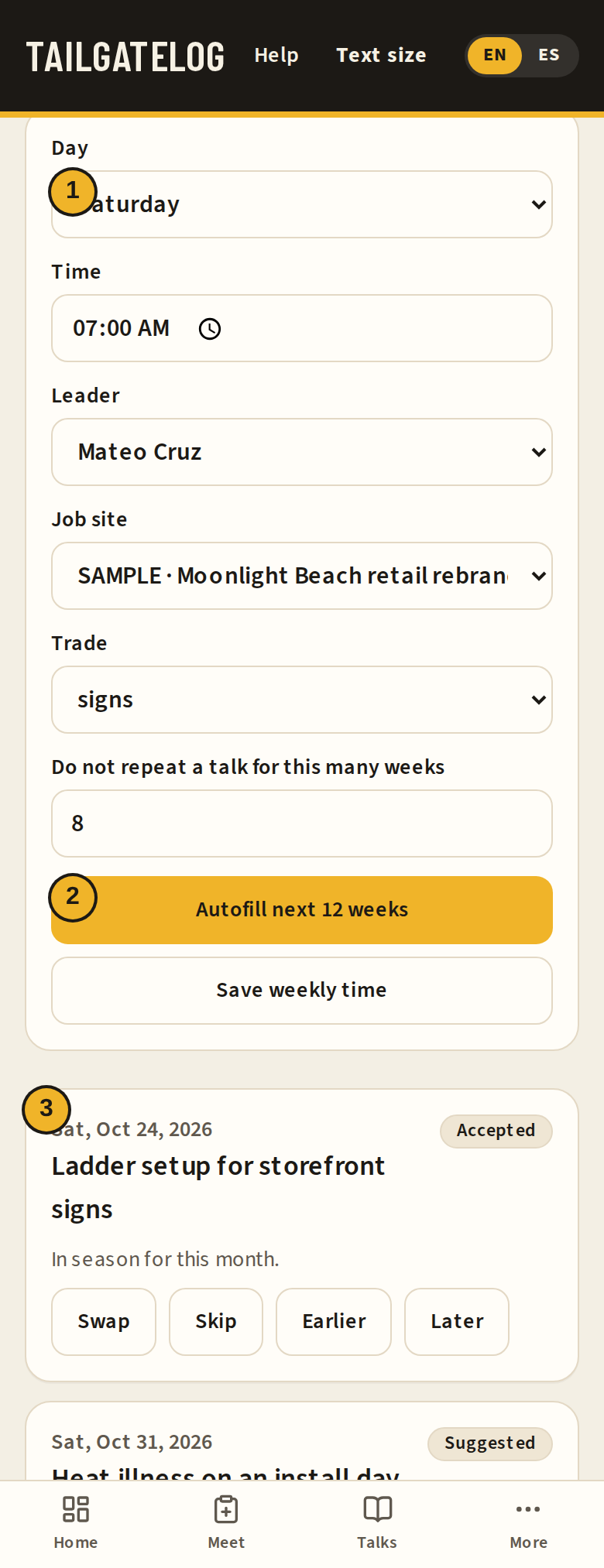
- The weekday for this crew.
- Autofill next 12 weeks.
- One week in the plan. Accept, swap, skip, or move it.
Heat and smoke
Shade above 80°F, high-heat procedures at 95°F, N95s at AQI 151–500, and who decides.
Each active job can show a heat and smoke reading on Home and again when you pick that job on a new meeting. The job needs a ZIP or a latitude and longitude. Crews and jobs explains where to type them.
The pictures in this manual use a sample reading so both buttons can show: 88°F now, forecast high 96°F, PM2.5 AQI 180. The banner says SAMPLE READING. That is not today's forecast. On a normal screen the numbers are the live reading. If the weather service does not answer, you can still hold the meeting. Read a thermometer and check the PM2.5 AQI before work.
A competent person decides what the crew does. TailgateLog keeps the record and shows the thresholds. It does not replace a thermometer on the site, and it does not replace that person.
The thresholds in plain language
- Shade when the temperature is above 80°F. Shade has to be up while people are on site.
- High-heat procedures when the temperature is 95°F or higher. Watch the crew, remind people to drink, and name who calls emergency services.
- N95s available when the PM2.5 AQI is 151 through 500. They are for voluntary use. Encourage people to wear them.
- The temperature that matters is the thermometer in the sun, the dry-bulb number. TailgateLog uses the higher of the current temperature and the forecast high. The heat index does not trigger the rule.
- When the PM2.5 AQI is above 500, the rule changes. Do not assume an N95 is enough. A competent person decides the protection.
Water belongs at the work for an outdoor crew even below 80°F: at least one quart per person per hour, cool, free, and close to the crew.
Start heat meeting opens a new tailgate with a heat talk when the reading calls for one and a heat talk is in season. Start smoke meeting does the same for wildfire smoke. If the button is missing, the reading is under the threshold, the job has no location, or no matching talk is in season. You can still pick a heat or smoke talk yourself from the library.
The reading stored on the meeting is a snapshot. It is what the record, the inspection PDF, and the CSV show later. It does not follow the afternoon forecast after you save.
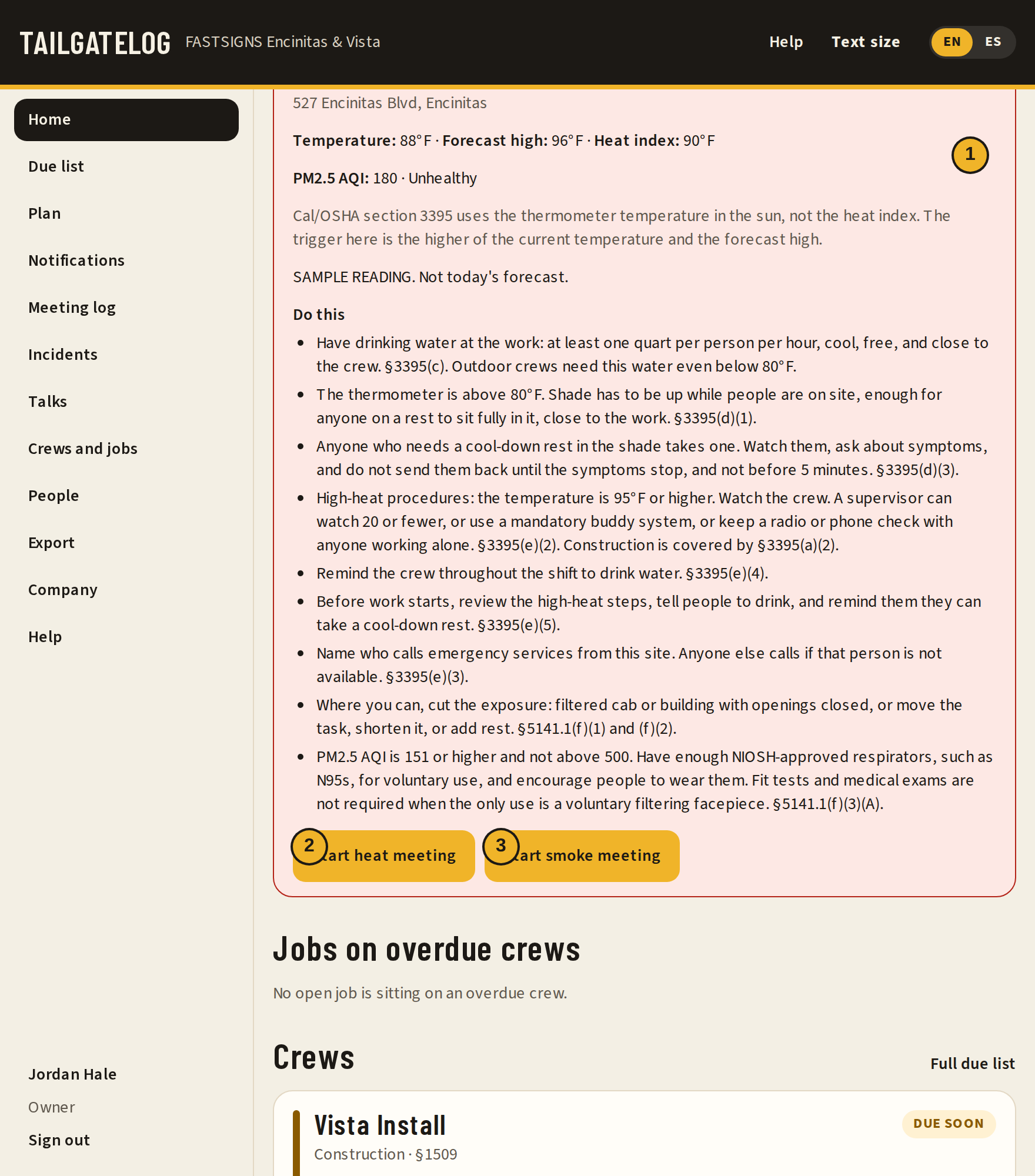
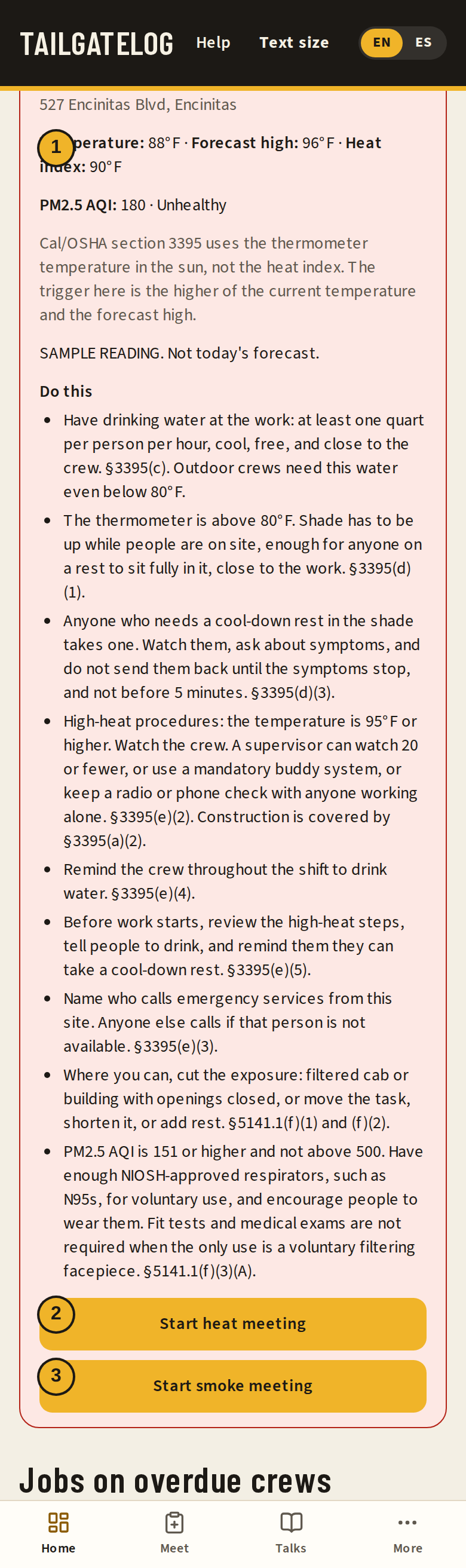
- Temperature, forecast high, and heat index. The AQI line is under that.
- Start heat meeting.
- Start smoke meeting.
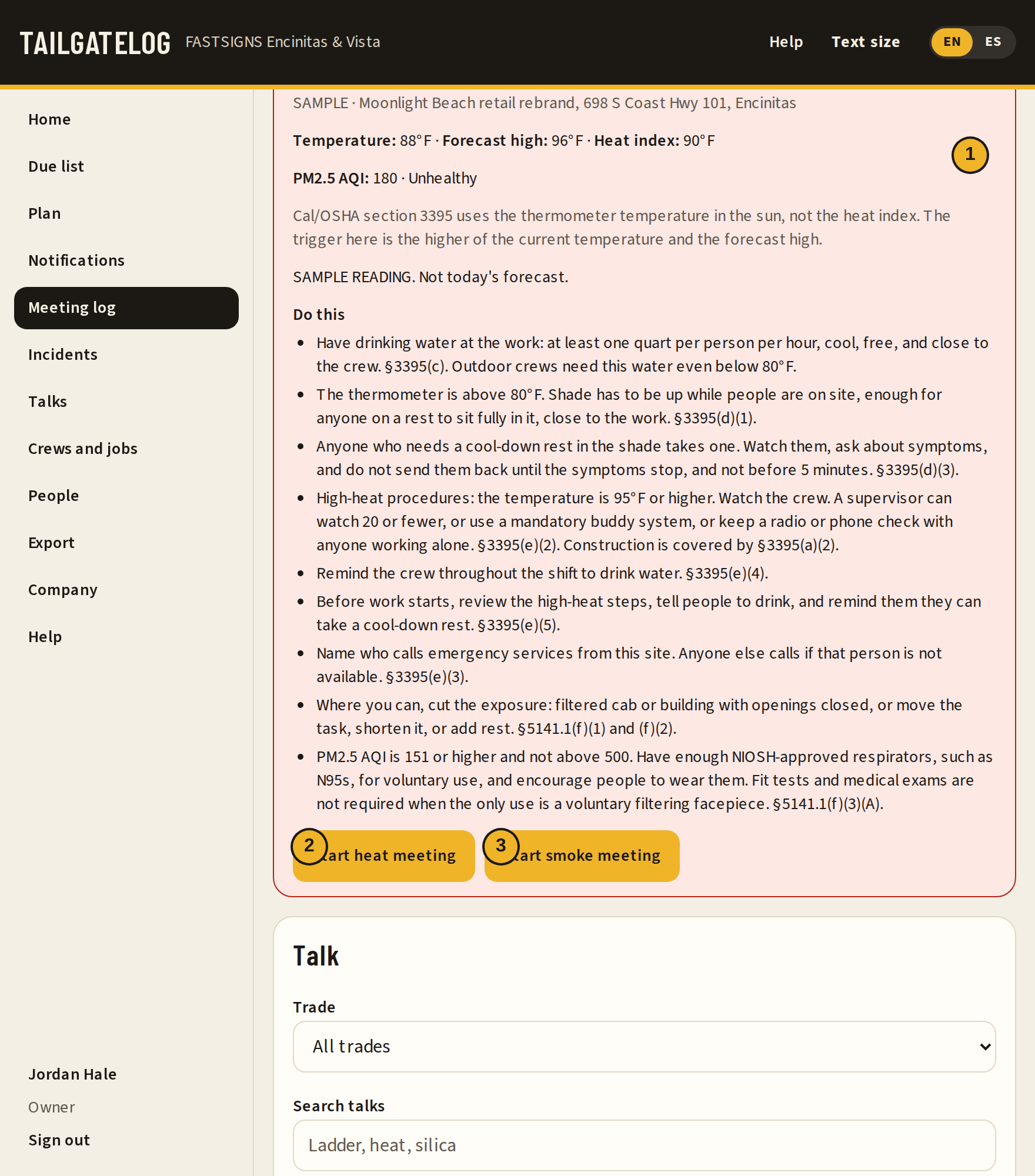
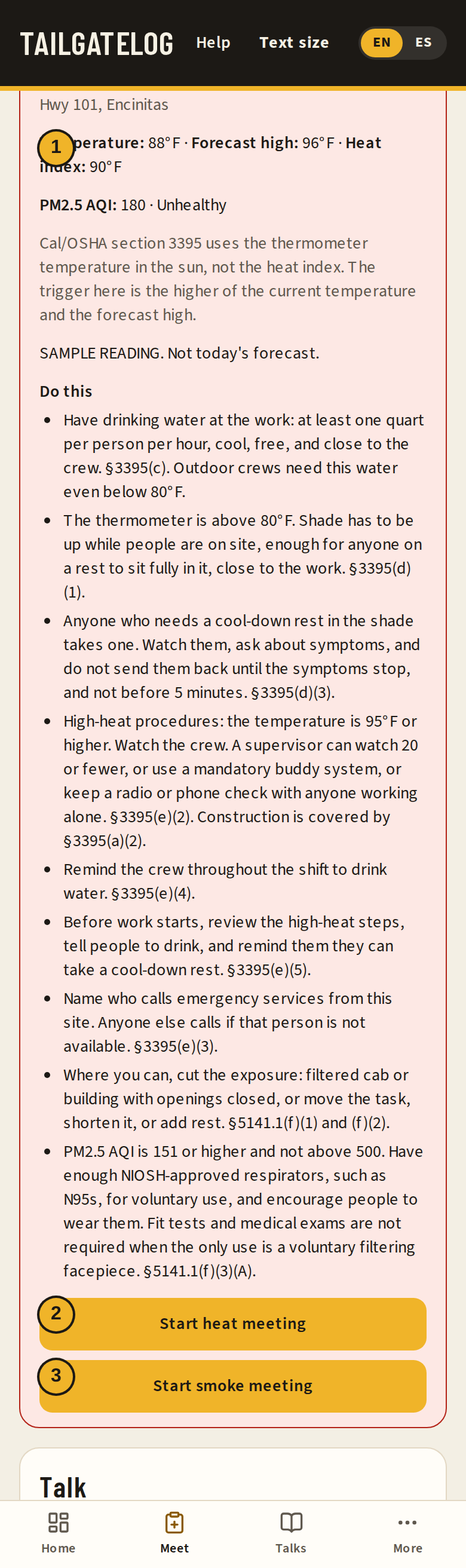
- The reading for the job you picked.
- Start heat meeting.
- Start smoke meeting.
Inspection packet
Download the PDF or the CSV for an inspector or a general contractor.
Owners and admins can export the whole company. A foreman can export their own crew. Workers do not see this screen.
Pick the dates, and narrow by crew, job, or trade if you need a smaller packet. Packet language is the language of the PDF. It can differ from the language a meeting was given in. The meeting text stays in the language it was saved in.
Check Include the IIPP / records cover when the packet should start with the short cover note from Company. That note is not the full IIPP.
Export inspection packet downloads the PDF: cover, CSLB number when you saved one, the optional IIPP note, a summary, the cadence check, each meeting, corrective actions, the weather snapshot, and signatures. Check Include incidents in this file to add the incident and near-miss section for the same dates. Anonymous reports leave names out. That section is not the Cal/OSHA 300 log, and this app does not fill Form 300, Form 300A, or Form 301. Download CSV is the same log, one row per meeting, including the weather columns. With incidents checked, the CSV adds a second block of incident rows after a blank line.
Meetings are not deleted. Keep the exports for at least three years.
On a Free plan the PDF is marked Free plan and the CSV adds that same mark. The export dates cannot start before the last 90 days. Older meetings stay in the file. An owner changes the plan under Company, Plan and billing.
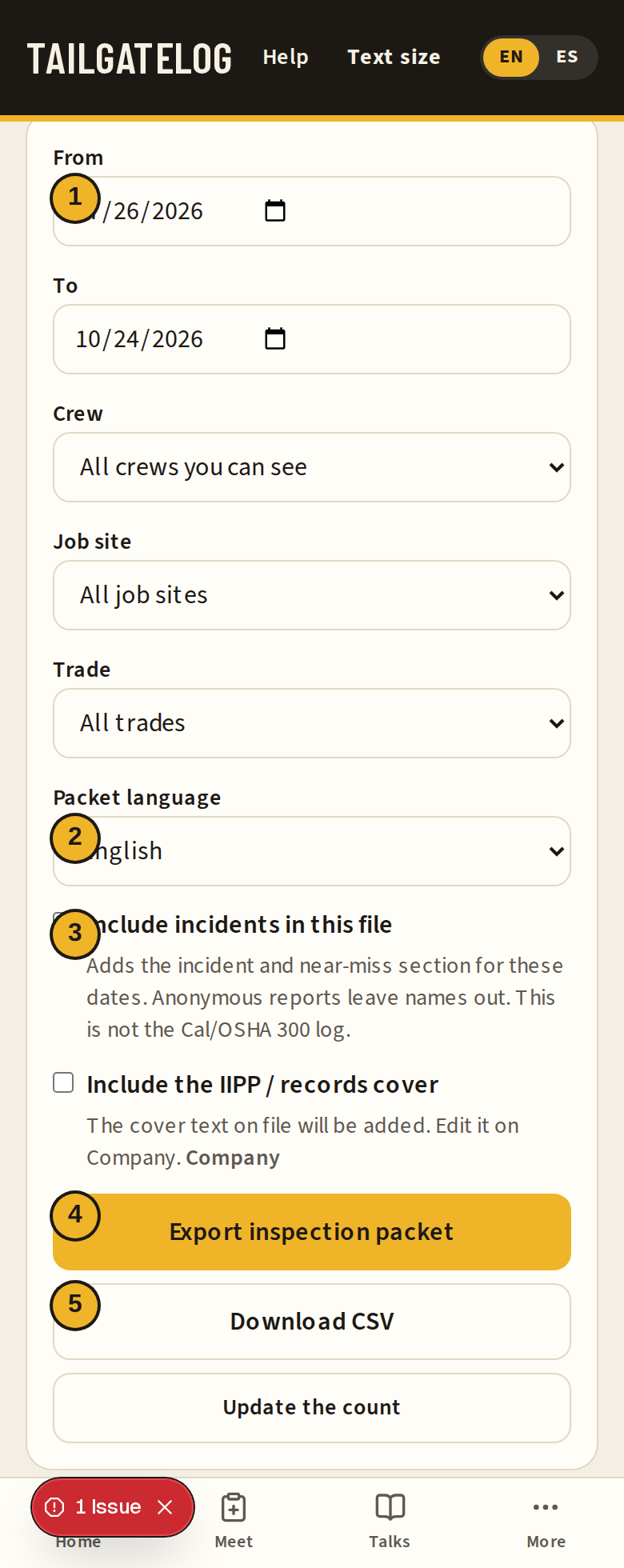
- From date. Set To beside it.
- Packet language.
- Include incidents in this file. Leave it off when you only want meetings.
- Export inspection packet.
- Download CSV.
Company record
CSLB license number and the short IIPP cover note.
Owners and admins edit this. Everyone else can read it.
CSLB license number is the contractor license number printed on the inspection packet cover. The license class, such as C-45, is already on the company and stays on the cover with it.
IIPP / records cover is a short note, not the whole injury and illness prevention program. Put the sentence you want an inspector to read first: where the full program is kept, and who to ask. The export screen can include this note at the front of the PDF.
The practice company in the pictures uses SAMPLE-000000 and a practice sentence. Replace both on a real company. Leave them only on a SAMPLE company.
Plan and billing is the link under Billing. An owner sees the current plan, how many crews, workers, and job sites are in use, and the buttons to upgrade or manage the card. When Stripe is not set on the server, that page says billing is not configured and the company stays on the full plan. Nothing is charged. Prices shown there are placeholders until they are confirmed. On Free, the meeting log and the exports keep the last 90 days, older meetings stay in the file, and the PDF and CSV are marked Free plan. Signing in to a meeting and filing an incident stay available on every plan. Canceling a paid plan does not delete the records.
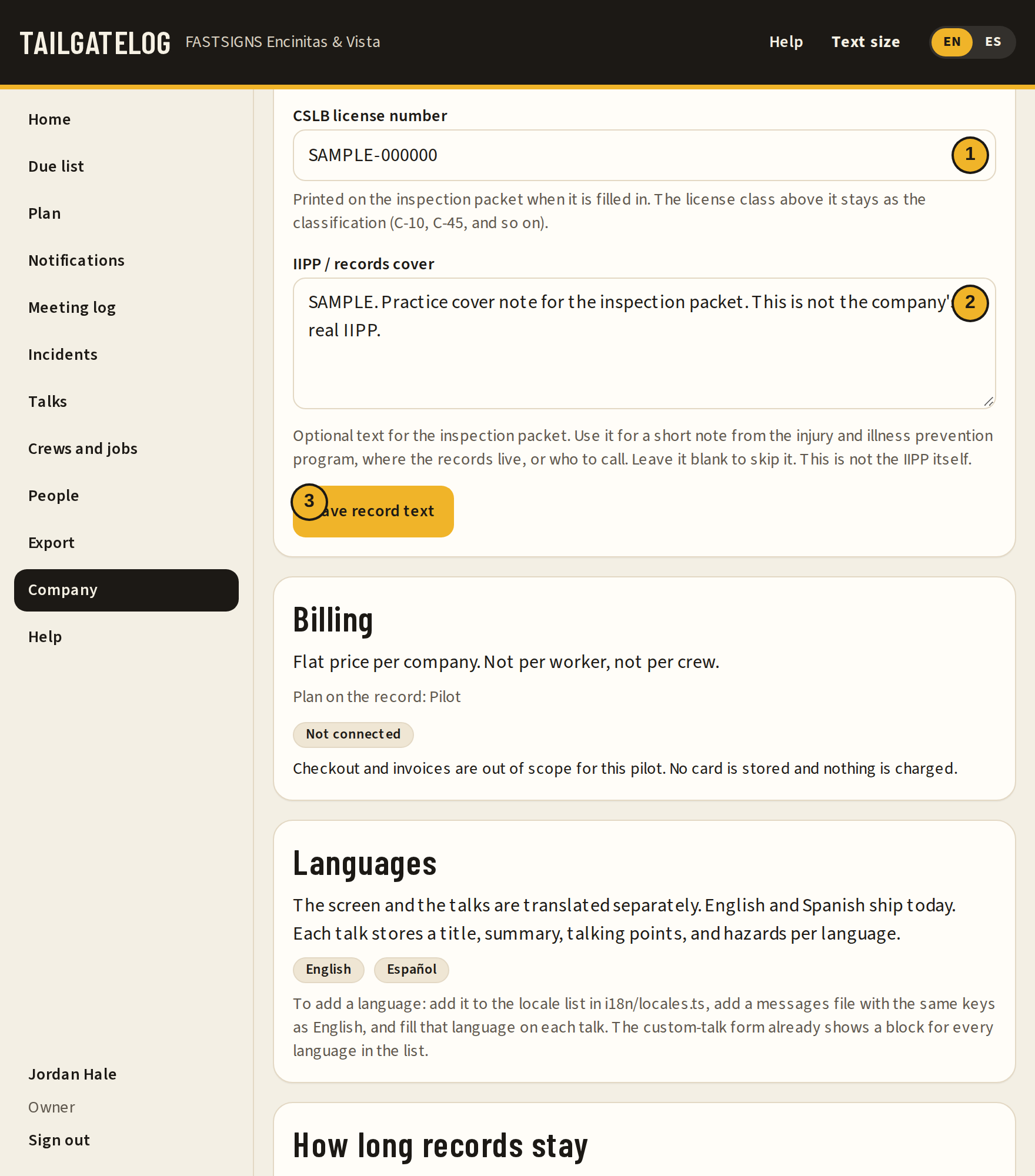
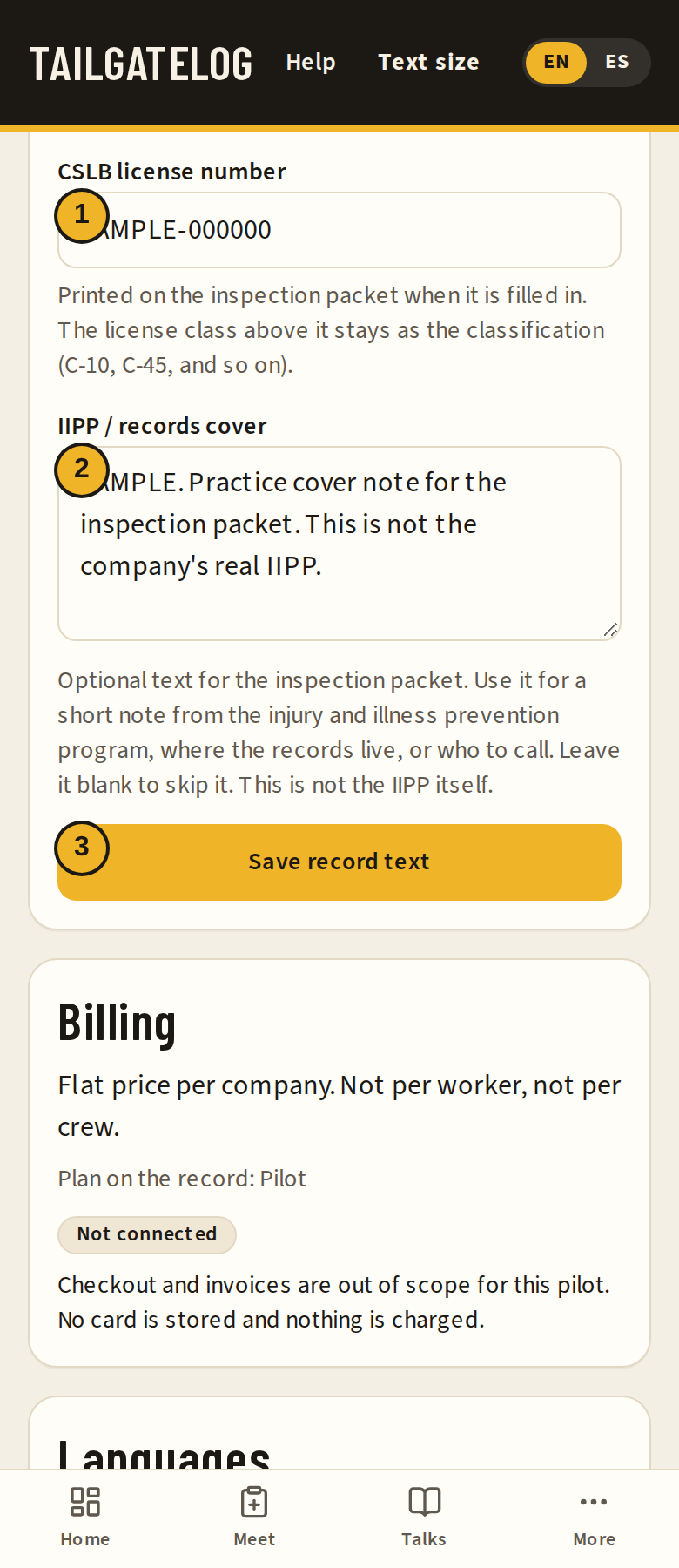
- CSLB license number.
- IIPP / records cover.
- Save record text.
- Plan and billing.
Corrective actions
Write the fix on the meeting so it shows on the record and in the packet.
Corrective actions are the fix: what changed, who owns it, and when. If nothing needed a fix, leave the box blank.
Type it before you save the meeting, or tap Dictate and then edit the words before you save. The recording stays on the phone. TailgateLog does not receive it. The browser or the phone's speech service may process the audio. If this browser has no dictate button, use the microphone on the keyboard. The note is stored on that meeting, shown on the record, and copied into the inspection PDF and the CSV. It is not a separate work-order system.
Use plain words. "SAMPLE. Shade is up at the south wall. Water is at the truck." is the shape of a practice note. On a real job, drop the word SAMPLE and name the person who will check it.
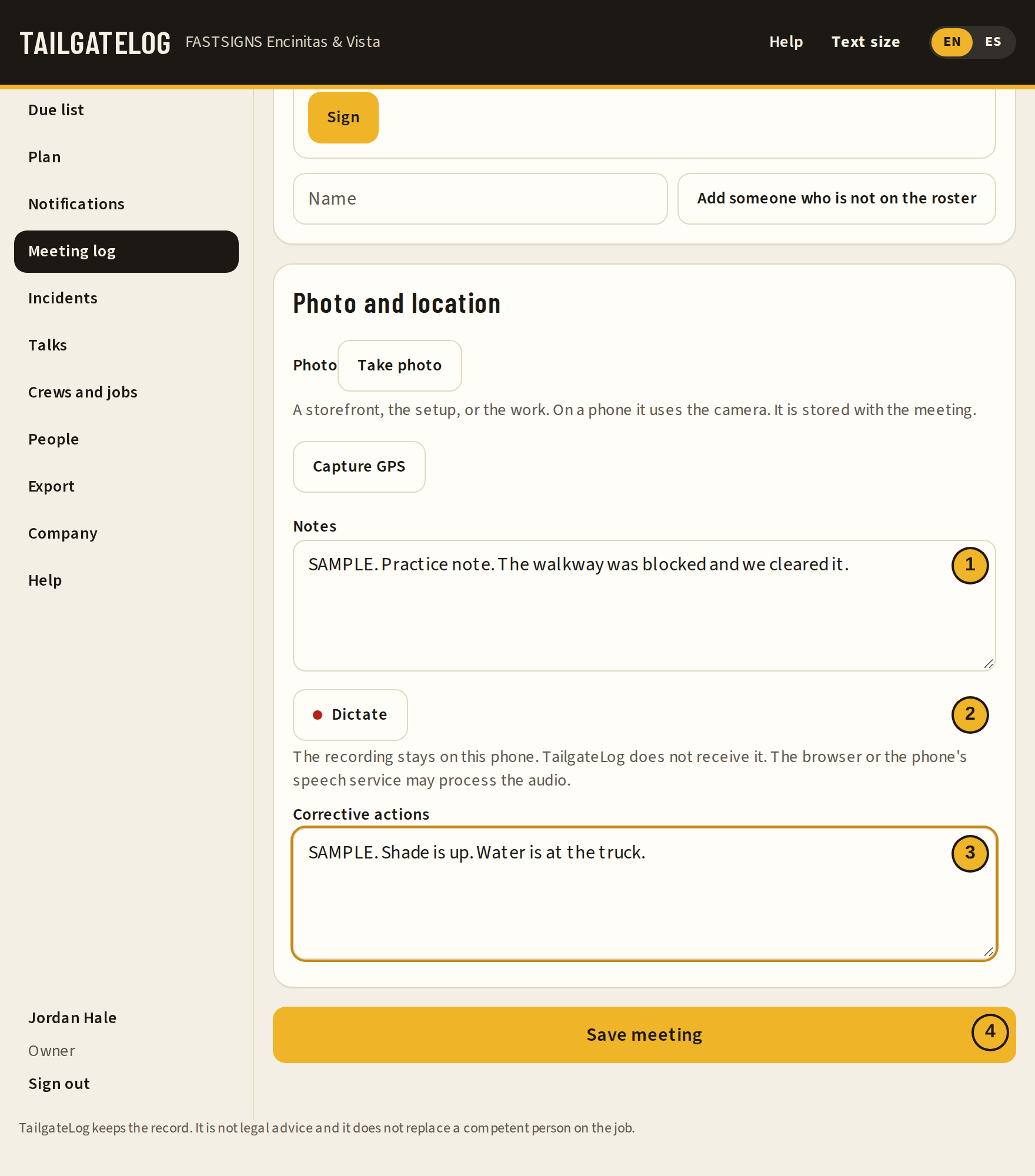
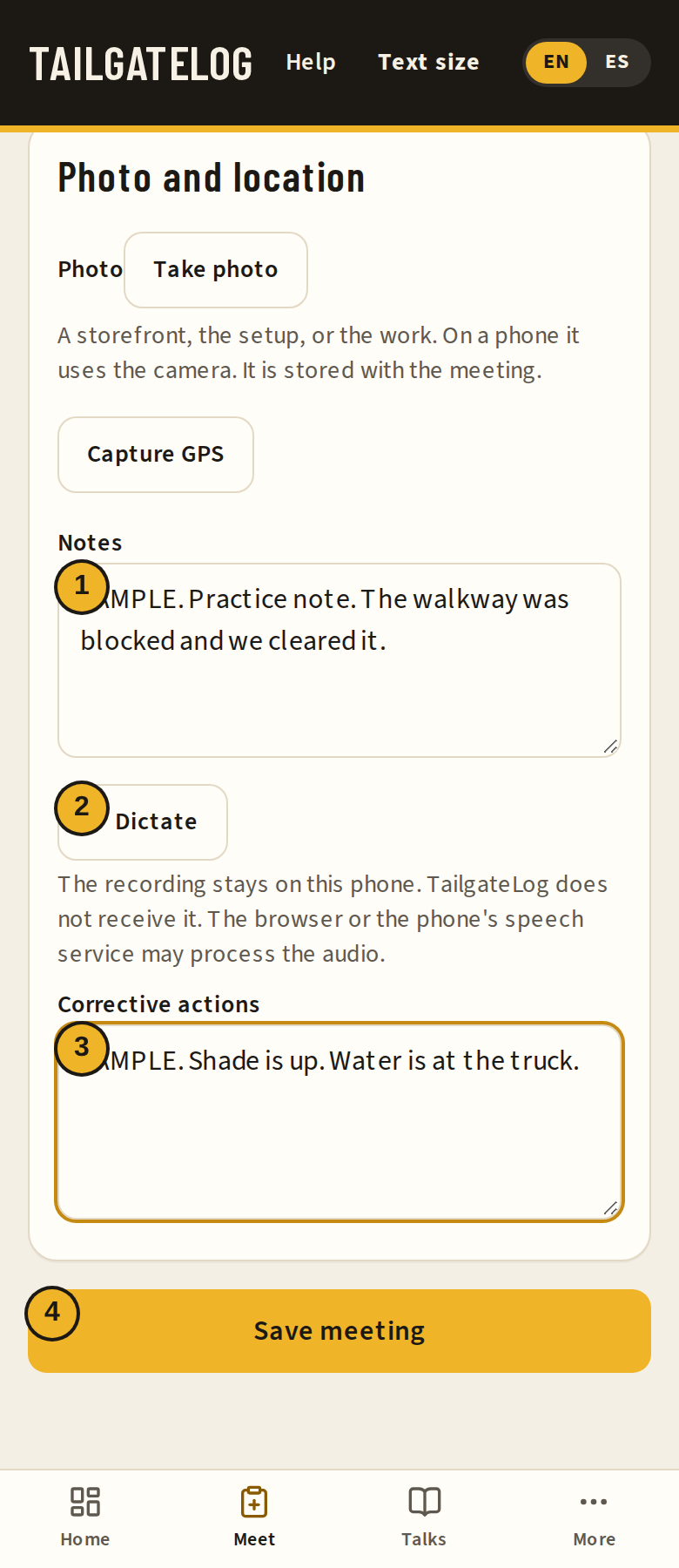
- Notes. What changed on this site, and what the next crew should know.
- Dictate. The words land in the box so you can fix them before saving.
- Corrective actions. The fix. Leave it blank when there was nothing to correct.
- Save meeting.
Crews and jobs
Add a job with a ZIP or latitude and longitude so heat and smoke can load.
A crew has people, a rule (field §1509 or shop §3203), and jobs. The status on the card is the same overdue / due soon / on track count as Home.
Heat and smoke need a location on the job. Type the ZIP, or type Latitude and Longitude. If you save a street address and leave the coordinates blank, TailgateLog asks the US Census geocoder to fill them in. You can also type the coordinates yourself when you already have them from the site plan.
The add-job picture types a sample ZIP and sample coordinates. It does not save that row. Saving would create another practice job.
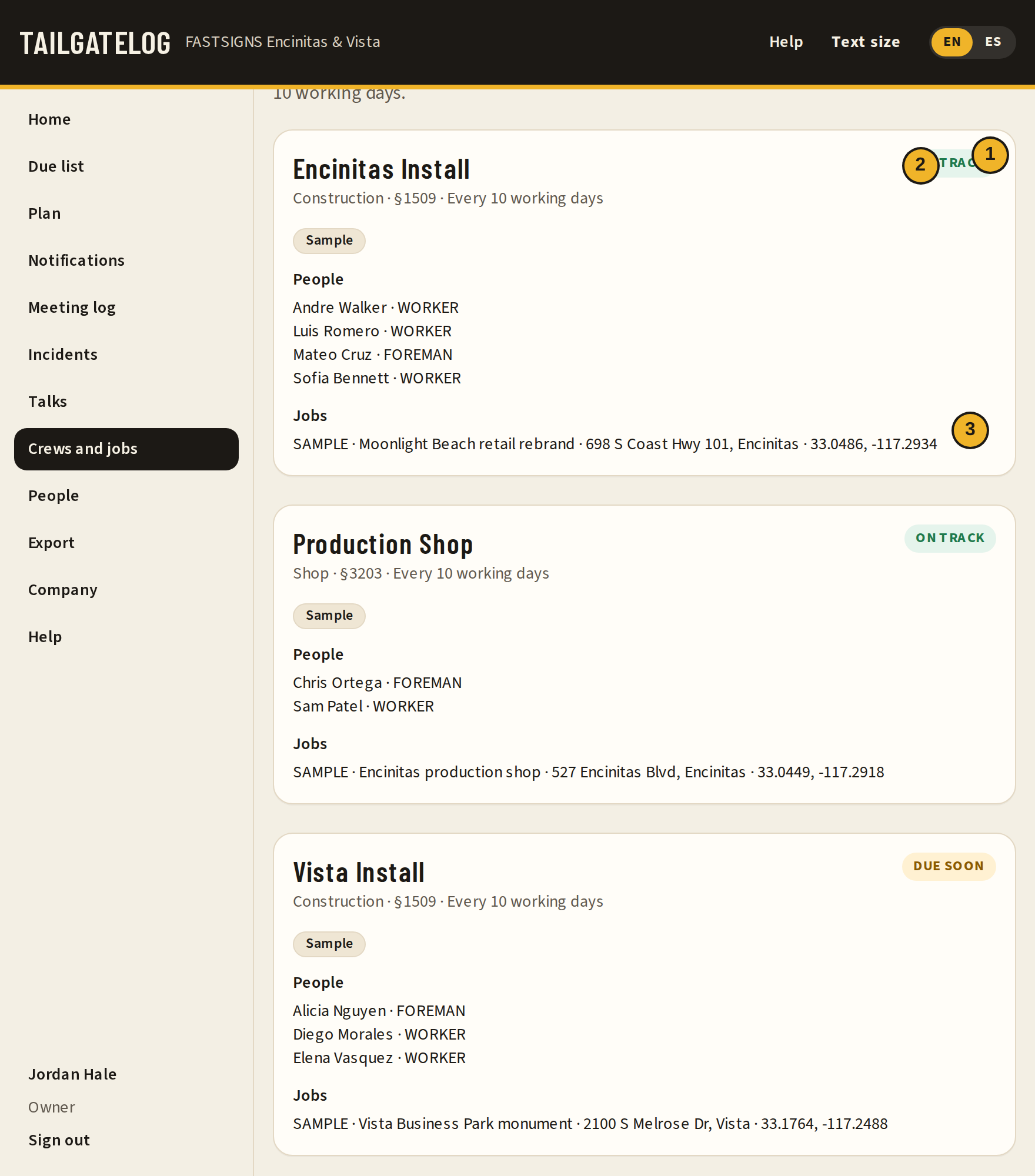
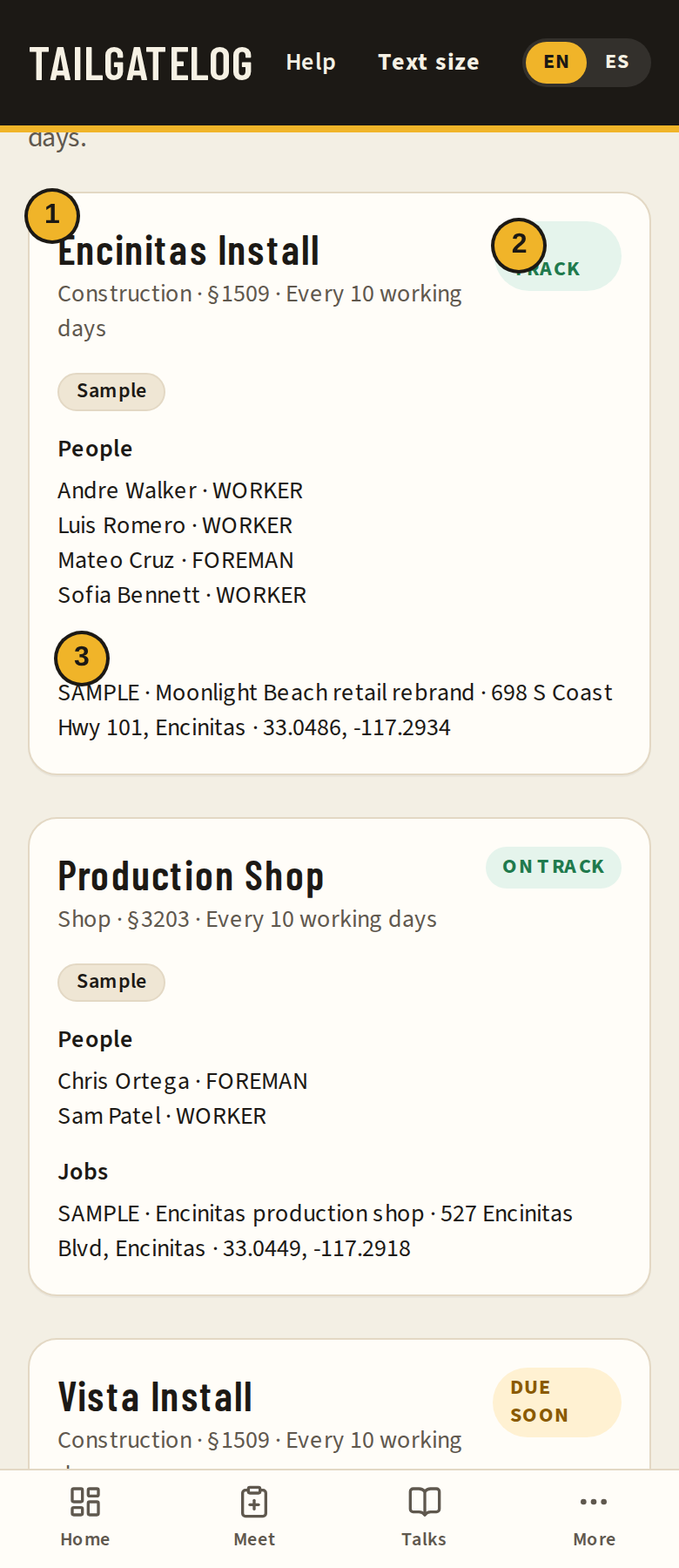
- The crew, the rule, and how often they meet.
- Status.
- Jobs on that crew, with address and coordinates when they are saved.
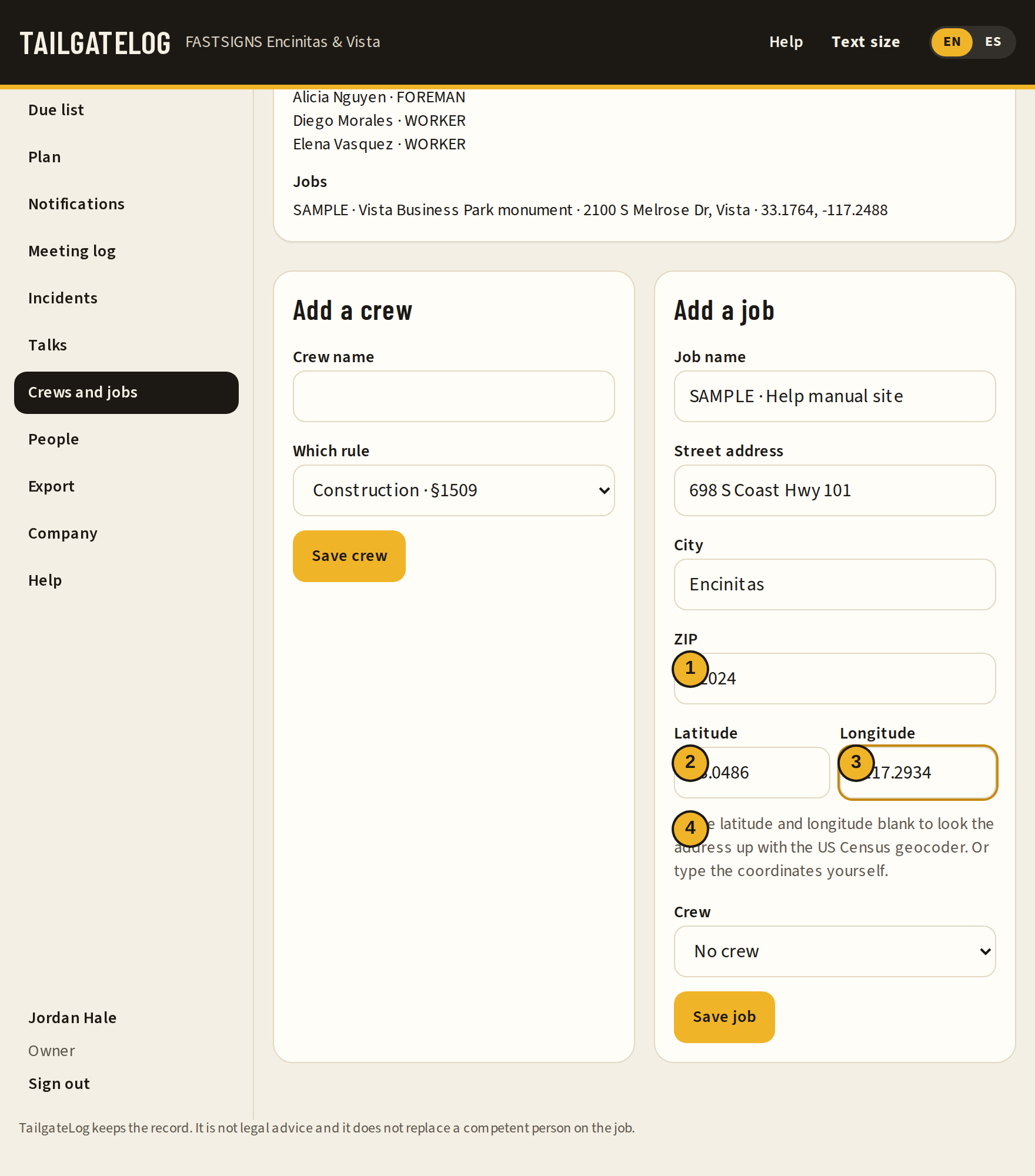
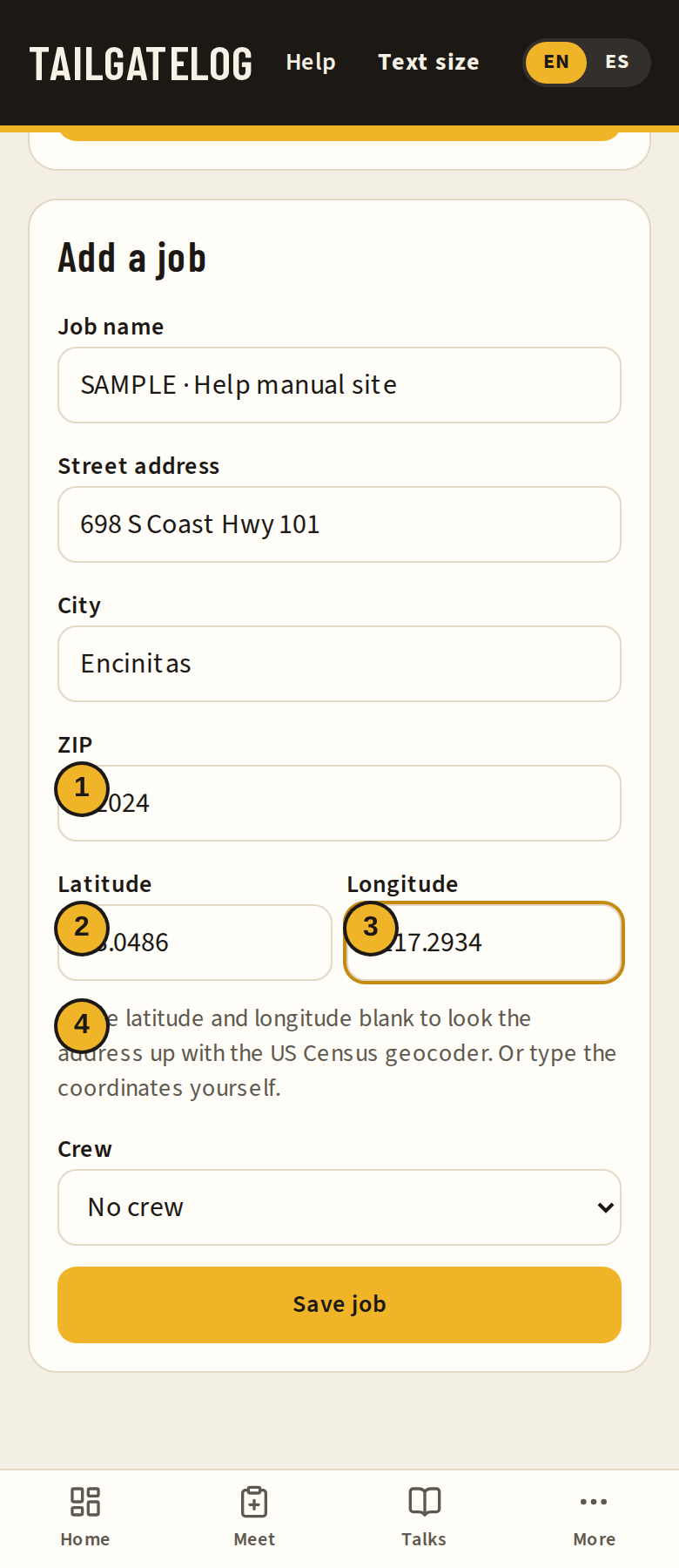
- ZIP.
- Latitude.
- Longitude.
- Leave the coordinates blank to look the address up, or type them yourself.
Incidents and near misses
Report what happened, follow it to close-out, and keep the Cal/OSHA 300 log separate.
Report on More, or Incidents in the side list, opens a short form. Any signed-in person can file one for their crew. An owner or admin can file for any crew. Pick the type: near miss, first aid, injury, property damage, or unsafe condition. Add the date and time, the job site, a short description, how serious it was, and what you did right away. Names of people involved are optional. You can add up to five photos and, if you want, this phone's location. The language on the form is the language of this report.
A near miss or an unsafe condition can be filed without your name. An injury, first aid, or property damage stays with your name so the office can follow up. With no signal, the report stays on the phone and sends once. Sending it again does not create a second report.
Serious injury, illness, or death has its own Cal/OSHA duty. Title 8 CCR section 342 says the employer reports it to the Division immediately, as soon as practically possible, and no longer than 8 hours after the employer knows or, with diligent inquiry, would have known. If the employer can show exigent circumstances, that window is no longer than 24 hours. Section 330(h) defines a serious injury or illness as inpatient hospitalization other than observation or diagnostic testing, an amputation, loss of an eye, or serious permanent disfigurement. A public-road case is excluded unless it happened in a construction zone. Checked on dir.ca.gov on October 25, 2026. Filing here is not that report.
The Cal/OSHA 300 log is separate. Title 8 section 14300.29 requires Form 300, Form 300A, and Form 301, or an equivalent form, when recordkeeping applies. Section 14300 says many employers, including the example of 10 or fewer employees, are partially exempt unless OSHA, the Bureau of Labor Statistics, or a state agency asks in writing. This app does not fill out those forms and is not an equivalent form.
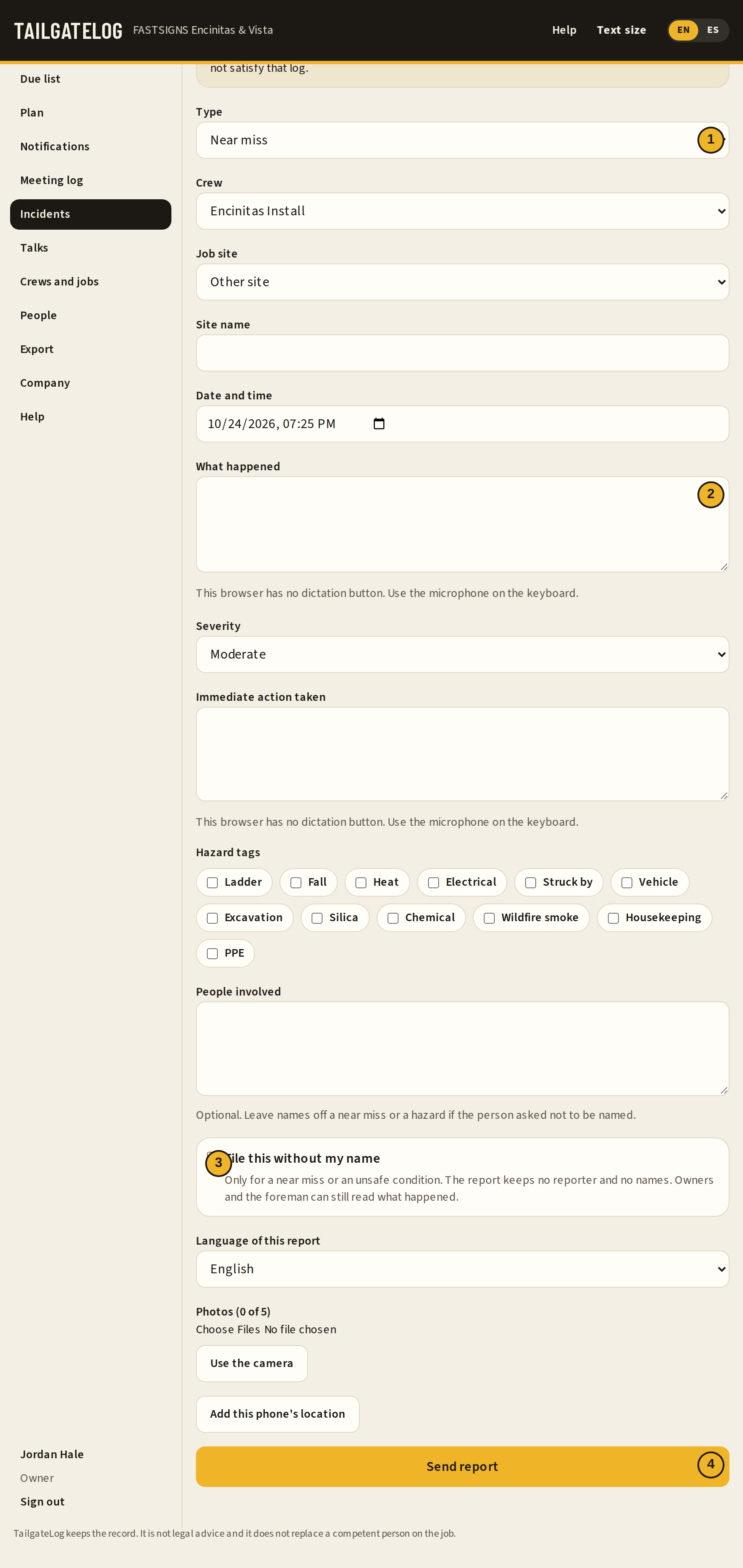

- Type.
- What happened.
- File this without my name. It is there for a near miss or an unsafe condition.
- Send report.
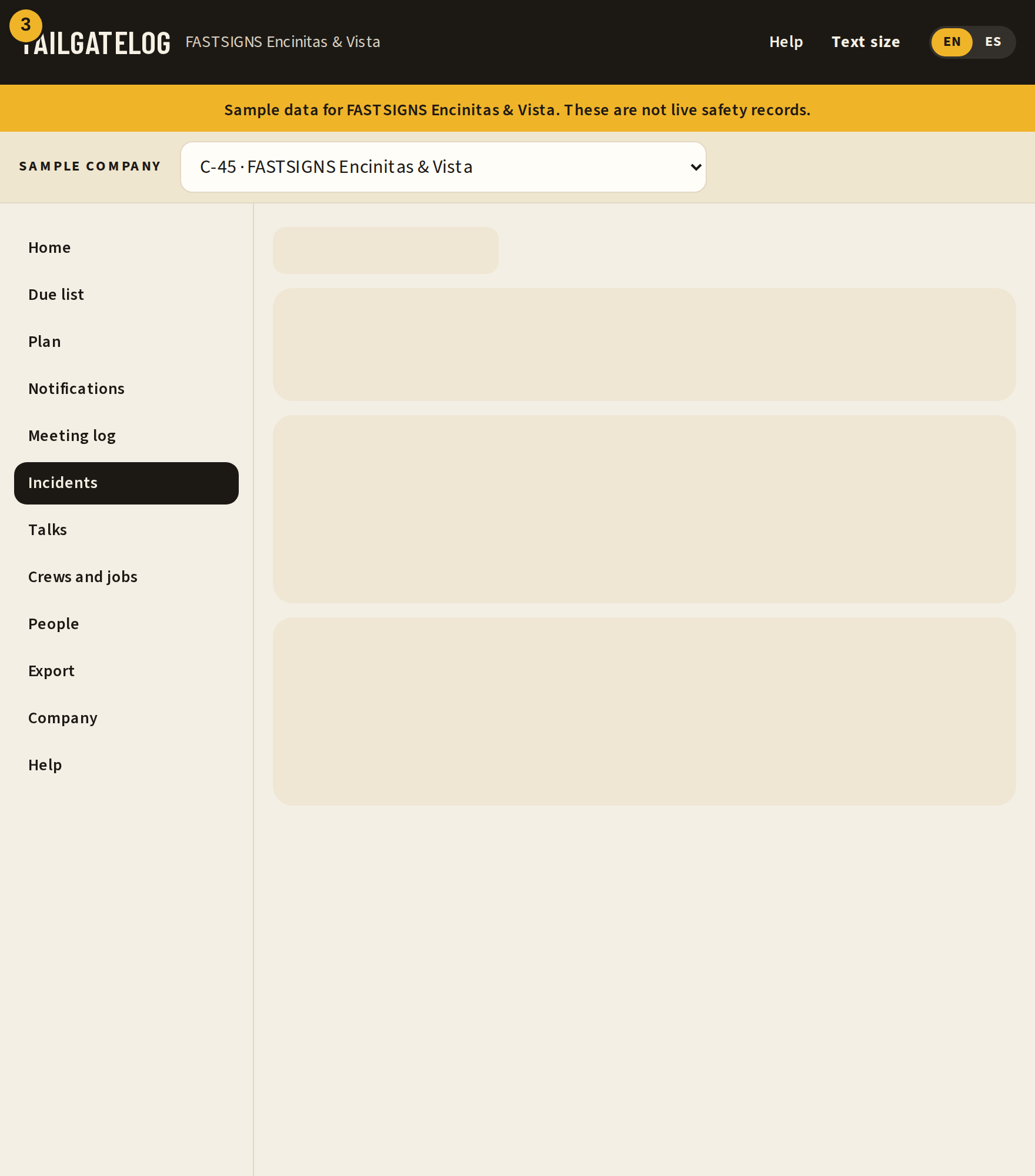
Owners, admins, and the crew's foreman see the list. Filter by type, status, severity, job site, and dates. A worker sees only the reports they filed under their name.
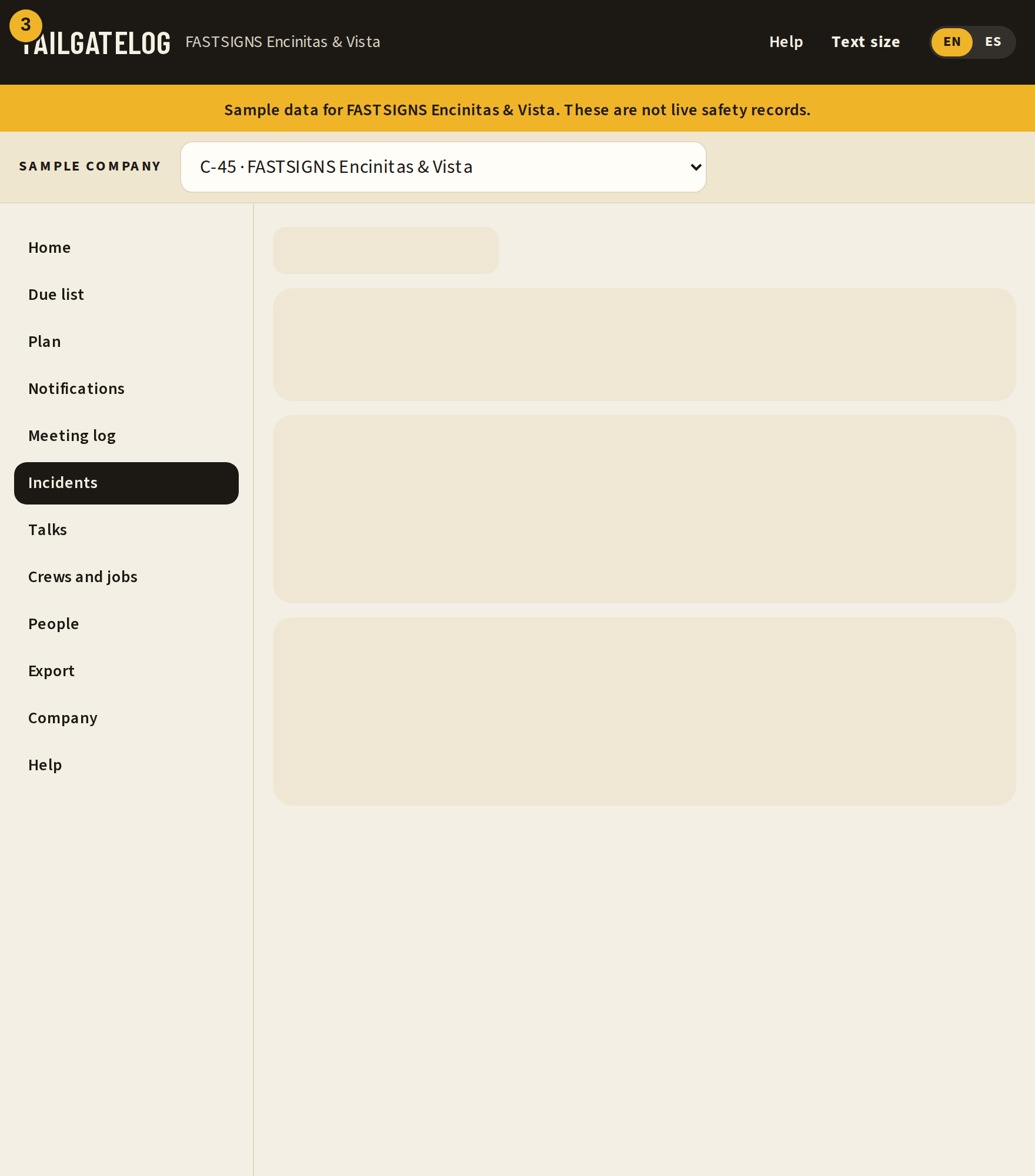
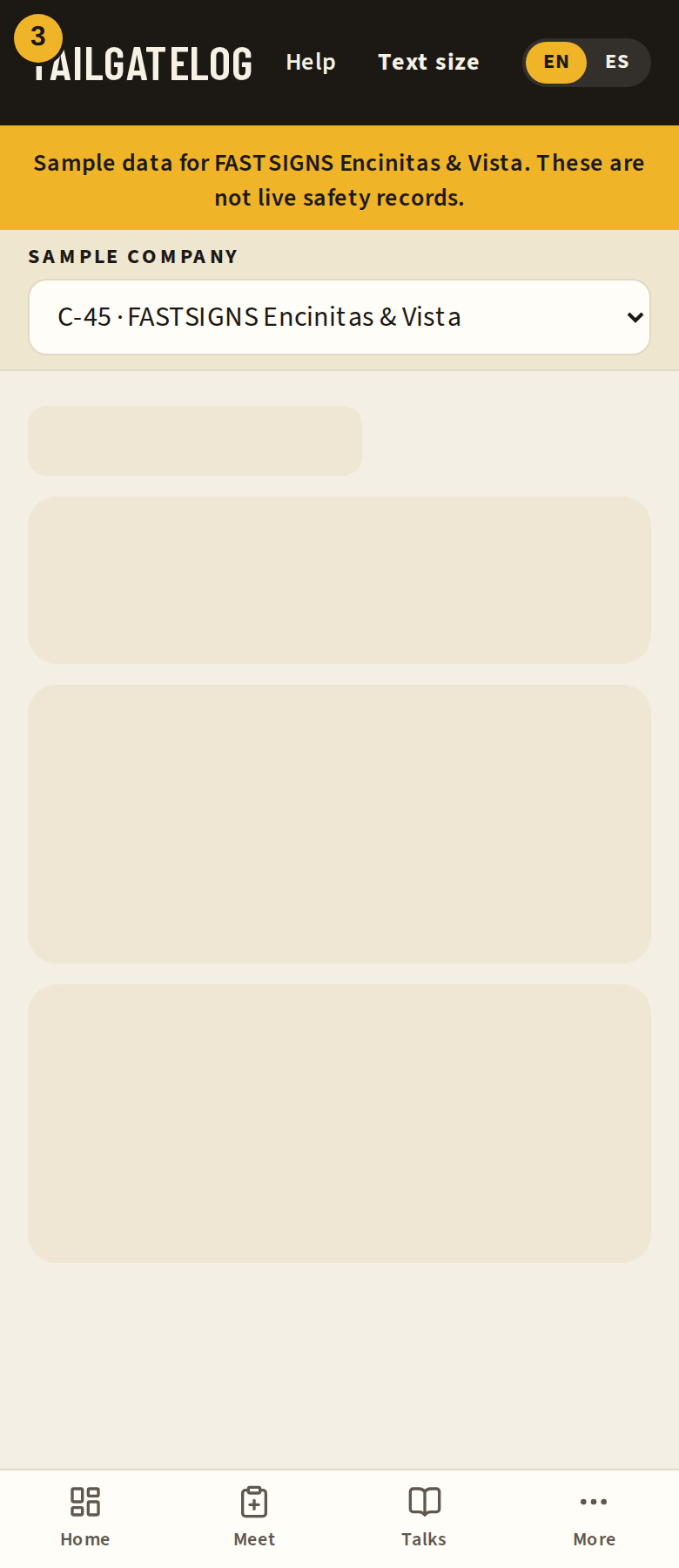
- Type filter.
- A saved report.
- Report.
Open a report to set the status: new, under review, corrective action assigned, or closed. Assigning corrective action needs an owner and a due date. Closing needs a short note of what you checked. Comments stay on the report. Create follow-up tailgate opens a meeting with the crew, the job, and a suggested talk from the library that matches the hazard tags and the trade. The meeting record shows the linked incident.
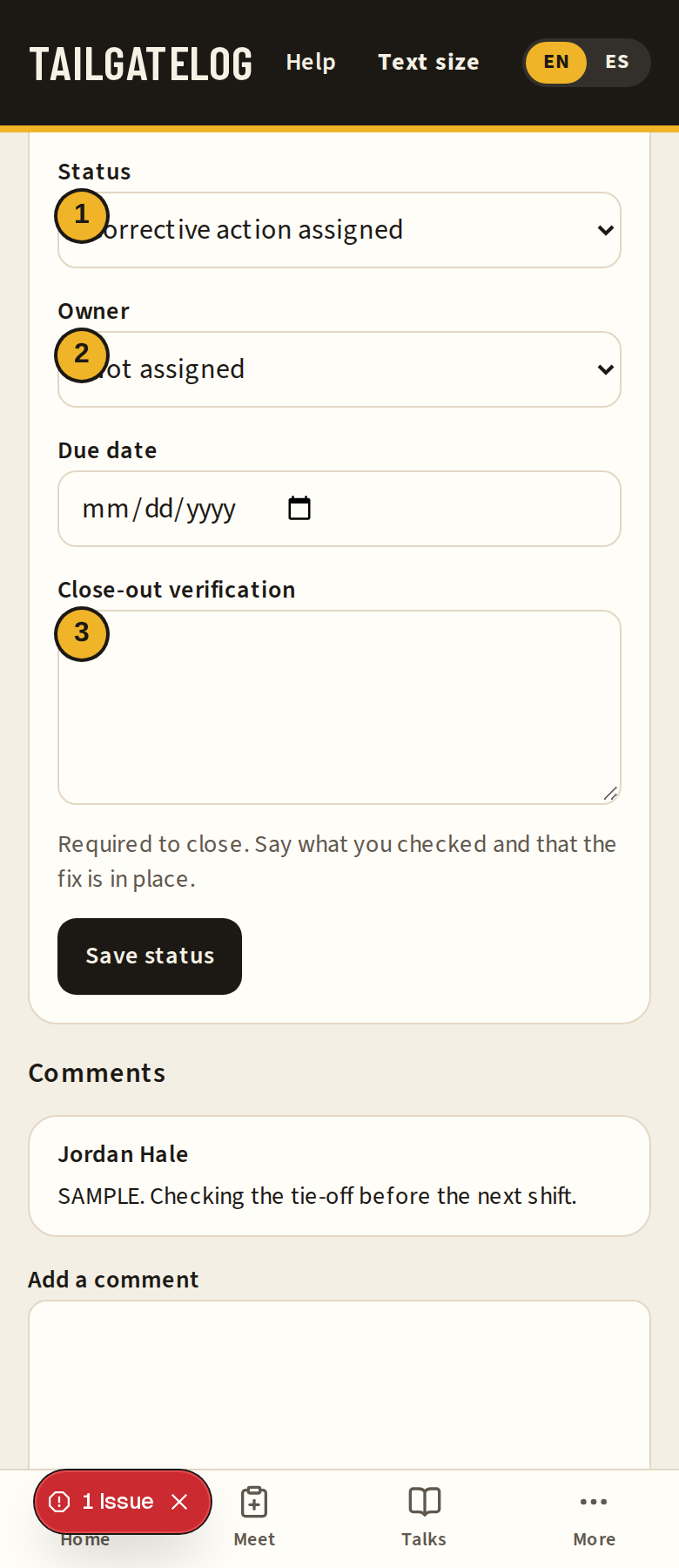
- Status.
- Owner of the corrective action.
- Close-out verification.
Trends counts one month by type, trade, and job site, and lists the hazard tags used most.
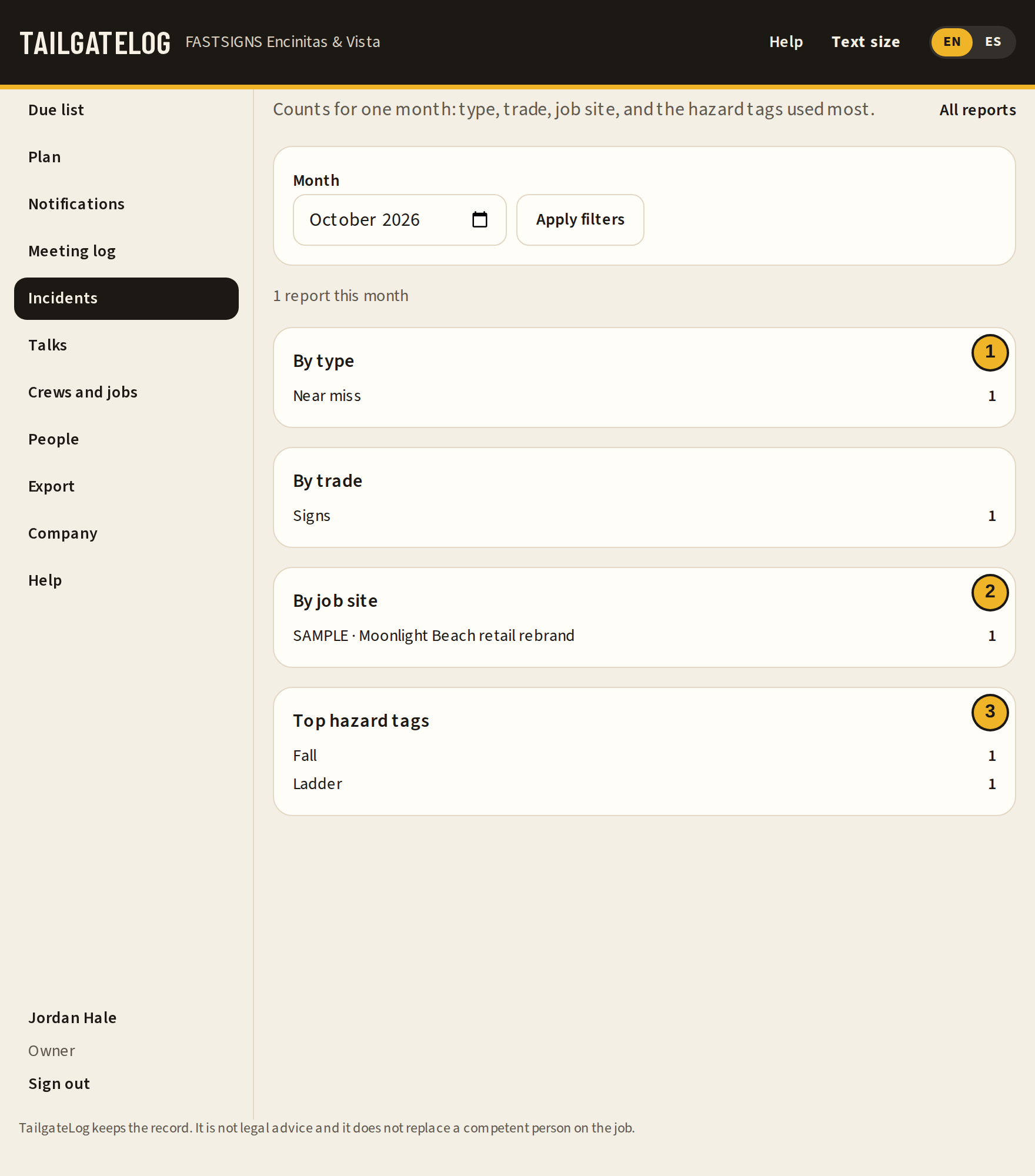
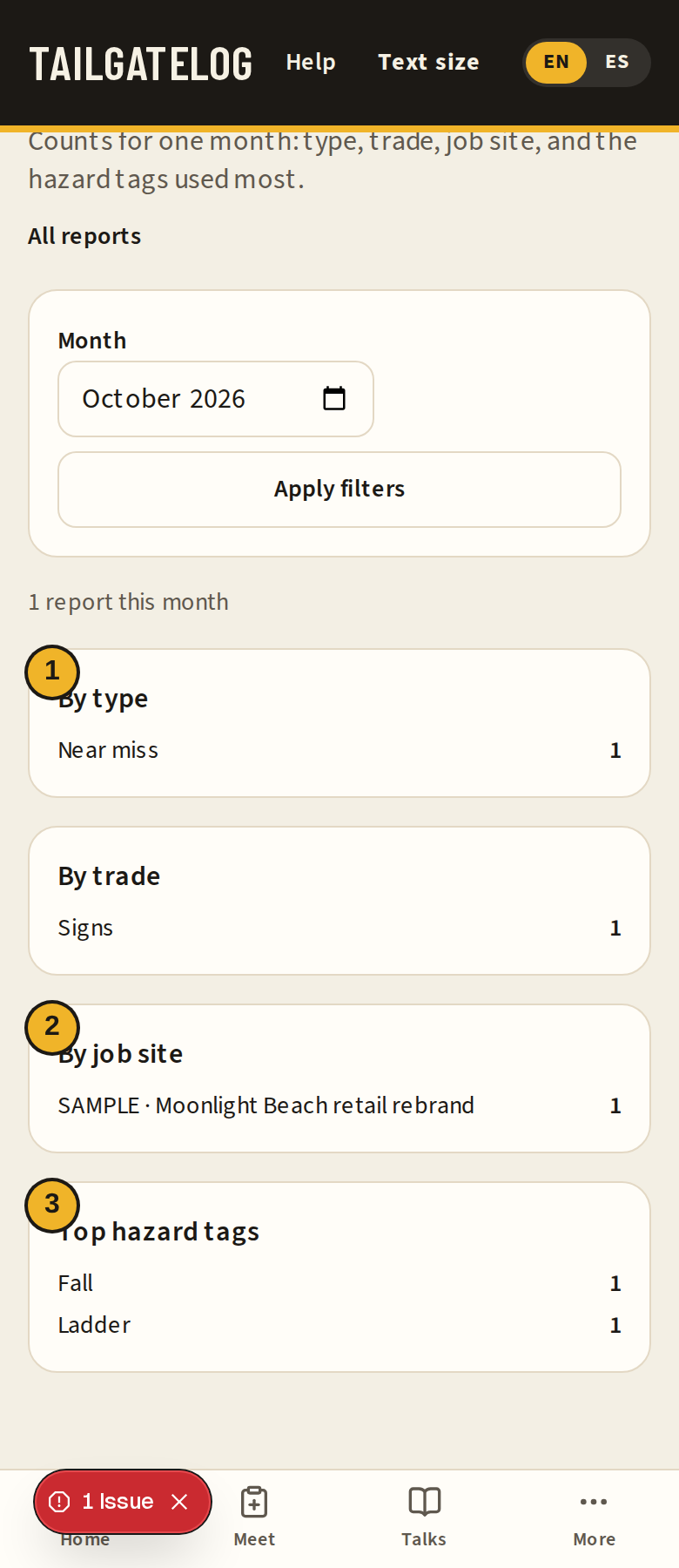
- By type.
- By job site.
- Top hazard tags.
A foreman, owner, or admin can show a no-account link for one crew. A phone on that page can file a near miss or an unsafe condition, with or without a name. It cannot open the log. Injury, first aid, and property damage stay on the signed-in form.
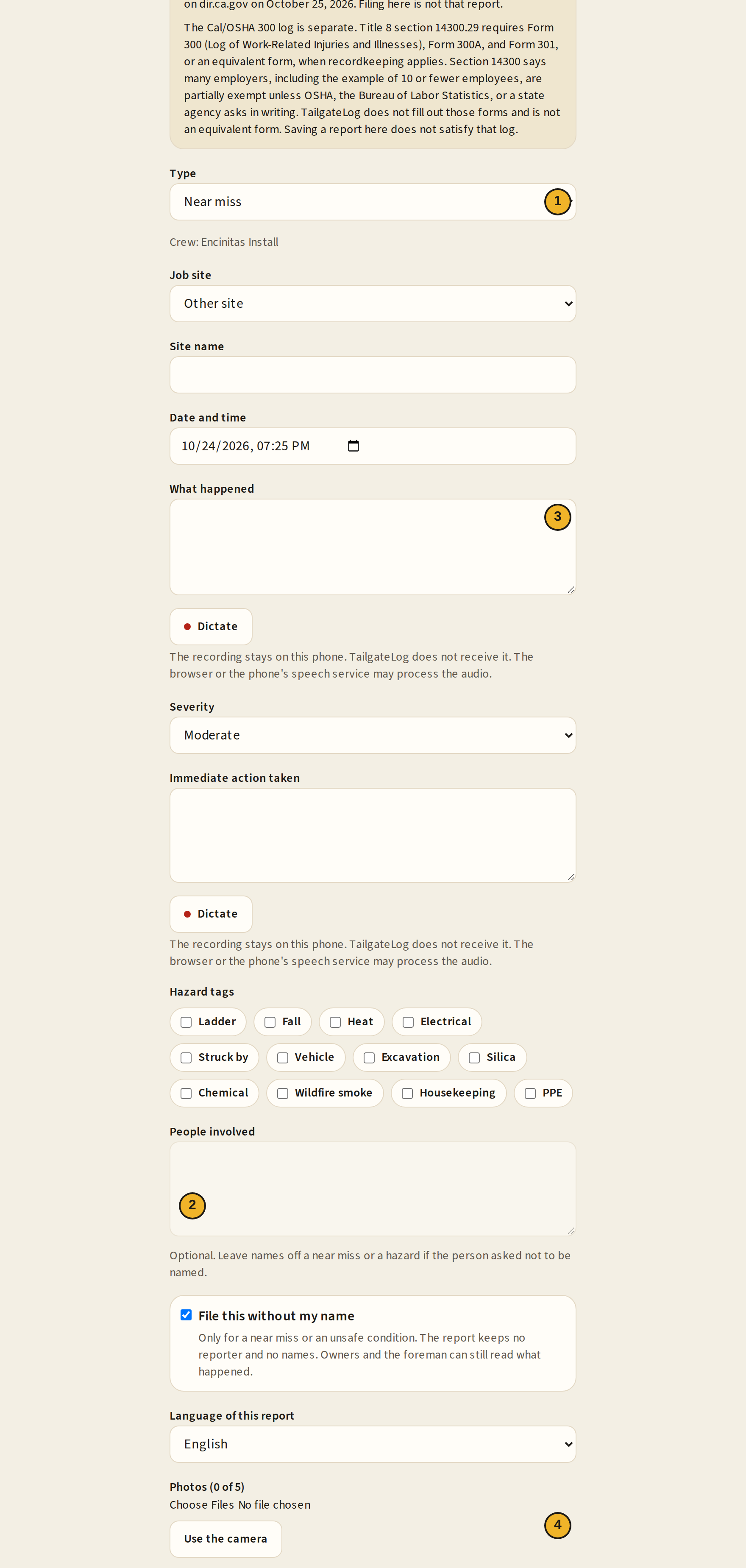

- Type. Only a near miss or an unsafe condition.
- File this without my name.
- What happened.
- Send report.
Questions
Short answers for the problems that come up on a job.
The password does not work
Ask an owner or admin to set a new one on People. There is no reset email. On a practice company the password is printed on the sign-in page.
The heat banner says the weather did not answer
Hold the meeting anyway. Read a thermometer in the sun and check the PM2.5 AQI before work. The app does not invent an AQI number when it has no reading.
There is no Start heat meeting button
The reading is under the threshold, the job has no ZIP or coordinates, or no heat talk is in season. You can still choose a heat talk from the library. Shade is the step above 80°F. High-heat procedures start at 95°F. A competent person decides either way.
A signature was saved offline
It stays on that phone or tablet until the signal returns, then it uploads once. Do not sign the same person again for the same meeting unless the first one was cleared.
The screen is in the wrong language
Use EN or ES in the black bar. That is the app language. Language this talk is given in on the meeting is only for that meeting.
The gold bar says this is sample data
You are in a practice company. Do not treat it as the live safety file. The heat pictures in this manual also say SAMPLE READING when they are not the live forecast.
Who exports the packet
An owner, an admin, or the foreman of that crew. A worker does not export. Check Include incidents in this file only when the packet should list incidents. Anonymous reports leave names out. The file is not Form 300.
Can a near miss leave my name off
Yes, on a near miss or an unsafe condition, signed in or on the crew's no-account link. The office still sees what happened. An injury, first aid, or property damage keeps the name of the person who filed it.
Does a report here replace the Cal/OSHA call or the 300 log
No. Title 8 section 342 still requires the employer to report a serious injury, illness, or death to Cal/OSHA immediately, and no longer than 8 hours, with a 24-hour window only when the employer can show exigent circumstances. Form 300, Form 300A, and Form 301 stay a separate record. This app does not fill those forms.
What changed
October 24, 2026 and October 25, 2026.
October 24, 2026
- Talk library with a trade filter and search, in English and Spanish.
- On-site sign-in: kiosk, QR code, and signatures saved offline.
- Due list, reminders, and notification settings. In-app notices always. Email, SMS, and web push only when those providers are configured.
- Inspection packet as a PDF and as a CSV.
- CSLB license number and the short IIPP cover note on Company.
- Corrective actions on the meeting, copied into the packet.
- Heat and wildfire smoke. Jobs take a ZIP or latitude and longitude. Home and the new-meeting screen show the risk banner, with Start heat meeting and Start smoke meeting when the reading calls for them. The meeting stores a weather snapshot, and the inspection PDF and CSV include it. Shade when the temperature is above 80°F. High-heat procedures at 95°F. N95s available for voluntary use at PM2.5 AQI 151 through 500. A competent person decides.
October 25, 2026
- This help manual, in the app and as a PDF, in English and Spanish. The heat and smoke pictures use a labeled sample reading when the live forecast would not show both buttons.
- Talk plan. Plan shows the next 12 weeks for a crew. Suggestions rotate hazard categories and prefer the season, the trade, open incident tags, and a heat or smoke alert. Accept a suggestion to put it on the calendar with a date and a leader. A scheduled talk is not overdue until that date has passed. Home shows this week's talk, with Start and Reschedule. Download the plan as a calendar file. A season tag marked for review is a guess, including the May fall-protection stand-down: the exact week was not verified, so the preference is the whole month.
- Incident and near-miss reports. Any signed-in person can file one. A near miss or an unsafe condition can leave the name off, including from a crew link with no account. Owners, admins, and the crew's foreman review status, assign corrective action, and close with a verification note. A follow-up tailgate can be opened from the report. Trends count the month by type, trade, job site, and hazard tag. The inspection PDF and CSV can include incidents when that box is checked. Anonymous rows omit names. Filing here is not the Cal/OSHA section 342 telephone or online report, and it is not Form 300.
- Swap on the talk plan skips a talk that is already planned or recently covered inside the repeat window, including a later week, while another talk is available. The calendar file includes a Pacific time zone block. A trench talk that is about heat stays in May through October. Dry electrical talks stay year-round. An open incident can still pull a talk outside its season, and the line under the title says why.
- Text size, high contrast, sunlight, and gloves. The control is in the black bar, including before sign-in and during a meeting. Dictate on notes, reports, comments, and talk search. Read aloud and Present are on a talk, on the new-meeting form under the language, and on a saved meeting. Audio stays on the phone.
- In-app notices follow the language you are using now. The product name is filled in. It is not left as an unfilled placeholder.
- Plan and billing under Company. Free keeps 1 crew, 10 workers, 1 job site, the last 90 days, and marks exports Free plan. Pro is the paid plan. The prices on the page are placeholders until they are confirmed. A 14-day Pro trial does not ask for a card. Signing in and filing an incident stay available. Canceling does not delete records. When Stripe is not set, the page says billing is not configured and the company stays on the full plan.
- A public page at the site root for people who are not signed in, in English and in Spanish, with a draft Privacy Policy and draft Terms marked for attorney review. A new company can be created from Start free trial. The topic bank is the talks that ship with the app, in English and Spanish, including electrical, roofing, HVAC, concrete, and painting. It is not a count of 400.
- An in-app reminder shows the due date when the original notice had one, and leaves that sentence out when it did not. A suggested talk uses the title for the language you are using when that talk is in the library. The Company picture includes Plan and billing.
TailgateLog keeps the record. It is not legal advice and it does not replace a competent person on the job.